

Good gaming setup integration starts before the new box hits the desk. A faster GPU, wider monitor, new desk, or fresh case can make an old setup feel new again, but only if the rest of the environment can support it. The practical question is not whether a new part is exciting. It is whether your case, power supply, cables, airflow, monitor position, desk space, and daily habits are ready for it without forcing a full rebuild.
This is where a lot of gaming setups go sideways. Players buy the headline part first, then discover the power connector is awkward, the case front panel chokes intake, the monitor arm cannot hold the new display, or the desk has no clean path for cables. That does not mean every upgrade needs to become a shopping spree. It means the best setup work is a mix of compatibility checks, small physical adjustments, and honest budgeting.
Gaming Setup Integration Starts With The Existing Room
Map The Gaming Setup Integration Before Buying
Before buying hardware, map the setup as it exists now. Measure desk depth, monitor distance, case clearance, wall outlet access, chair position, and the path your cables take from the tower to the display and peripherals. This sounds basic, but it is the difference between a clean upgrade and a frustrating weekend of moving furniture around a PC that technically fits but feels wrong.
Good gaming setup integration also means identifying which items are staying. A solid desk, working monitor, reliable keyboard, and quiet case may not need replacing just because the GPU or display changes. If you are planning a bigger style refresh, our piece on innovative PC builds is a useful companion read because it treats the PC as part of the room rather than an isolated box.
Keep The Parts That Still Fit The Job
Budget discipline matters. If a part still fits the target, keep it. A 1080p monitor can still make sense for competitive play if the goal is high refresh rather than more pixels. A mid-tower case can still be useful if it has enough GPU clearance and a workable airflow path. A desk can survive several hardware generations if it has enough depth, cable routing, and monitor support.
The trap is replacing good support gear with flashy gear that does not solve a real problem. Spend where the existing setup blocks the upgrade. If the new GPU needs better power delivery, the PSU moves up the list. If the new monitor creates neck strain, the stand, arm, or desk height matters more than RGB strips. If the case runs hot or traps cables in front of fans, airflow and cable paths deserve attention before cosmetic changes.
Power And Connector Checks Before A GPU Swap
Read The PSU Label Before The GPU Box
Power is the least glamorous part of a gaming upgrade, but it is one of the easiest places to make an expensive mistake. Intel’s ATX v3.0 PSU standard, finalized on February 1, 2022, required new OEM power supplies rated 750 W or higher to include the 12VHPWR connector for add-in cards, according to Tom’s Hardware on ATX v3.0. That does not mean every older PSU on a desk is ready for a modern graphics card, and it does not mean wattage alone tells the whole story.
Check the exact PSU model, age, cable set, connector support, and manufacturer guidance for the graphics card you plan to install. Modular cables are not always interchangeable between PSU brands or even between product lines from the same brand, so reusing a random cable from a drawer is not worth the risk. If the GPU box asks for specific connectors or adapter handling, follow the GPU and PSU documentation rather than guessing.
Plan Headroom Without Buying For Bragging Rights
A stronger PSU can make sense when the system is moving to a high-end GPU, power-hungry CPU, several drives, more fans, or future upgrades. That said, buying the largest unit on the shelf is not automatically the smart move. The useful target is a quality unit with the correct connectors, enough wattage for the full system, and room for realistic expansion.
For gaming setup integration, think about power as part of the whole desk environment. A PSU change may require rerouting cables, opening the case fully, moving the tower, and checking that the rear exhaust area is not pressed against a wall. It is not just an internal PC job. It can affect where the tower sits and how serviceable the setup feels later.
Airflow, Cables, And Case Fit
Treat Fans As A System
Airflow should be planned as a path, not as a pile of extra fans. The usual goal is to bring cooler air in from the front or bottom and move warmer air out through the rear or top, while keeping the GPU and CPU cooler supplied with fresh air. Some cases and cooler layouts may behave differently, so the sensible move is to test before and after any fan change instead of assuming one layout works for every build.
Mesh front panels and less obstructed intakes generally make cooling easier than closed fronts because fans are not fighting as much restriction. If you are keeping an older case, remove dust filters for cleaning, check that front intake is not blocked by a wall or desk side panel, and confirm that the GPU has breathing room. A new graphics card that fits by length can still run louder if it sits too close to glass, cables, drive cages, or a solid front panel.
Cable Work Is Part Of Cooling
Cable management is often treated as a photo issue, but it has a practical side. Loose cable bundles can sit in intake paths, crowd the GPU area, or make fan swaps annoying. You do not need a show build to get the benefits of neat routing. You need clear paths from intake to components, no cable tension on GPU power connectors, and enough slack to remove side panels without yanking headers.
Fully modular power supplies can help because unused cables can stay out of the case, but the result still depends on routing. Use the rear chamber if the case has one, keep front intake open, and avoid bending high-power GPU cables sharply right at the connector. After the first boot, check that no cable is touching a fan blade. Then run the games or apps you actually use and listen for fan ramping, rattles, or heat buildup.
Displays, Desks, And Player Comfort
Match The Monitor To The Hardware
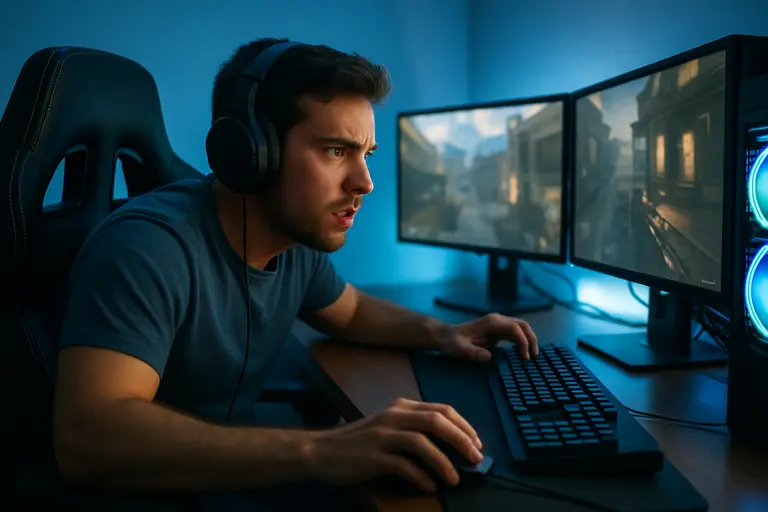
A monitor upgrade can be the best visible change in a setup, but it should match the GPU target. Jumping from 1080p to a much higher resolution raises the graphics workload, so the display choice should reflect the games you play and the settings you are willing to adjust. A competitive player may prefer refresh rate and motion clarity. A single-player fan may care more about size, contrast, and resolution. Neither path is wrong; the mistake is buying a display the rest of the system cannot comfortably support.
OLED gaming monitors have become a bigger part of the buying conversation, but they are still a premium-style purchase for many players. Treat them like any other upgrade: check desk depth, brightness needs, warranty terms, panel care guidance, and GPU fit before you spend. A great display can expose weaknesses elsewhere, including GPU limits, poor desk ergonomics, or awkward speaker placement.
Desk Space Can Limit The Upgrade
Desk ergonomics are not decoration. They decide where the monitor sits, where the keyboard lands, how much mouse space remains, and whether the tower can breathe. PC Gamer’s 2026 desk coverage lists the Secretlab Magnus Pro XL with a 64-127 cm height range, or 25-50 inches, and notes its sit-stand use, large monitor support, and cable routing focus in its gaming desk picks. That kind of spec is useful because it shows what to check, even if you buy a different desk.
If your current desk is staying, test it like hardware. Can the monitor sit at a comfortable height without stacking books under it? Is the mouse area wide enough after adding a larger keyboard or audio interface? Does the tower sit where it can pull air freely? Can you reach the rear I/O without crawling under the desk every time you plug in a headset, capture card, or controller?
- Upgrade the blocker first: PSU, case airflow, monitor support, or desk space.
- Measure GPU length, case clearance, desk depth, and monitor arm capacity before ordering.
- Keep working gear if it still fits the target games, resolution, and comfort needs.
- Test noise and temperatures after each change instead of changing everything at once.
- Use related buying advice from trusted outlets and network sites such as Rave Tech when comparing broader gear options.
Gaming Setup Integration For Existing Environments
Build In Stages, Then Test
The cleanest upgrade path is staged. Install one meaningful change, test it, then decide what still needs work. A new GPU may reveal that the PSU or airflow needs attention. A new monitor may reveal that the desk depth is the real issue. A new desk may make the current case placement worse or better. Staging avoids the common mistake of replacing five parts and then not knowing which one caused the new noise, heat, or cable mess.
Set expectations before you spend. No guide can guarantee a specific frame rate, noise level, or temperature because games, rooms, cases, components, and fan curves vary. What you can control is the planning: connector support, wattage headroom, cable routing, intake space, monitor fit, and posture. That is where gaming setup integration earns its keep. It lets you add new hardware without treating the existing environment as disposable, and it keeps the budget focused on the parts that actually improve how the setup plays, feels, and survives the next upgrade.