

Your CPU isn’t just a silicon brain – it’s a miniature sun trying to melt through your motherboard. Let’s talk thermodynamics, shall we?
We’re setting realistic thermal targets that won’t have your components sweating like a politician at a press conference. Think of this as setting speed limits for your silicon highway.
Intel’s i9-9900K claims a 95W TDP, but it actually uses 164W under load. That’s like promising a gentle breeze and delivering a hurricane.
We’ll figure out what temperatures are okay versus what’s a thermal emergency. If you’re too cautious, you waste performance. If you’re too bold, you risk a meltdown.
This isn’t just about finding the best CPU cooler – it’s about understanding the physics behind the heat. Your components deserve better than guesswork.
CPU/GPU limits, acoustic goals
Every PC builder wonders: how much power can we get without it being too loud? It’s like wanting top-notch food but at a low price.
Modern processors are close to overheating. Intel’s chips can get hot fast, while AMD’s tech boosts performance when it’s cooler.
- Thermal headroom for overclocking and sustained boosts
- Acoustic comfort that won’t disturb your Zoom calls
- Component longevity because silicon has feelings too
Let’s look at the important numbers. We’re not aiming for zero temperatures. We want a balance between performance and quietness.
| Cooling Type | Max CPU Temp (°C) | Noise Level (dBA) | Overclocking Headroom |
|---|---|---|---|
| Stock Air Cooler | 95-100 | 42-48 | Minimal |
| Premium Air Cooler | 75-85 | 34-38 | Moderate |
| 240mm AIO | 70-80 | 36-40 | Good |
| 360mm AIO | 65-75 | 38-42 | Excellent |
The best cooling often means more noise. It’s a trade-off we make. Your choice depends on what you value more: fast performance or quietness.
GPU thermal limits have their own rules. Modern graphics cards adjust their speed based on temperature. Lowering your GPU’s temperature can boost its speed by 50-100MHz.
Case airflow is key. Without good airflow, even the best cooling systems fail. It’s like trying to breathe through a straw while running.
Setting realistic noise goals is important. Aim for 35-40 dBA during gaming. Idle should be around 25-30 dBA, almost silent.
Thermal management is about finding a balance. It’s not just about the lowest numbers. It’s about letting your components perform well without being too loud.
Air vs AIO vs Custom Loop
Welcome to the thermal management thunderdome, where three philosophies clash in the eternal battle against thermodynamics. It’s like choosing between a reliable sedan, a sporty convertible, and building your own hypercar from scratch.
The humble air cooler brings brute force simplicity – think of it as the Chuck Norris of heat dissipation. All-in-one liquid systems offer that sweet spot of performance with minimal fuss. Then there’s custom loops: the engineering equivalent of performing open-heart surgery on your own creation.
We’re breaking down what actually matters: real-world performance, noise levels that won’t drive you insane, maintenance requirements, and whether that shiny water feature is worth mortgaging your savings. Because let’s be honest – your fan curves shouldn’t sound like a jet engine taking off during Zoom meetings.
This isn’t just about keeping things chill. It’s about finding the perfect balance between performance, practicality, and not having your desk look like a mad scientist’s laboratory.
Pros/cons, lifespan, maintenance
Choosing your PC’s cooling system is like picking a personality type. Are you a minimalist, a performance enthusiast, or a tinkerer?
Air cooling is like a Toyota Camry – it’s not the prettiest but it’s reliable for years. It’s simple: metal, fans, and physics.
- Pros: Zero maintenance, lasts forever, quiet, no leaks
- Cons: Big, can’t overclock much, struggles with heat
- Reality: Install it and forget it for 5+ years
AIO Liquid Cooling: The Sporty Compromise
AIO units are like sports cars – they look good, cool better, but cost more in the long run. That pump won’t last long.
- Pros: Better cooling, looks nice, fits small spaces
- Cons: Pump fails in 2-5 years, leaks possible, radiator needs care
- Reality: You get better cooling now but less reliability later
Custom Loop Liquid Cooling: The Formula 1 Experience
Custom loops are like Formula 1 cars – they perform best, look amazing, but need constant care. You’ll need a team to keep it running.
- Pros: Best cooling, can customize, looks stunning
- Cons: Needs care every quarter, leaks risk, expensive, hard to learn
- Reality: It’s a big commitment that needs constant attention
There’s no perfect choice. Your pick depends on what you value most: reliability, balanced performance, or top cooling.
That liquid cooling system might look great now, but it could become a big maintenance task later.
Case Airflow Design
Your computer case is more than just metal. It’s a wind tunnel designed with care. It either works with or against physics. We’re tackling airflow design with the seriousness of an aeronautical engineer and a dash of humor.
It’s not just about air movement. It’s about creating a thermal environment that keeps your components cool. Think of it as feng shui for your hardware, where airflow and temperature are key.
Radiator placement is critical. Front or top-mounted, each choice affects your system’s noise optimization. Get it wrong, and your system will be as loud as a jet engine.
The right airflow design balances heat and sound. It turns your workstation into a quiet space or a noisy office. Proper noise optimization is all about applying physics with purpose.
Intake/exhaust balance, dust strategy
Think of your case airflow like a diplomatic summit between rival nations. Too much intake creates positive pressure – your case becomes a pressurized cabin where dust particles can’t find entry visas. Too much exhaust? You’ve created a vacuum cleaner that sucks debris through every available seam.
The sweet spot lies in strategic imbalance. Aim for slightly positive pressure – about 10-15% more intake than exhaust. This creates gentle outward airflow through unfiltered gaps, preventing dust infiltration while maintaining efficient cooling.
Here’s how to achieve airflow nirvana:
- Front/bottom fans as intake (filtered)
- Top/rear fans as exhaust
- Match fan speeds for slight positive pressure
- Regular filter maintenance every 2-3 months
This balanced approach ensures your components stay cleaner longer while maintaining optimal thermal performance. Remember: good airflow management is what separates adequate cooling from truly exceptional thermal performance with the best CPU cooler setups.
The right balance means your system runs cooler, quieter, and stays cleaner. It’s the difference between a temporary thermal solution and a long-term cooling strategy that actually works.
Fan Strategy
Let’s talk about the unsung heroes of your setup – those spinning wonders. They either whisper sweet nothings to your components or scream like banshees at the first sign of thermal distress. It’s time to move beyond the mindless spinning and embrace intelligent case airflow management.
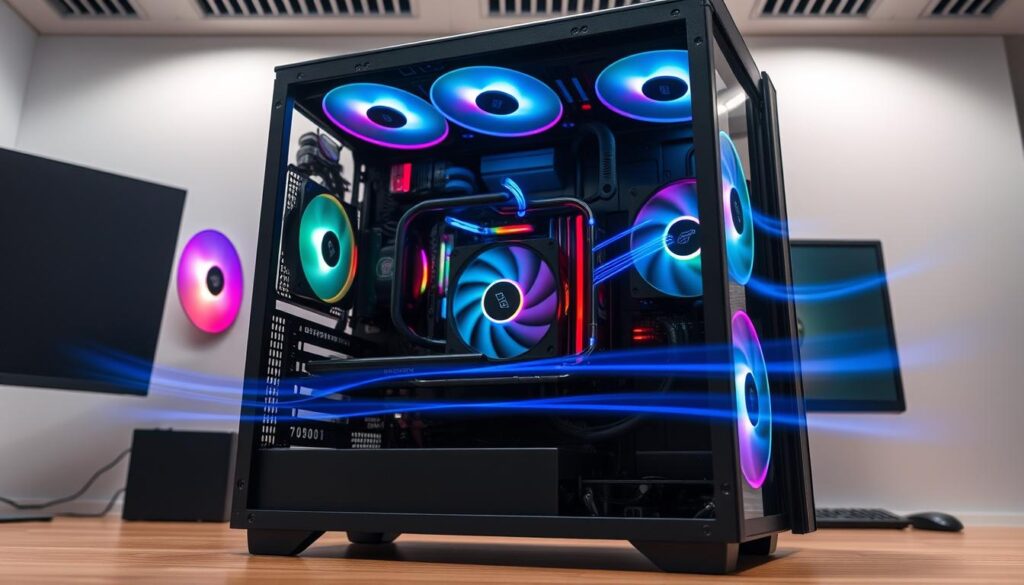
Why settle for a data center symphony from 2005 when you can have acoustic comfort? Modern fan curves respond intelligently to thermal demands. They don’t just spin at full tilt. This isn’t just about noise – it’s about creating symphonies of airflow.
The real magic happens when you balance thermal performance with audible peace. Remember the roommate test at 3 AM? That’s where smart fan strategies prove their worth. Your gaming experience shouldn’t sound like a jet engine preparing for takeoff.
Liquid systems benefit from this approach, too. They offer whisper-quiet operation even under load. It’s not just about keeping things chill – it’s about doing it with style and subtlety. Because let’s face it, nobody wants their rig sounding like it’s trying to achieve liftoff.
Static pressure vs airflow, placement, curves
Not all spinning circles are created equal. Some fans are made to push through tough spots, while others like it easy. Knowing this difference is key to cooling your system right.
Static pressure fans are great for tight spots. They can move air through radiators and small openings. Think of them as the subway riders who squeeze through during rush hour.
Airflow fans, on the other hand, love open spaces. They move freely, making them perfect for big case intakes and exhausts. These fans are like the highway drivers who cruise without a care.
Choosing where to put your fans is very important. Use static pressure fans in tight spots and airflow fans in open areas. Choosing the right fan for the job is key.
Now, let’s talk about fan curves. These aren’t just speed settings. They’re special profiles that help your fans adjust to temperature changes.
Creating good fan curves means understanding how things heat up and cool down. Your curve should start fast when it gets hot and slow down when it cools. This way, your system stays cool without wasting energy.
The perfect curve keeps your system cool and quiet. It’s like finding the right balance for your system. Modern motherboards have tools to help you create these curves.
Remember, your fan curve should match your fan types. Static pressure fans might need steeper curves, while airflow fans can run slower and cooler.
Paste & Mounting
Let’s explore the magical material that helps heat transfer in concrete. We’ll look at thermal paste application with both skill and humor. It’s a mix of art and science.
The secret is simple: use less paste. Too much can act like insulation, not a conductor. Aim for a thin layer that fills tiny gaps without blocking heat.
Mounting pressure is also key. You need enough to ensure good contact, but not so much it bends your motherboard. This rule applies to both air and liquid coolers.
Mastering these steps can greatly improve your system’s cooling. It’s the difference between a cool-running system and one that overheats easily.
Contact pressure, offsets, lapping myths
Ever tried to fix a thermal issue and ended up with a mechanical problem? Welcome to the Goldilocks zone of CPU mounting. Here, too little pressure causes thermal gaps, and too much causes mechanical stress. It’s a delicate balance.
Your CPU and cooler are like dance partners. They need to be close to transfer heat well, but not too close. The ideal pressure is usually between 30-50 pound-inches for most systems.
Modern mounting solutions have moved beyond simple screws. Offset mounting brackets help because not all CPUs are perfectly flat. They apply pressure where the heat-generating cores are, not where they’re supposed to be.
Lapping is a myth. Sanding your CPU heat spreader to a mirror finish won’t drop temperatures by 10°C. The actual improvement is 1-2°C at best, which is barely noticeable.
Proper contact pressure is key for noise optimization. When your cooler makes full contact, heat transfers well. This means your fans don’t have to spin as fast or as loud.
Offset mounting kits are a smart solution. They work with your CPU’s actual shape, not against it. It’s like custom tailoring, not trying to fit into off-the-rack clothes.
The magic happens when cooler and CPU mate perfectly. You’ll know you’ve succeeded when temperatures stabilize and your system runs quieter. This is done without using too much force or turning your CPU into a mirror.
If you’re applying so much force that you worry about cracking your motherboard, you’ve lost. Precision is more important than pressure in cooling.
GPU Thermals
Meet the forgotten thermal volcano in your system. While everyone obsesses over CPU temperatures, your graphics card quietly bakes itself into thermal throttling oblivion.
We’re applying the same analytical rigor to GPU thermals that we gave your processor. Because why should your CPU get all the cooling love?
Memory junction temperatures can cripple performance. VRM cooling often becomes an afterthought. Your graphics hardware deserves better than being the hot sibling nobody talks about.
Liquid cooling solutions offer distinct advantages for tackling these challenges. They’re not just for CPUs anymore. The right thermal management can transform your gaming experience from stuttering mess to buttery smooth.
Think of it this way: your GPU works just as hard as your CPU. Maybe harder when you’re chasing those high frames. Doesn’t it deserve the best CPU cooler technology adapted for graphics?
Vertical mounts, extra fans, memory pads
Your GPU’s cooling setup is like a three-act play: orientation, airflow, and interface materials. Each element deserves its moment in the spotlight.
Vertical mounting looks great – like putting your graphics card on a red carpet. But does it perform like a Hollywood A-lister? Not always.
Vertical mounting often sacrifices thermal performance for aesthetics. When you stand your GPU upright, it sits closer to the glass side panel. This creates what I call the “thermal sandwich effect.”
The card breathes its own hot air instead of getting fresh cool air from your case airflow system. It’s like trying to run a marathon while breathing through a straw.
Now let’s talk supplemental fans. Your GPU cooler works hard, but it’s not a solo act. Adding strategic fans can drop temperatures by 5-10 degrees.
Place two 120mm fans directly beneath your horizontal GPU. Set them to intake fresh air right into the GPU’s fans. This creates a wind tunnel effect that makes your graphics card breathe easier.
Lastly, we reach the most overlooked backstage pass: thermal pads. Your GPU’s memory and VRMs generate serious heat that the stock cooler often neglects.
Upgrading thermal pads is like giving your graphics card a proper supporting cast. Quality pads ensure heat transfers efficiently from all components to the cooler.
Remember: thickness matters more than brand names. Measure your existing pads precisely before ordering replacements. Too thick and you risk poor contact; too thin and you get inadequate heat transfer.
This three-pronged approach transforms GPU cooling from an afterthought into a precision operation. Proper orientation, supplemental airflow, and quality interface materials work together like a well-rehearsed orchestra.
Your case airflow strategy should treat the GPU as the thermal powerhouse it is, not just assume the stock cooler has everything handled. Because when your graphics card stays cool, your entire system performs better.
Monitoring & Control
Think of temperature monitoring like checking your phone’s battery percentage. You don’t stare at it constantly, but you’d notice if it dropped to 1%.

We’re exploring the balance between keeping an eye on your system’s temperature and not getting too caught up. There are two main ways to manage heat: the BIOS method and using software.
The BIOS method is straightforward but not very flexible. It’s like setting cruise control. On the other hand, software lets you create detailed fan curves for better control.
Why is this important? Proper fan curves can make your system run smoothly and efficiently. It’s like turning your system into a well-oiled machine.
It’s not about watching every degree change. It’s about knowing when something might go wrong before it does.
BIOS vs software, hubs, sensors
Ever feel like you’re conducting an orchestra where half the musicians ignore your baton? Welcome to PC cooling control. You’ve got two maestros vying for authority: the steady, reliable BIOS and the flashy, flexible software suite.
BIOS control offers set-it-and-forget-it simplicity. Your fans follow temperature curves you establish once. No background processes. No software conflicts. It’s the thermostatic equivalent of a trusted old butler—predictable but not very adaptable.
Software control brings more detailed control. Real-time adjustments. Individual fan curves. RGB synchronization. But you trade stability for features. Suddenly you’re managing background processes, updates, and occasional conflicts. It’s like having a smart home that occasionally decides to boil your goldfish.
Fan hubs bridge this divide beautifully. These clever little traffic cops let you manage multiple fans through a single interface. The best hubs offer both BIOS-passthrough and software control options. For complex liquid cooling systems, they’re practically mandatory.
Then there’s the sensor question. Built-in motherboard sensors give you the broad strokes. Add-on thermal sensors provide detailed data from specific components. Want to know exactly how cool your VRMs are running? Additional sensors deliver that intelligence.
The right balance depends on your tinkering tolerance. Minimalists should stick with BIOS control. Control enthusiasts will love software flexibility. And everyone should consider a quality hub for managing multiple fans—especialy in sophisticated liquid cooling setups.
Remember: the goal isn’t maximum control. It’s optimal liquid cooling performance without driving yourself insane. Choose your control method like you choose your thermostat—set it and mostly forget it, with options for seasonal adjustments.
Tiered Picks
Welcome to the main event. We’ve looked at the data, tested coolers, and now we’re ready to share our findings. It’s not just about the price—it’s about finding the right fit for you.
This is like finding the perfect match for your processor. We’ve sorted solutions by performance, noise optimization, and how well they work in real life. Whether you’re on a tight budget or have no limits, we’ve got you covered.
Our picks are based on solid data, not just marketing. We’ve compared coolers like the Arctic Freezer 33 and Dark Rock Pro series. It’s time to get to the bottom of things—both literally and figuratively.
For more on the top coolers, check out our detailed best CPU coolers overview. Let’s find the perfect thermal partner for you.
Quiet build, performance build, show loop
Choosing the right CPU cooler isn’t just about finding the best one. It’s about matching your cooling to your build philosophy. Just like wine and food, your cooling should enhance your goals, not hinder them.
There are three main cooling approaches, each with its own style and focus.
This build is as quiet as a whisper. It focuses on being silent, like a library. You’ll need big, slow fans and huge heatsinks for this.
Noctua’s NH-D15 is the top choice for silence. It’s incredibly quiet. The be quiet! Dark Rock Pro 4 is also great, with its sleek design.
Liquid cooling can also be quiet. But you need top-notch pumps and fan settings. The goal is to blend into the background noise.
The Performance Monster
This build is all about performance. It doesn’t care about being quiet. Every degree of cooling is important for pushing speeds to the limit.
Expect big water loops or high-end AIOs from Arctic and EKWB. The Arctic Liquid Freezer II series is a top performer, rivaling custom loops.
These systems can be loud. But their owners don’t mind. They want the best performance.
The Showpiece
This build balances performance and style. It’s like wearing a tailored suit. It looks good and works well.
RGB-lit AIOs from Corsair and NZXT are perfect for this. They offer great cooling and look amazing. Custom loops add to the visual appeal, making your case a work of art.
The EK-Quantum Reflection series is a prime example. It combines stunning looks with top cooling performance. It’s ideal for those who want their rig to look as good as it performs.
Your cooling choice shows your computing personality. Whether you value silence, performance, or looks, there’s a perfect match. The key is to know what you truly want.
Troubleshooting
Your system’s running hotter than a political debate in August. Suddenly, your frames per second are competing with your temperature readings in a race nobody wants to win.
Thermal problems always leave clues like a detective’s crime scene. That odd hum from your pump? The mysterious hot spot on your GPU? These are the breadcrumbs leading to your cooling culprit.
We’re playing thermal detective today, examining everything from case airflow patterns to those ominous pump noises that signal impending failure. Is your case airflow setup actually working against you? Let’s find out.
Large air coolers and AIO units come with their own reliability concerns. We’ll break down the warning signs and solutions with the precision of a seasoned investigator.
Hot spots, pump noise, resonance
Your cooling system has decided to develop its own personality. Wonderful. We’re dealing with three distinct troublemakers here, each requiring their own special approach.
Hot spots are the thermal equivalent of that one coworker who always misses deadlines but somehow avoids consequences. Your overall temps look fine, but certain components are secretly baking. VRMs and memory modules love playing this game.
The fix? Targeted airflow. Don’t just throw more fans at the problem. Use thermal imaging or temp probes to identify the exact location, then position a dedicated fan to address that specific area. Sometimes a simple 40mm fan can solve what a $100 cooler can’t.
Pump noise in AIOs transforms your peaceful workstation into a miniature industrial facility. That faint whine or grinding sound isn’t “normal” despite what manufacturers claim. It’s usually air bubbles trapped in the system or a failing pump.
Try tilting your case while running to move bubbles toward the radiator. If that doesn’t work, you might need to RMA before the pump gives up completely. No, turning up your speakers isn’t a valid solution.
Then there’s resonance – when your entire case decides to become a musical instrument. Certain RPM ranges make components vibrate sympathetically, creating hums or rattles that would make a physics professor proud.
The solution involves isolation and fan curves. Use rubber mounts for fans and pumps. Adjust your fan curves to avoid the problematic RPM range that triggers the resonance. Sometimes moving a fan just millimeters can break the harmonic pattern.
Remember: These issues require surgical precision, not brute force. Diagnose first, then apply the minimal effective solution. Your computer shouldn’t sound like a small aircraft taking off.
The Perfect Thermal Tango: Matching Coolers to Cases
Think of your cooler and case as dance partners, not awkward strangers at a PC building party. The right pairing turns thermal management into a beautiful performance.
Liquid cooling systems need roomy cases with good radiator spots. A small case can turn your cooling into a thermal trap. On the other hand, big air coolers need space and air flow. Don’t put a Noctua NH-D15 in a case that can’t breathe.
Noise optimization is easy when your case and cooler match. Fractal Design’s Define series with Be Quiet! coolers makes a quiet sound. Lian Li’s cases with Arctic Liquid Freezer radiators cool so well, you’ll forget your PC is on.
The look of your system matters too. Why hide beautiful EKWB liquid cooling behind solid panels? Show off your build with tempered glass and RGB lights. It’s the best mix of looks and function.
Your thermal solution is more than just a cooler. It’s about how all parts work together. Pick partners that enhance each other, and your system will dance its perfect thermal tango.