

Did you know your computer’s true power is hidden? It’s locked away by a silent gatekeeper. Every time you press the power button, a strict conductor starts working before Windows or macOS.
This conductor is your system’s firmware, also known as BIOS or UEFI. It’s the software that makes your computer do what you tell it to. Ignoring it is like always driving in “Eco” mode.
Seeing it as a tech chore is wrong. It’s the first step to truly understanding your PC. A simple update can change everything. It fixes bugs, closes security holes, and unlocks hidden speed.
It’s the base for all PC tweaks. Without updated instructions, you can’t fine-tune your computer. Let’s explore why this digital mastermind is so important.
Updating Safely
Updating your firmware is like defusing a bomb. The wrong move can be disastrous. It’s not just a risk; it’s a real possibility. Your motherboard could become a very expensive, silent paperweight.
Always get your update from the official website of your motherboard’s maker. Don’t download from unknown sites. It’s like taking a risk with a mysterious pill.
Step one is reconnaissance. Find out your motherboard model and BIOS version. You can check this in your system info or BIOS settings. Write it down as your starting point.
Step two is securing the environment. For desktops, use a reliable power source and a UPS if you’re careful. Laptops need to be fully charged and plugged in. A power loss during the update can be a disaster.
Step three is preserving the past. Before updating, enter your BIOS. Take a screenshot or photo of all settings pages. The update will erase these, and trying to recall settings later is hard.
Now, it’s time for the update itself. You have a few options, each with its own risks. Choosing wisely is key.
| Method | How It Works | The Sage’s Advice |
|---|---|---|
| UEFI/BIOS Flash | You download the file to a USB drive, reboot into BIOS, and use its built-in updater tool. | This is the safest way. It’s done in a controlled environment before Windows loads. Fewer things can go wrong. |
| Windows Utility | You run an .exe file from your manufacturer within Windows. | It’s convenient but adds complexity. Background processes or antivirus software can interfere. Use only if you must. |
| Flashback/BIOS Button | A physical button on the motherboard that reads a USB drive, even with a dead CPU. | This is your safety net. It’s mainly for recovery from a bad update, but some use it for the first update. Check if your board has it. |
The key is to be careful, not fast. Updating is like a ballet. Double-check the file name and USB drive format. Take your time.
For a detailed guide on how to update, there are great resources. But always prioritize safety. Get it right, and you unlock great benefits. Get it wrong, and you might end up with a fancy doorstop.
Unlocking Hidden Features
Your BIOS is like a secret menu at your favorite burger place. It’s where the magic happens when you know what to ask for. You’ve updated your BIOS without messing up your computer. Well done! But the real prize isn’t just praise. It’s access to capabilities your hardware possessed all along.
The most common unlock is processor compatibility. That new CPU might fit your motherboard’s socket. But without the right microcode, your system won’t recognize it. A BIOS update fixes this, letting your hardware work together smoothly. It’s not just keeping up with tech. It’s getting the most out of what you bought.
Security patches are another key unlock. We often overlook BIOS updates, but they’re vital. Firmware vulnerabilities are like leaving your door unlocked. Malware authors exploit these. Modern BIOS optimization seals these gaps, protecting your system’s core.
Now, let’s talk about fun: feature unlocks. New BIOS versions add cool options, like resizable BAR technology. This boosts your GPU’s performance. Your games and graphics will look better.
Granular fan control makes your system quiet and efficient. You can set custom curves for fan speeds. Your computer stays cool and quiet, like a finely tuned instrument.
Hardware virtualization support lets you run multiple operating systems at once. This is great for development, testing, or just exploring. You can also disable unused components. These PC tweaks free up resources and improve stability. It’s like digital decluttering.
What else might be hidden? Advanced power states for better energy use. Memory training options for RAM. Even custom boot logos. Each setting lets you tailor your machine to your liking. You’re not just using a computer. You’re directing it.
This change is deep. Your motherboard becomes an active partner. These PC tweaks make your system unique. The effort is worth it for a computer that truly understands you.
Voltage and Timing Adjustments
Welcome to the silicon casino, where voltage adjustments are your chips and thermal headroom is your house limit. Your processor comes from the factory with a safe, one-size-fits-all setting. It works well in any environment, from a small office to a big gaming room. But, what if you need more power for video rendering or to win in esports?
This isn’t your grandmother’s firmware update. It’s a deep dive into the world of physics. By exploring the advanced BIOS menus, you become a PC alchemist. Your goal is to turn ordinary silicon into high-performance gold by adjusting core voltage and clock multipliers.
Voltage is like the electrical pressure that moves instructions through your CPU. The factory sets it low for safety and to last longer. But, if you increase it a little at a time, your processor can run faster. It’s a careful balance: too little voltage causes crashes, and too much heat can damage the chip.
The clock multiplier works with voltage. It decides how many cycles your CPU does per second. If you increase the multiplier, you need more voltage to keep it stable. This balancing act is more important than a routine firmware update. It needs patience, tools like HWInfo or CPU-Z, and understanding that not all chips are the same.
Memory timings work in a similar way. RAM has settings (CL, tRCD, tRP, tRAS) that affect how fast it responds. Making these settings tighter can make your system feel faster, often more than just increasing the speed. Like CPU tuning, it’s about making small changes and testing for stability.
| Adjustment Type | Primary Goal | Key Risk | Testing Protocol |
|---|---|---|---|
| Core Voltage (Vcore) Increase | Enable higher stable clock speeds | Excessive heat, possible CPU damage | Stress test with Prime95 for 1+ hour |
| CPU Multiplier Bump | Directly increase operating frequency | System instability if voltage is too low | Cinebench loop test for stability |
| RAM Voltage (DRAM) Adjust | Stabilize tighter memory timings | Memory module overheating or failure | MemTest86 overnight pass |
| Subtiming Tightening | Reduce memory latency for better responsiveness | Boot failures, data corruption | Custom memory stress test in Windows |
This process needs patience and precision, more than any firmware update. You’ll adjust one setting at a time, test well, and watch temperatures. Successful tuning is like learning a new language, the secret way to talk to your hardware.
Remember, the factory settings are for everyone. Your goal is to find what your silicon can do with better cooling and careful tuning. The rewards? Real performance boosts that make your hardware truly yours.
Enabling XMP Profiles
The PC industry has a secret: your expensive memory kit runs slow until you do a simple BIOS optimization. When you buy 3600MHz or 4000MHz RAM, it starts at a slow 2133MHz. It’s like getting instant coffee instead of espresso.
This is because motherboard makers focus on making sure everything works, not on speed. They set speeds low to make sure all systems can start up.
XMP, or Extreme Memory Profile, is the solution. It’s not overclocking, but using the speed you paid for. XMP is on a chip in your RAM. It has settings for speed, voltage, and timings.
When you enable XMP, you tell your motherboard to trust the memory makers. For AMD, it’s called DOCP or EXPO. The idea is the same.
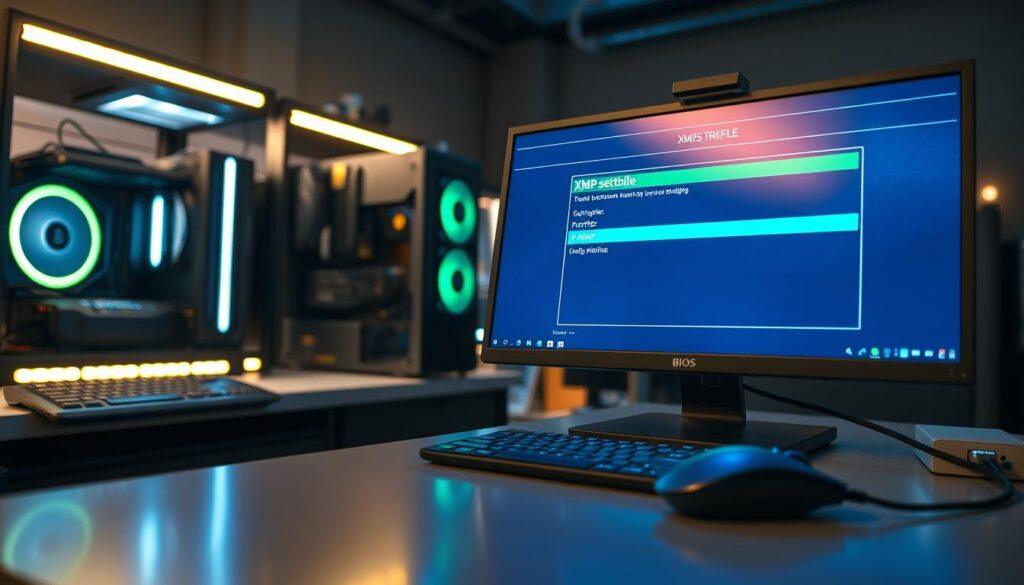
Think of XMP like an orchestra versus musicians playing alone. Without it, your RAM doesn’t reach its full speed. Games and apps load slower, and files transfer slowly.
With XMP, everything runs smoothly at the right speed. This tweak can make your system faster than a new CPU. It’s an easy way to boost your system.
| Scenario | RAM Speed | Performance Impact | Stability Risk |
|---|---|---|---|
| Default JEDEC | 2133-2400 MHz | Baseline, often bottlenecked | None (guaranteed boot) |
| XMP Enabled | Advertised Speed (3200-6000+ MHz) | Optimal, full bandwidth utilized | Low (manufacturer tested) |
| Manual Overclocking | Beyond advertised specs | Potentially highest | High (requires expertise) |
Enabling XMP is quick but needs careful steps. Restart your PC and enter the BIOS. Look for “XMP Profile,” “DOCP,” or “EXPO” in memory settings. Choose “Profile 1” or “Enabled.” Save and exit. Your system will reboot with the new settings.
If it boots, you’ve done a key BIOS optimization.
But, not all boards support all XMP speeds. Older or cheaper boards might struggle with high speeds. Always check your motherboard’s QVL (Qualified Vendor List) to see if your RAM is tested.
Also, update your BIOS first. Newer versions often improve memory and XMP reliability.
If XMP causes problems, don’t worry. Your system will go back to safe settings after a few tries. You can also clear the CMOS to reset all BIOS settings. This might help if you’re using a lower frequency or looser timings.
Some memory kits have multiple XMP profiles. This gives you a choice between a fast profile and a safer one.
XMP is the easy way to boost your system. It lets your RAM work as it should. It’s like unlocking your system’s full power. You’re not pushing it too hard. You’re just letting it do its job.
Best Practices for Stability
Improving performance without stability is like a fireworks show without safety checks. It looks great until it goes wrong. You’ve adjusted voltages, enabled XMP, and unlocked hidden features. Now, it’s time to make sure your system stays up and running.
Let’s talk about the importance of firmware updates. Manufacturers release new BIOS versions often. But, always choose the latest stable version. Avoid beta firmware, as it’s not ready for everyday use.
Think of your motherboard’s firmware like software. You wouldn’t use beta software on your main computer. New beta firmware might offer small benefits but could also cause problems.
Power management is another key area. For gaming or work, turn off power-saving features. This prevents small delays during intense tasks.
Choosing a static high-performance mode means your system always runs at top speed. This is great for quick responses but uses more power and generates more heat.
After making changes, stress-test your system. Use tools like Prime95 or Cinebench to test its limits. This helps find issues before they cause problems during important tasks.
A good stress test lasts for hours without errors. It shows your system is stable, not just fast for a short time.
Your goal is a system that’s both fast and reliable. It should be like a precision tool, not a science experiment. The best performance means nothing if your system can’t handle real tasks.
Troubleshooting
In the world of PC tweaks, the third act can be a surprise. Your system might stop working after you save changes. Don’t worry, it’s just part of the learning process.
One common problem is when your PC won’t boot after tweaks. You might have changed settings and now it won’t start. The fix is to clear the CMOS. Look for a jumper or button on your motherboard. Pressing it resets your system to its original settings.
But what if things get worse? A bad firmware update can brick your motherboard. This means it won’t work at all. Luckily, some boards have special features to help.
Enter BIOS Flashback. It’s a special feature on some boards. You don’t need to use your CPU or RAM. Just plug in a USB drive with the right BIOS file and press a button. It’s like a reboot for your board.
Other issues might be less obvious. Your system might work but crash when it’s busy. This isn’t a hardware problem. It’s because your tweaks asked for too much. To fix it, slow down your changes and test them carefully.
| Symptom | Likely Cause | Immediate Action | Long-Term Fix |
|---|---|---|---|
| No boot after settings change | Unstable overclock or memory profile | Clear CMOS via jumper/button | Apply settings more gradually; test stability |
| System “bricked” after failed update | Corrupted firmware during flash | Use motherboard’s BIOS Flashback feature | Ensure stable power during updates; don’t interrupt |
| Crashes/blue screens under load | Insufficient voltage or cooling | Boot to safe defaults; monitor temperatures | Increase voltage incrementally or improve cooling |
| Error messages on POST | Hardware conflict or failed component | Note error code; reseat RAM/GPU | Check component compatibility; update drivers |
| Random reboots | Power delivery instability | Reset to optimized defaults | Adjust LLC (Load-Line Calibration) settings |
Troubleshooting is like solving a puzzle. It needs patience and careful thinking. Start with the simplest fix, like resetting the CMOS. Then, try different things to see what works.
This way, you learn about your system’s limits. Every problem is a chance to learn. Keep your manual ready, have a USB drive for Flashback, and remember: every expert started as a beginner.
Conclusion
We’ve reached the end of our BIOS journey. We’ve moved from being timid onlookers to being informed leaders of our computers. That first firmware update was our first real talk with the machine’s heart.
This isn’t just for experts with fancy cooling systems. Making changes to an ASUS, MSI, or Gigabyte motherboard is now common. Whether you’re working with an Intel Alder Lake chip or an AMD Ryzen processor, the basics stay the same.
The aim wasn’t just to get the highest scores in tests. It’s about making a system that works perfectly for you. You might want a stable work station, a fast gaming PC, or a quiet media player. Each one needs a different talk with the BIOS.
Think of updating firmware as regular upkeep, not a scary step. The process rewards careful people and punishes the careless. Your PC’s best performance is hidden behind settings you now know.
So, go ahead. Use what you’ve learned. Update your firmware with confidence. Make those timing adjustments with purpose. The joy of a well-optimized machine is its own reward. Your computer is ready for your commands.