

Let’s face it, your gaming rig’s performance is very sensitive to heat. It’s not just a little warm. It’s a major problem that can ruin your gaming experience.
Thermal throttling is like when your CPU slows down because it’s too hot. It turns your fast games into slow, stuttering messes.
This isn’t just about avoiding overheating. It’s about making sure your computer runs well for a long time. Proper Cooling Optimization is key to this.
Good cooling is like having a fast runner without asthma. We’ll look at how heat affects your computer’s parts. Your GPU’s heat sinks are more than just decorations. They protect your computer.
Ignoring cooling is like treating your sports car badly. Let’s see why keeping your system cool is essential for great performance.
Air vs Liquid Solutions
Let’s explore the cooling debate. We’re talking about air coolers versus liquid coolers. It’s not just about cooling down; it’s about your system’s character, noise, and future upgrades. Your choice is a key part of your Cooling Optimization strategy.
A high-quality air cooler is like a reliable truck. It works by using a big metal piece to absorb heat and fans to blow it away. The advantages are clear. It’s cheaper, has no risk of leaks, and’s easy to install. But, it can block parts and get loud under heavy use.
The liquid cooler, like an AIO, is your sports car. It uses a pump and radiator to cool down, making less noise. It’s better for handling sudden heat spikes and can improve your case’s airflow.
But, liquid cooling costs more. It’s harder to install and has a risk of leaks. So, how do you decide? It comes down to four main points:
| Consideration | Air Cooling Leans Toward… | Liquid Cooling Leans Toward… |
|---|---|---|
| Budget | Value champion. More performance per dollar at the low-to-mid range. | Performance premium. You pay more for peak thermal headroom and aesthetics. |
| Case & Compatibility | Requires careful check for RAM/PCIe clearance. Can disrupt clean airflow paths. | Requires specific radiator mount points (e.g., top, front). Centralizes heat exhaust. |
| Noise Tolerance | Can get loud under load. Fan noise is direct and localized. | Often quieter. Pump noise is low, and radiator fans can run slower. |
| Performance Goals | Excellent for standard operation and mild overclocking. A workhorse. | Superior for extreme overclocking, sustained heavy loads, and minimizing heat soak. |
Is a liquid cooler just for show? For basic builds, yes. But for high-performance PCs, it’s essential. It changes how your case works. An air cooler dumps heat inside, while an AIO moves it to the edges.
This choice is like other big decisions, like choosing the right cooling strategy for data centers. It’s about matching the tool to the task. Don’t overdo it. Choose wisely for your PC and peace of mind.
Building Proper Airflow
Good airflow is key to a cool, stable system. It’s more important than fan count or radiator size. Think of it as planning the traffic flow for your components.
Remember, cool air in, hot air out. Front and bottom intakes pull in air. Top and rear vents push out the heat. This keeps your system from overheating.
Many beginners treat fans as decorations, not tools. Make sure fans are installed correctly. This helps your system run smoothly.
Positive air pressure is better for keeping dust out. It pushes air out, keeping your system clean. Negative pressure, on the other hand, can let dust in.
For most systems, aim for a bit of positive pressure. Use a few intake fans and one or two exhaust fans. This simple setup can make a big difference.
Cables can block airflow. Keep them tidy by routing them behind the motherboard tray. This helps your system breathe better.
Choose the right case for good airflow. Solid front panels can block air. Mesh fronts let air in. Make sure your power supply intakes from below, not from the top.
Optimizing cooling isn’t about loud fans. It’s about creating a smooth flow of air. This keeps your system cool without making a lot of noise.
Thermal Paste and Mounting
Forget fancy radiators or RGB fans. The most critical component in your cooling arsenal might be the pea-sized dab of paste you almost overlooked. This unassuming thermal interface material is where true Cooling Optimization gets intimate. It’s the diplomatic translator between your CPU’s fiery outbursts and your cooler’s calm, metallic silence.
Why does this gray goo matter so much? Even the most perfectly machined heat sinks and CPU lids have microscopic imperfections. Thermal paste fills these valleys, creating a continuous bridge for heat to escape. Get this wrong, and you’ve built a toll road between your processor and its salvation.
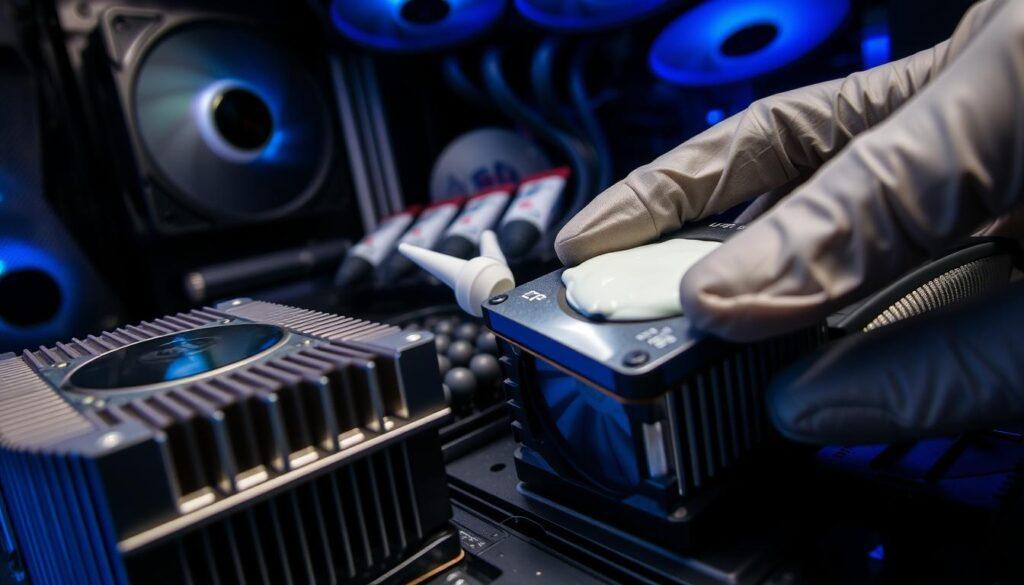
The application ritual sparks more debate than PC case aesthetics. The pea method is the reigning champion for good reason. A single, modest dot in the center of the CPU IHS spreads perfectly under mounting pressure. The line technique works for longer chips. The spread method? That’s for the brave souls who enjoy playing with fire and possible air bubbles.
Is the paste included with your cooler good enough? Often, yes—for a while. Stock paste is the fast food of thermal interfaces: convenient and adequate. Aftermarket pastes from brands like Arctic MX-6 or Thermal Grizzly are the gourmet meal. They offer marginally better conductivity and longevity, which matters when chasing every last degree of cooling perfection.
How much is too much? The golden rule: less is more. A blob the size of an uncooked grain of rice or a small pea is ideal. Excess paste doesn’t improve performance. It just oozes out the sides, creating a mess and potentially causing electrical issues. Think of it as applying cologne, not painting a wall.
Mounting pressure is the silent partner in this dance. Securing your cooler isn’t about Hulk-smashing screws. It’s about achieving even, consistent contact. Most coolers use a spring-loaded mechanism to prevent over-tightening. Follow the manufacturer’s cross-pattern tightening guide. Your goal is a firm handshake, not a death grip.
When should you reapply? Thermal paste doesn’t expire like milk, but it does degrade. Every 3-5 years is a safe bet for high-performance systems. If you notice temperatures creeping up inexplicably, a paste refresh is the first and cheapest troubleshooting step. It’s the PC equivalent of changing your car’s oil.
This microscopic layer between metal surfaces represents the final frontier of air cooling efficiency. Master the pea, respect the pressure, and choose your compound wisely. Your CPU’s thermal destiny depends on this delicate, often overlooked alliance.
Fan Curves and PWM
Your PC’s fan settings are like a toddler with a megaphone in a library. They’re either too quiet or too loud, without any middle ground. To get the best Cooling Optimization, you need to do more than just turn the fans on or off.
The fan curve is your tool for control. It’s a simple graph that shows temperature on one side and fan speed on the other. The default line is usually straight and lazy. You need to draw a new line that makes sense.
This is what custom cooling is all about. Why should your fans be super loud when you’re just browsing the web? A good curve lets them run quietly until things get hot. Then, they quickly turn up to keep things cool.
PWM, or Pulse Width Modulation, is the tech behind this. It’s a digital way to control fan speed, unlike the old days of just turning up the voltage. PWM sends quick pulses to the fan motor. The length of these pulses determines the fan’s speed.
You can make these curves in your motherboard’s BIOS or with software like MSI Afterburner or NZXT CAM. The goal is to find a balance between keeping things cool and not being too loud. It’s about finding the right middle ground.
Crafting Your Masterpiece: A Quick Guide
So, how do you make a good curve? Don’t just make it super steep for “max performance.” That’s like solving every problem by yelling. Instead, think about different zones:
- The Idle Zone (30-50°C): Keep speeds low, often between 20-40%. Your system should be nearly inaudible.
- The Load Zone (50-70°C): Implement a steady, sloping increase. This is where your Cooling Optimization pays off, balancing acoustics and heat dissipation.
- The Redline Zone (70°C+): Here, you can afford to be aggressive. Let the fans spin up to 80-100% to prevent thermal throttling. The game audio will likely cover the noise.
Do all fans need to follow the same curve? Not always. Your exhaust fans might need to work harder than your intakes to keep air flowing. Your CPU cooler might need a steeper curve than your case fans.
The best test is to use your PC in real life. Play a game or render a video. If your temps are good and the noise is okay, you’ve done it. Your custom cooling setup is now a smart, responsive system. You’ve gone from being a user to a designer.
Quiet Cooling Tips
Silence in computing is not just the absence of sound. It’s a careful mix of thermal management. It’s like the difference between a rock concert and a library. Both move air, but one does it with purpose.
The goal of a quiet PC is to be efficient. Noise is wasted energy. It’s about moving air without wasting energy on unnecessary movements.
Choosing bigger fans can be quieter. A 140mm fan moves more air at lower RPMs than a 120mm fan. This means less motor noise and less of that whoosh sound.
Your case choice affects your PC’s sound. There are two types: mesh panels for airflow and sound-dampened cases for quiet. The right choice depends on your cooling needs.
Keeping your case clean is key. Dust on fan blades causes imbalance and noise. Keeping dust out with filtered intakes helps keep fans quiet.
Not all fan bearings are the same. Some wear out faster and make noise. Better bearings like MagLev or FDB are smoother and quieter.
Reducing heat can also quiet your cooling system. Undervolting is a way to do this. It finds the lowest voltage your components need, reducing heat and noise.
| Noise Reduction Method | How It Works | Noise Reduction Level | Skill Required |
|---|---|---|---|
| Larger Fan Sizes | Moves more air at lower RPMs through increased surface area | High (3-8 dB reduction) | Low (compatibility check) |
| Sound-Dampened Case | Absorbs acoustic vibrations with dense foam materials | Very High (5-10 dB reduction) | Medium (cable management critical) |
| Positive Airflow Setup | Prevents dust buildup that causes fan imbalance and whine | Medium (2-5 dB sustained) | Medium (fan configuration) |
| Quality Fan Bearings | Reduces mechanical friction and vibration at the source | High (4-9 dB reduction) | Low (swap fans) |
| Strategic Undervolting | Lowers component heat output, reducing cooling demand | Variable (2-7 dB reduction) | High (stability testing) |
The quietest PCs use a mix of strategies. They have larger fans, sound-dampened cases, and clean airflow. They also undervolt slightly. Each part helps the others.
Quiet cooling is an active process. It needs planning and understanding of air and sound. When done right, your PC becomes silent and invisible.
Monitoring Temps
Temperature monitoring is like checking a patient’s vital signs. You wouldn’t guess if someone has a fever without a thermometer. The same goes for your PC’s cooling system. It’s about proactive intelligence, not paranoia. Ignoring these numbers is like driving blind, until you’re suddenly not.
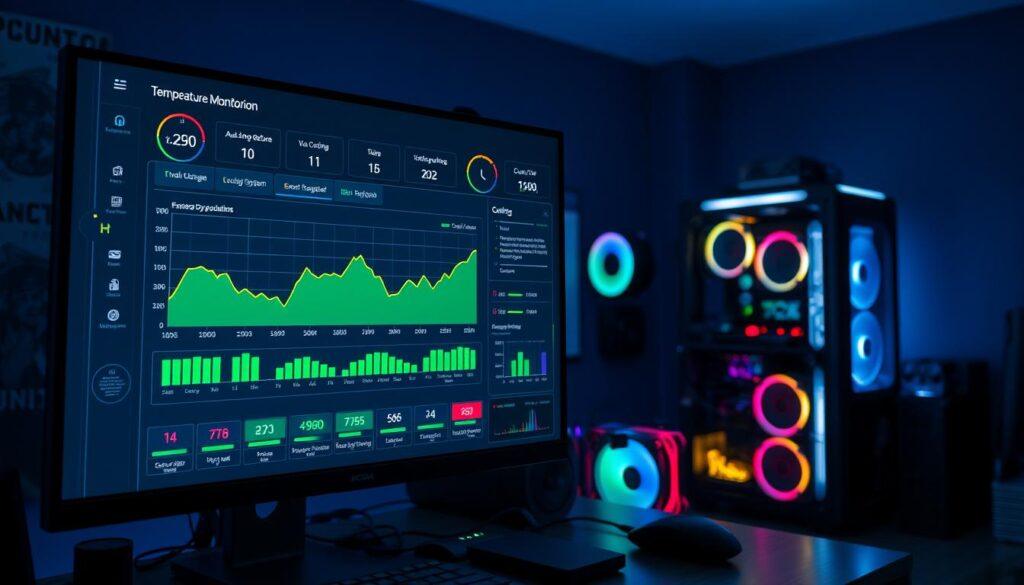
You don’t need a medical degree to do this. Free software acts as your diagnostic toolkit. HWMonitor is simple, showing sensor data clearly. MSI Afterburner is for enthusiasts, with deep GPU control. NZXT CAM offers a unified view of your system.
These tools give you data on CPU and GPU temperatures, fan speeds, and load percentages. This data is key for cooling optimization. You’ll know exactly how hard your fans are working.
But, data without context is just noise. What numbers should worry you? For a modern CPU, idling between 35-50°C is normal. Under heavy load, 75-85°C is okay, though lower is better. A GPU is usually happy at 60-85°C under load.
| Monitoring Tool | Best For | Key Features | Learning Curve |
|---|---|---|---|
| HWMonitor | Quick System Checks | Minimalist layout, voltage readings, sensor history | Low – Very simple |
| MSI Afterburner | GPU Enthuisiasts & Overclockers | Real-time graphs, fan curve control, on-screen display | Medium – Feature-rich |
| NZXT CAM | Aesthetic Unified Control | System monitoring, lighting control, game integration | Low – User-friendly UI |
| Open Hardware Monitor | Open-Source Purists | Fully customizable, plugin support, portable version | High – Requires tuning |
Spotting trends is the real magic. Is your CPU getting hotter each week? That’s a trend. Did your GPU spike during the same game yesterday? That’s a signal. Monitoring helps you know when something’s wrong.
This approach turns cooling into a dynamic strategy. You set a baseline, learn how your system works, and can act before problems start. It’s like the difference between regular check-ups and emergency surgery.
Think of it as preventative medicine versus emergency surgery. One uses software check-ups. The other is a frantic search for “why is my PC shutting down.” Regular monitoring is key for cooling optimization and system health.
Maintenance
Dust is the enemy of a cool-running PC. It turns your top-notch machine into a hot mess. Think of maintenance as a way to keep your cooling optimization in top shape.
Don’t worry, you don’t need to clean your PC every week. Cleaning every three to six months is just right. This keeps your system running smoothly without driving you crazy.
Having the right tools is key. Use canned compressed air to blast away dust. An anti-static brush is great for getting into tight spaces. But remember, never use a household vacuum cleaner because it can damage your components.
Dust doesn’t just look bad; it also blocks airflow. A clogged heatsink can’t cool down, and a dirty filter can’t pull in air. Keeping your system clean is essential for its performance.
Cable management is more than just looks. It makes cleaning easier next time. A tidy case is a happy case, and it’s easier to maintain.
Thermal paste needs to be replaced every two to three years. It dries out and loses its effectiveness. Reapplying it is quick and can lower your CPU or GPU temperatures.
So, what does a proper maintenance session look like?
- Power down and unplug everything. Safety first.
- Take the system outside or to a well-ventilated area. You’re about to create a dust cloud.
- Remove side panels and dust filters. Wash filters with mild soap and water, let them dry completely.
- Use short bursts of compressed air to blow dust out of heatsinks, fan blades, and power supplies. Hold fans steady to avoid damage.
- Use the anti-static brush for stubborn clumps in tight fin stacks.
- Inspect cables. Re-route anything that has sagged into a fan’s path.
- Every few years, repaste the CPU and GPU.
Maintaining your system is the last step to cooling optimization. It keeps your system running cool and quiet. Regular cleaning ensures your system lasts longer and performs better.
Case Studies
Let’s dive into real-world cooling challenges. Theory is clean, but practice is messy. It’s about managing cables and temperatures in tight spaces.
Our first case is a gaming PC in the NZXT H510 Flow. The builder aimed for quiet and affordable cooling. They chose a big air cooler over a smaller liquid cooler.
The air cooler worked better and was quieter. This shows that sometimes, spending more doesn’t always mean better cooling.
Next, we have a high-end workstation with a Threadripper CPU. Air cooling can’t handle it. So, they went for a custom cooling loop with big tubing and a huge radiator.
This setup keeps temperatures stable under heavy loads. It’s like comparing a sedan to a Formula 1 car. Both get you there, but one is built for speed.
Does overclocking make your PC hot? Yes, but a good cooling system keeps it cool. It moves heat away from important parts faster. Your CPU won’t slow down, even if the room gets warmer.
Are RGB fans just for looks? Not always. Many high-performance fans have RGB lights. The important thing is their airflow and pressure, not their color. A case like the Corsair 5000D with RGB fans is a smart choice.
Room temperature is key. What works in a cool basement might not in a warm office. Testing in your own space is essential.
The main takeaway? Cooling solutions depend on your specific needs. It’s about finding the right balance of cost, case, performance, and looks. The best cooling optimization solves your problem, not just the most expensive one.
Conclusion
We started with a simple question: why does cooling matter? We explored airflow, thermal paste, and fan curves. It was more than just parts. It was about avoiding thermal throttling and achieving silence.
Your PC’s cooling system is its backbone. It’s not just about buying parts. It’s about making smart choices and setting up fan curves right. It’s like having a silent partner for your GPU’s power.
This approach makes your system stable and reliable. It turns parts into a machine that lasts. You get a system that runs smoothly and quietly.
The result is clear. Good cooling means your system runs at its best. It prevents slowdowns and keeps your CPU steady. Your system becomes faster, quieter, and more reliable.
You save money and get the most out of your system. Now, build a system that doesn’t just work. Make it thrive.