

Forget the flashy lights and aggressive logos for a second. Building a powerful PC isn’t about looks. It’s a political campaign, and the motherboard is your war room.
This slab of silicon and circuitry is your machine’s nervous system. It decides every alliance you make. Which CPU kingdom can you ally with? What future upgrade paths are open? What feature sets can you deploy on day one?
Get this foundation wrong, and your system is built on sand. Get it right, and you’ve secured a dynasty of performance and flexibility.
In this gaming motherboard guide, I’ll be your cynical yet informed advisor. We’ll explore the silicon senate of chipsets, the power delivery politburo, and the often-overlooked diplomacy of I/O ports.
Think of this as more than a simple buying list. It’s a “Motherboards for Dummies” guide for the smart ones. Once you remove the jargon, the strategy becomes clear.
Chipset Differences Explained
AMD and Intel have different approaches to chipsets. AMD focuses on long-term stability, while Intel pushes for frequent updates. Your choice affects your upgrade path, budget, and system’s future.
The chipset is like your PC’s constitution. It outlines how components interact and what future updates might look like. Choosing the right one is key to building a strong best gaming motherboard foundation.
AMD’s AM5 platform offers stability for four years, with support until 2027+. You can easily upgrade your CPU with a BIOS update, no need for a new motherboard. This is great for those watching their budget.
Intel, on the other hand, is all about revolution. Their LGA 1700 socket supports 12th to 14th Gen CPUs, but the next generation, Arrow Lake, requires a new platform (LGA 1851). This means you’ll need to upgrade. The good news is that both AMD and Intel now use DDR5 memory, ending the memory wars.
Chipset Lineups: Decoding the Party Platforms
Today, you can choose from AMD’s X870E and B850, and Intel’s Z890 and B860. The B650 is being phased out. The top chipsets (X870E, Z890) are for those who want to overclock and use multiple PCIe 5.0 devices. The budget options (B850, B860) offer good performance without the extra features.
Now, let’s talk about PCIe 5.0. Is it a game-changer or just hype? For most gamers, it’s not necessary yet. The fast PCIe 5.0 SSD is great for file transfers, but not for in-game performance. It’s a future-proofing feature, not a must-have today.
| Platform Aspect | AMD (AM5) “The Stable Incumbent” | Intel (LGA 1851) “The Revolutionary” |
|---|---|---|
| Socket Longevity | AM5 supported through 2027+. CPU upgrades via BIOS. | New socket expected with next major generation. |
| Current Chipset Flagship | X870E (Full PCIe 5.0, Overclocking) | Z890 (Full PCIe 5.0, Overclocking) |
| Current Budget Option | B850 (Limited PCIe 5.0, No CPU OC) | B860 (Limited PCIe 5.0, No CPU OC) |
| Memory Standard | DDR5 | DDR5 |
| Best For | Upgrade planners, value seekers. | Peak performance chasers, early adopters. |
So, how do you pick the best gaming motherboard chipset? It depends on your preferences:
- Team Stability (AMD): Choose B850 for a solid, budget-friendly build. Opt for X870E for top features and overclocking.
- Team Performance-Now (Intel): Choose B860 for a powerful system. The Z890 is for those who need top performance today, without worrying about tomorrow’s socket change.
The real best gaming motherboard depends on your upgrade philosophy. Don’t just look for the latest feature. Choose a platform that fits your needs for the future.
VRM Quality & Power Delivery
You’ve bought a CPU that’s a powerhouse, but without a good VRM, it’s like pairing a rocket engine with a bicycle’s fuel line. The Voltage Regulator Module is key. It takes high-voltage power from your PSU and turns it into the low-voltage current your CPU needs. If it fails, even the strongest processor will be unstable.
Why is this important in a motherboard review? A weak VRM limits performance and can even sabotage it. Under heavy load, a bad power delivery system can’t keep up. This leads to thermal throttling and system crashes.
So, what makes a VRM design robust? It’s phase count, MOSFET quality, and heatsinking. Let’s look past the marketing.
Phase count is often misunderstood. More phases mean smoother power delivery. But, a 16-phase design on a mid-range board might be “doubled” or “paralleled.” For most gamers, 8 to 12 phases are enough. You only need more if you’re extreme overclocking.
The real heroes are the MOSFETs and the heatsink. High-quality MOSFETs run cooler and more efficiently. A big, well-finned heatsink pulls heat away. A motherboard review should focus on these, not just phase count.
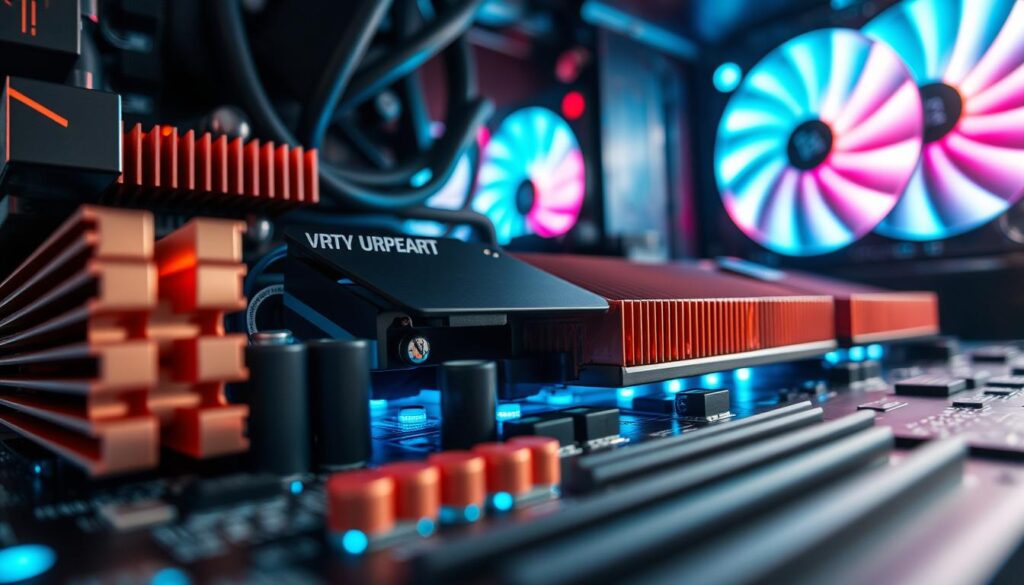
High-core-count CPUs like the AMD Ryzen 9 or Intel Core i9 are power-hungry. They need a steady flow of electrons. A budget board with a small VRM will buckle under the pressure, forcing your CPU to downclock itself.
For Intel users, remember: overclocking is only possible on Z-series chipsets. Buying a K-series CPU and pairing it with a B-series board is like having a sports car you can only drive in first gear. The Z-chipset unlocks the VRM’s full power, allowing you to tweak voltages and multipliers.
The takeaway? When reading a motherboard review, treat the VRM section like a financial audit. Don’t just count phases. Look for premium MOSFET brands, assess the heatsink size, and see if thermal performance under load is tested. A good review separates the engineering substance from the spec sheet hype. Your CPU’s reign depends on it.
I/O Connectivity for Gamers
Ignoring your motherboard’s I/O connectivity is like building a sports car with only one gas tank opening. It looks good, but filling it up is a hassle. The rear I/O panel is your computer’s main link to the world. If you don’t invest in it, you’ll deal with a mess of adapters and hubs every day.
For gamers and streamers, this panel is essential. Let’s look at what’s important.
USB ports are key. Not all are the same. A good gaming mobo should have both old and new USB options.
- USB-A (USB 3.2 Gen 2): Reliable for keyboards, mice, and most devices.
- USB-C (USB 3.2 Gen 2×2 / USB4): Fast for external SSDs and VR headsets, with speeds over 20 Gbps.
- Thunderbolt 4 / USB4: Offers 40 Gbps speeds, daisy-chaining, and power delivery, great for creative pros.
Boards like the Asus ROG Crosshair X870E Glacial show this idea well, with 14 USB ports. It’s not being too much; it’s being smart.
Networking: Your Lifeline to the Server
Your gaming success depends on how fast you can connect. A 2.5 Gigabit Ethernet (2.5 GbE) port is now the norm. It beats old 1 GbE for quicker downloads and smoother streams.
For the top players, 10 GbE or dual 10 GbE ports (like on that Asus board) are available. This is for those who need the fastest speeds. For most, 2.5 GbE is enough.
Wi-Fi is now a must-have. Wi-Fi 6E and the new Wi-Fi 7 offer better, faster wireless connections. They’re essential for VR gaming or keeping your rig away from the router. Using Wi-Fi 5 in 2024 is a disadvantage.
Audio and the Forgotten Codec
Even if you use headsets, your motherboard’s audio matters. A good audio codec (like Realtek ALC4080) gives you clear sound for speakers or as a backup. It’s a small but important gaming mobo feature that makes a difference.
Must-Haves vs. Nice-to-Haves
Let’s be realistic. Your gaming mobo features list should focus on:
- Must-Haves: At least six USB-A ports, two fast USB-C ports (10 Gbps+), a 2.5 GbE LAN port, and Wi-Fi 6/6E.
- Nice-to-Haves: Thunderbolt 4, 10 GbE, lots of USB ports (10+), and top-notch audio shielding.
Using USB hubs is like going back in time. Good I/O connectivity is more than a gaming mobo feature. It’s the right to connect your world easily.
PCIe Layout & Multi-GPU Support
Multi-GPU support is like a ’90s boy band reunion—nostalgic but hardly anyone’s main event anymore. It’s mainly for simulation fans and professionals. For the rest of us, the real excitement is in the PCIe lane layout.
Think of these lanes as your system’s data highway. A top-tier PCIe 5.0 x16 slot gives a direct path from your CPU to your graphics card. But, some boards share this lane with M.2 drives, causing data jams. You need to know who has the right-of-way.
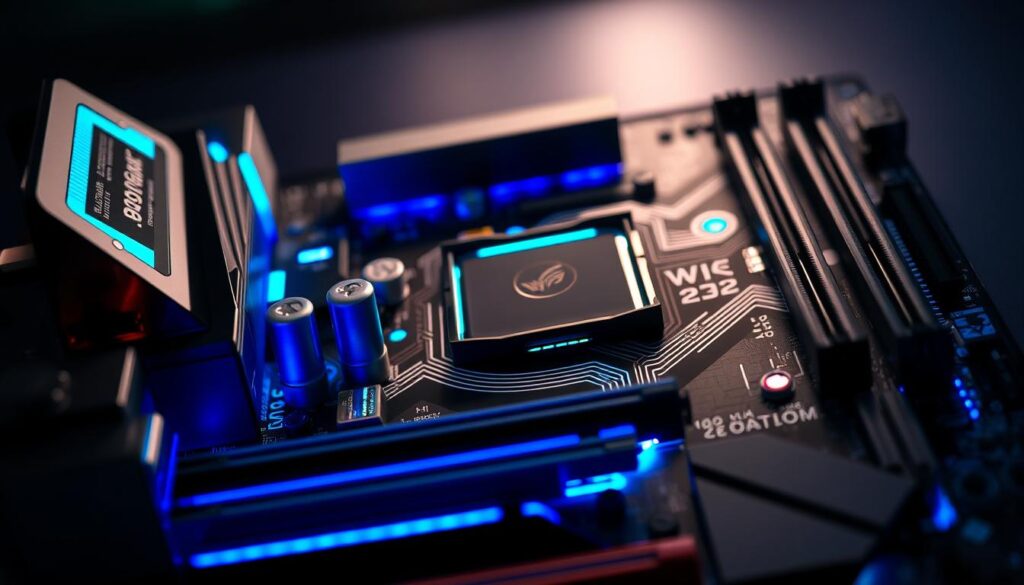
For gamers, the truth is simple. A single, well-fed x16 slot is key for a best gaming motherboard. You want your primary GPU to run at full speed, not split bandwidth. High-end boards might offer x8/x8 for dual cards, but it’s mostly unnecessary for most.
So, what are the other slots for? They’re for growing your system. Smaller x4 or x1 slots are great for add-in cards. Think capture cards for streaming, dedicated sound cards, or extra controllers for RGB fans. They also let you add absurd amounts of NVMe storage via adapter cards.
| Common PCIe Layout | Lane Configuration | Best Use Case | Gaming Priority |
|---|---|---|---|
| Single x16 (PCIe 5.0) | x16 from CPU | Maximizing single GPU performance | Essential |
| Dual x8 / x8 | x8 from CPU per slot | Legacy multi-GPU (SLI/CrossFire) | Low (Niche) |
| x16 / x4 / x4 | x16 from CPU, x4 from Chipset | GPU + dual add-in cards (Capture, Sound) | High |
| Multiple x1 Slots | x1 from Chipset | Network cards, fan controllers, legacy ports | Medium |
Choosing the right layout is about planning your real-world expansion, not dreaming of dual graphics cards. For a deep dive into lane allocation, check out our guide on PCIe lanes and you.
A clean, modern PCIe layout that prioritizes your primary GPU is key for a best gaming motherboard. It’s about building a highway system for today’s traffic, not yesterday’s.
Built-in WiFi & Networking
Your Ethernet cable might be a trusted old friend, but built-in Wi-Fi is the flashy new neighbor who throws better parties. In this motherboard review, we’re not just checking boxes for connectivity. We’re asking if the party is worth the hangover of lag spikes and dropped packets.
Let’s start with the wired world. 2.5 Gigabit Ethernet (2.5 GbE) is the new sensible standard, found on most boards today. It’s the reliable workhorse for fast downloads and stable game streams. But is ‘sensible’ enough for you?
For power users and home server enthusiasts, the conversation shifts. Boards like the MSI MAG B850 Tomahawk now offer 5 GbE ports. The ultra-premium tier, think MSI Z890 Godlike, flaunts 10 GbE or even dual LAN setups. This isn’t for checking email. It’s for future-proofing a massive local media library or a multi-PC editing suite.
Now, onto the wireless affair. Wi-Fi 6E was the previous ‘it’ technology, and it’s now commonplace. It’s good. It’s stable. But the truly exciting guest is Wi-Fi 7. This isn’t just a number on a box.
Wi-Fi 7, or 802.11be, promises revolutionary reductions in latency. For competitive gamers, this could mean the difference between a headshot and a respawn screen. Is it a game-changer? For esports athletes and anyone in a dense apartment complex, absolutely. For casual play, it’s a luxurious head-start on the next decade of wireless tech.
So, what actually matters for your ping times? Cut through the acronym soup (AX, BE, GbE) with this simple list:
- For most gamers: A board with 2.5 GbE and Wi-Fi 6E is the sweet spot. It handles everything from 4K streaming to competitive matches.
- For future-proofers and creators: Seek out 5 GbE or 10 GbE LAN. Your NAS will thank you.
- For early adopters and latency warriors: Wi-Fi 7 is your ticket. Just make sure your router is also on the guest list.
This motherboard review concludes that onboard networking has grown up. The flaky, unreliable days are largely over. Today’s options offer a clear hierarchy: solid basics for everyone, and specialized, blistering-fast connections for those who need them. Your choice depends entirely on whether you’re joining the party or planning to host it.
RGB & Aesthetic Features
RGB lighting on motherboards is where tech meets show. It turns your gaming mobo features into a showstopper. Before you even start gaming, your build’s personality shines through.
Modern boards have lots of RGB headers. These let you control your lights like a pro. With software from Asus, MSI, and Gigabyte, you can make your rig do anything. But, you need to keep your cables tidy to avoid a mess.
Today’s motherboards are more than just tech. They have real wood and leather, like the Gigabyte X870E Aero X3D Wood. It looks like a high-end library, not just a gaming PC. The Asus ROG Crosshair X870E Glacial has a 5-inch OLED display. It’s like having a customizable billboard for your system.
Is the extra cost worth it? It’s like choosing a custom suit over off-the-rack. The fancy features don’t boost performance, but they make your PC unique. For a showpiece, they’re perfect. But for a hidden PC, they’re just extra.
Think about this before you spend:
- Subtle Accent Boards: Simple, classy, and affordable.
- RGB Heavyweight Boards: Perfect for immersive builds.
- Statement Piece Boards: Artistic, but pricey.
Your choice sets the mood for your build. Do you prefer sleek and simple, or bold and bright? The best gaming mobo features offer both looks and performance. Remember, the coolest lights won’t hide bad performance, but the right look can make your PC special.
BIOS Quality & Overclocking
Overclocking is more than just pushing limits. It’s about fine-tuning voltage and frequency in your motherboard’s BIOS. This hidden interface connects you directly to your PC’s heart.
Imagine it as the control room for a nuclear reactor. A good BIOS lets you tweak settings confidently. But a bad one can turn a simple tweak into a disaster. For Intel users, remember: only Z-series chipsets offer full overclocking.
Brands have their own ways of doing BIOS. ASUS makes it feel like a fighter jet cockpit, full of options but easy to navigate. MSI focuses on simplicity and clarity, perfect for beginners. Gigabyte’s BIOS is like a treasure hunt, great for experts but tricky for newbies.
The most important gaming mobo features for overclocking are physical and digital tools built into the board.
First, clear error LEDs or debug code readouts are key. They tell you what’s wrong when your system won’t post. This turns a scary black screen into a fixable problem.
Second, dedicated voltage checkpoints are essential. These tiny pins let you measure actual voltage with a multimeter. It’s the difference between guessing and knowing.
Lastly, multi-profile save slots are a game-changer. A good BIOS lets you save different overclock settings directly to the board. This makes overclocking a repeatable, scientific process.
| Brand | BIOS Philosophy | Key Overclocking Feature | Best For |
|---|---|---|---|
| ASUS ROG | Comprehensive & granular. A toolkit for experts. | Extreme Tweaker menu with per-core control. | Enthuasiasts who want every option. |
| MSI | Visual & streamlined. Focus on user-friendliness. | Hardware Monitor dashboard with easy fan curves. | Newcomers and intermediate users. |
| Gigabyte AORUS | Feature-rich but menu-dense. Powerful but less intuitive. | High-quality VRM with robust power telemetry. | Users who prioritize hardware over software polish. |
Overclocking should feel like a structured science experiment, not a hostage negotiation. The BIOS is your lab notebook. A top-notch board offers strong power delivery and the right tools to use it wisely.
When comparing models, look beyond core counts and RGB zones. Check BIOS screenshots and read reviews about stability. Investing in the right gaming mobo features makes a big difference. It turns a fast system into a valuable asset, not a waste of money.
Top Motherboards by Price Range
Choosing a motherboard is like picking a car. You have options from simple sedans to expensive hypercars. It’s about finding the right one for your needs and budget.
The best gaming motherboard for a $800 build is different from one for $3,000. It’s not just about speed. It’s about value, features, and finding the perfect balance between cost and performance, much like how zero-latency cloud gaming infrastructure focuses on optimizing efficiency and responsiveness rather than raw power alone..
Here’s a list of top contenders based on current silicon trends. Think of it as a highlight reel from the best motherboards page.
| Price Tier | Model (Platform) | Key Selling Point | Approx. Price |
|---|---|---|---|
| Budget & Mid-Range Value | MSI MAG B850 Tomahawk MAX (AMD) | Rock-solid foundation for Ryzen 8000 series. No-frills, all performance. | $220 – $260 |
| Mid-Range Champion | ASUS TUF Gaming B650E Wi-Fi (AMD) | Military-grade durability meets PCIe 5.0 support. A workhorse with teeth. | $250 – $300 |
| High-End Value King | MSI MAG Z790 Tomahawk Wi-Fi (Intel) | Gives you 95% of flagship features for 60% of the price. The definition of smart money. | $280 – $330 |
| High-End / Enthuasiast | ASRock X870E Taichi (AMD) / ASUS ROG Maximus Z790 Hero (Intel) | Flamboyant power. Over-engineered VRMs, exclusive software, and bragging rights included. | $450 – $700 |
| Flagship / Statement Piece | Asus ROG Crosshair X870E Glacial (AMD) / MSI Z890 Godlike (Intel) | Boards that exist not because you need them, but because you want them. The hypercar. | $800+ |
The Gigabyte X870E Aero X3D Wood is more than a motherboard; it’s a design statement. The ASUS ProArt X670E-Creator shows the best gaming board can also handle 4K video editing.
The MSI Tomahawk series often wins for value. But the true best gaming motherboard is the one that fits your budget and goals. Now, go build something awesome.
Brand Reliability Analysis
Let’s look at the four major motherboard brands to see who delivers and who doesn’t. This isn’t just about specs. It’s about how they handle problems and support you after you buy.
All major brands have good products. Your choice depends on what you value most and what you can live with.
ASUS is like the experienced politician. Their ROG boards are top-notch, leading the way for others. Their BIOS is polished and full of features. But, you pay more, and their support can be slow.
People respect ASUS but get frustrated with the high prices. They feel they’re paying too much for what others offer for less.
MSI: The Pragmatic Innovator
MSI focuses on value and smart features. They offer cool tech like M.2 shields at a lower price than ASUS. Their support is quick and helps the community.
But, MSI’s push for new tech can sometimes lead to problems. Overall, they’re a good choice for getting the most for your money.
Gigabyte: The Steady Contender
Gigabyte is known for strong power delivery and solid build quality. They sometimes surprise with unique features, like wood panels. Their AORUS line is a top competitor.
But, Gigabyte’s BIOS might not be perfect at first. Their support varies by region. They’re reliable but not always exciting.
ASRock: The Savvy Underdog
ASRock offers great value. They pack in features you don’t expect at a low price. They’re perfect for those watching their budget.
But, they might not always match the competition in quality or updates. Yet, they’re a great choice for getting the most for your money.
So, who wins? Here’s a quick summary:
| Brand | Strength | Potential Crisis | Best For |
|---|---|---|---|
| ASUS | Premium features, BIOS polish | High cost, slower support | Enthuisiasts with no budget limit |
| MSI | Innovative value, good updates | Occasional feature overreach | Performance-focused gamers |
| Gigabyte | Robust hardware, reliable power | Inconsistent BIOS/Support | Stability-first builders |
| ASRock | Unbeatable value, surprising features | Lower perceived prestige | Budget-maximizers |
Think about what you want after you buy. Look at user reviews for BIOS stability and RMA issues. A great motherboard review means nothing if the company doesn’t support you after the sale. Choose a brand that fits your build philosophy.
Upgrade Compatibility Planning
So, you’ve looked at brands and compared specs. But have you thought about your future? Choosing the right gaming motherboard is a smart move. It’s an investment in your PC’s future, not just a quick buy.
Are you building a system to replace in a few years, or one to grow with? AMD’s AM5 socket seems like a smart choice. Intel’s socket changes are common. Your motherboard decides your upgrade path for years.
Will it support new CPUs easily? Does it have enough room for more SSDs? A smart upgrade plan saves money in the long run. It makes your PC a dynamic system, not just a static build.
That empty PCIe slot is full of possibilities. Planning for it makes your build even better. The best motherboard lets you change your mind freely.