

Imagine diving into a new game and textures suddenly pop in. This was the case for many with games like Cyberpunk 2077. But what if I told you that the days of I/O bottlenecks are numbered?
New technologies are changing the game. We’re moving away from loading data into DRAM, which is small. Instead, we’ll use the SSD as a data cache. This means streaming textures and data just in time for your screen. No more waiting while your CPU works hard, causing frustrating delays.
Old models only reached 100 MB/s of bandwidth. Now, we’re aiming for speeds up to 2400 MB/s—that’s 24 times faster! And there’s more; GPU decompression offloads heavy tasks from the CPU, making gameplay smoother.
But we shouldn’t get too excited yet. Until game engines fully use these new techs, even the fastest SSDs might not make a big difference. Want to know more about how this tech will change gaming? Check out more on the speed revolution of SSDs in gaming.
DS flow compress read GPU decompress to VRAM path
Think of DirectStorage as a heist movie. The GPU is the mastermind, efficiently decompressing assets on the fly. No more CPU struggles with data compression, taking up resources and causing latency. Now, the GPU handles it smoothly, making games run better.
Imagine the data flow: compressed data comes from an NVMe drive. The GPU unpacks it, and textures go straight to video memory. This process gives gamers almost-instantaneous load times, better frame rates, and less stuttering. It’s like magic, but it’s your game loading fast.
Nvidia’s RTX IO suite and AMD’s SmartAccess Storage make this magic happen. They speed up texture streaming and data decompression. But, this works only if the game engine supports it. Without it, you might see a progress bar while your GPU waits.
GPU decompression is key to this success. But, not all games use these technologies yet. As more games adopt them, we’ll see a big change. Load times will become as rare as a polite Twitter debate.
Gen5 SSD reality controller heat throttling sustained vs burst
Gen5 SSDs need to manage heat well. They have amazing specs that tech fans love. But, they also get very hot.
Think of a small furnace in your M.2 slot. The controller chips can slow down quickly under heavy use. Those high speeds are great, but they only last if the drive stays cool.
Most top motherboards have built-in M.2 heatsinks. If yours doesn’t, you might need to buy a cooler. Without one, your Gen5 SSD could become a pricey space heater. I tested a Crucial T705 and saw it slow down fast when it got hot.
Heat management is key for Gen5 SSDs. They can do amazing things in short bursts. But for tasks like video editing, they need to stay cool. So, keep your Gen5 SSD cool to avoid performance drops.

Real gains load time cuts stutter reduction shader compile masking
DirectStorage is more than just faster load times. It brings a new level of gaming experience. With DirectStorage, players can enjoy smoother texture streaming. Say goodbye to annoying texture pop-ins in games.
Thanks to advanced asset streaming, DirectStorage makes games look better from far away. AMD says it uses I/O batching, asynchronous execution, and request prioritization. This means games load up to 50% faster, like a hot wash on a wool sweater.
But, it’s not all about higher frame rates. The real magic is in smoother gameplay and less stuttering. No more frustrating texture loading when you turn a corner. Games feel more like movies than buffering videos.
Shader compile stutters are also a thing of the past. The GPU gets pre-compiled data from the SSD fast. It’s not just about speed; it’s about making the game feel seamless.
But, it’s not a fix-all solution. A game’s engine needs to be updated for DirectStorage to shine. The tech is promising, but developers must use it right.
Hardware OS requirements drivers GPU support checks
Before diving into DirectStorage, make sure your setup is ready. Windows 11 is key for DirectStorage. If you’re on Windows 10, you’re out of luck.
You need an NVMe SSD with at least 1 TB for DirectStorage. Less than that won’t do. Also, use Microsoft’s standard NVMe driver. RAID setups are a no-go. And, DirectX 12 Ultimate support is a must for a smooth experience.
When it comes to GPUs, AMD’s SmartAccess Storage and Nvidia’s RTX IO are your top choices. But, your CPU and motherboard must be compatible. A Gen 5 drive in a Gen 3 slot is a waste of power.
Here’s a quick reference table to help you understand the compatibility requirements:
| Component | Requirement | Notes |
|---|---|---|
| Operating System | Windows 11 | Full support for DirectStorage |
| SSD Type | NVMe SSD (1TB or larger) | Essential for optimal performance |
| Driver | Microsoft Standard NVMe Driver | RAID not supported |
| GPU Support | DirectX 12 Ultimate | Compatible with AMD and Nvidia |
| Motherboard Slot | PCIe 4.0 or 5.0 | Check your motherboard manual |
In conclusion, check your hardware before getting DirectStorage. Without the right parts, you won’t see any benefits. So, check your specs and get ready to unlock GPU decompression!
Bench method trace based and game tests considerations
Benchmarking storage for gaming is like judging a chef by how fast they can chop onions. It misses the point. Most reviews focus on sequential read speeds, but random IOPS are key for gaming. I’ve done side-by-side tests with 3DMark’s Storage Benchmark and custom game-load traces. The results are eye-opening.
A Gen5 SSD might save a second when loading a level compared to Gen4. But for asset streaming, like flying over a detailed city, the difference is small. The real benefits are in sustained mixed workloads, not just peak numbers.
When copying a 100GB 4K video project, a Gen5 SSD is impressive, cutting transfer time to under 12 seconds. But for gaming, trace-based tests show engine bottlenecks and CPU limits can hide the drive’s true performance. So, when you see a review with 14,000 MB/s, ask about 4K random reads at queue depth 1. That’s what really matters.

| SSD Type | Sequential Read Speed (MB/s) | Random IOPS | Load Time (Level) | Copy Time (100GB 4K) |
|---|---|---|---|---|
| Gen3 SSD | 3,500 | 50,000 | 10 seconds | ~45 seconds |
| Gen4 SSD | 5,000 | 70,000 | 9 seconds | ~30 seconds |
| Gen5 SSD | 7,000 | 100,000 | 8 seconds | Under 12 seconds |
In summary, while raw numbers are tempting, the real story of storage performance is in real-world scenarios. When looking at DirectStorage Gen5 storage, focus on random read/write speeds and trace-based benchmarks. This will give you a better understanding of how these drives perform in gaming.
Thermal solutions heatsinks fans shields and noise
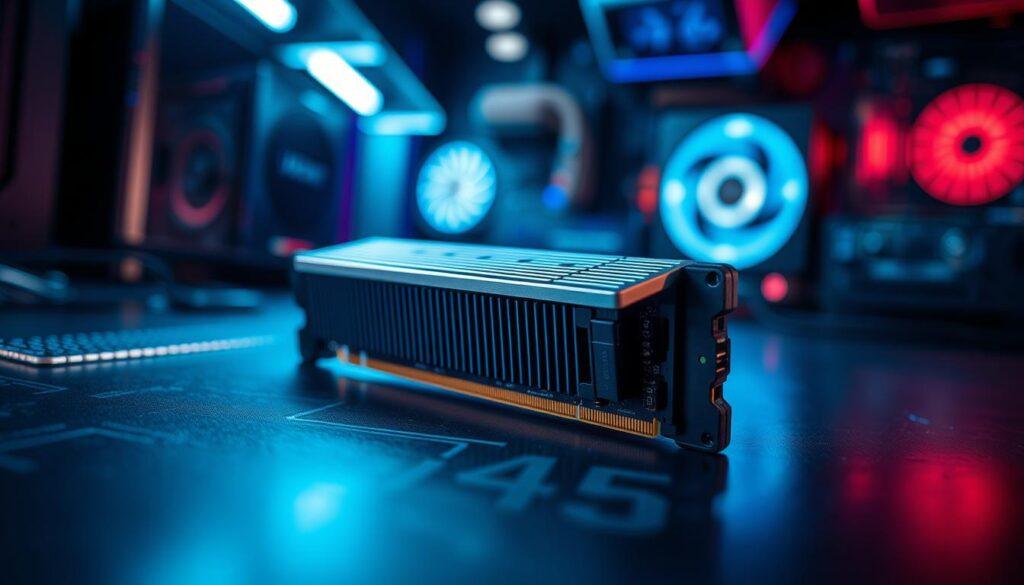
Gen5 SSDs are like actors saying, ‘I’m too hot to handle!’ They get hotter than a desert in summer. Without a heatsink, they slow down fast, like ‘high-speed storage.’
Most top motherboards come with M.2 heatsinks. Gen5 SSDs get very hot, even when doing light tasks. So, many come with heatsinks and fans. But, you might need a special cooler if yours doesn’t.
The Phison E18 SSD is great for gaming. It shows how makers are taking gaming seriously. But, the newer E26 controller needs even more cooling. It’s like needing a cold drink on a hot day.
Here’s a quick overview of thermal solutions:
| Cooling Solution | Effectiveness | Noise Level | Ideal Use Case |
|---|---|---|---|
| Passive Heatsink | Moderate | Silent | Casual Gaming |
| Active Cooling Fan | High | Moderate | Intensive Gaming |
| Thermal Shield | Very High | Variable | High-Performance Builds |
For a quiet PC, consider a big passive heatsink and good case air flow. But, your SSD might slow down if you push it too hard. The choice between speed and quiet is real. Remember, NVMe Gen5 SSD thermals are what you pay for speed.
Buying advice capacity endurance TLC vs QLC cache behavior
Choosing an SSD is like picking a fast train over a slow bus. The difference is huge. When looking for a new SSD, think about capacity first. A 1TB Gen4 NVMe drive, like the WD Black SN850X or Samsung 990 Pro, is perfect for most gamers. It’s quick for DirectStorage’s asset streaming and won’t break the bank.
Don’t forget about endurance. TLC drives last longer and write faster than QLC drives. TLC drives are common in Gen5 SSDs but need a big heatsink to stay cool. This adds size and cost.
Cache behavior is also key. When the pSLC cache is full, write speeds drop a lot. This can slow things down a lot. So, if you’re not doing heavy video editing or AI training, you might not need the most expensive option.
For heavy tasks, consider a 2TB drive. A 1TB drive can slow down a lot. So, getting more capacity is often a good idea. Here’s a quick look at SSD types and prices:
| SSD Type | Capacity | Price Range | Recommended Use |
|---|---|---|---|
| Gen 3 Budget Tier | 1TB | $50–$80 | Casual gaming and general use |
| Gen 4 Mainstream Tier | 1TB | $80–$140 | Serious gaming, moderate workloads |
| Gen 5 Enthuasiast Tier | 1TB | $200+ | Heavy gaming, professional tasks |
In short, while Gen5 SSDs are tempting, a good Gen4 drive is usually enough for most gamers. Save money for a better GPU instead. Let the early Gen5 adopters deal with the heat issues.
Setup checklist alignment 4K firmware ReBAR power plans
Congratulations on your NVMe purchase! But don’t just toss it in your rig without a plan. A detailed setup is key to unlock your drive’s full power. It’s like preparing a fine meal; the right recipe is essential.
First, let’s talk about alignment. Ensure your drive is formatted with a 4K sector alignment. Windows usually does this, but double-check. Running msinfo32 can confirm. Misalignment can hurt performance.
Next, update your SSD’s firmware. It’s like checking your car’s oil before driving. Outdated firmware can harm DirectStorage performance. A quick update can prevent many issues.
Then, enable Resizable BAR (ReBAR) in your BIOS. This feature boosts asset streaming and gaming. It’s a must for a smooth experience.
Adjust your power plans in Windows 11. Use “High Performance” or “Ultimate Performance” to avoid drive parking. Also, use Microsoft’s standard NVMe driver. Vendor-specific drivers can slow you down.
Lastly, check your M.2 slot’s PCIe generation. Use tools like GPU-Z or BIOS settings to confirm. If your setup doesn’t support Gen 4 or Gen 5, your drive’s speed will be limited.
Following this checklist might seem like preparing for a space shuttle launch. But skipping any step can ruin your Gen5 storage’s performance. DirectStorage gen5 storage needs this care to work well.
Roadmap consoles PC and cloud adoption curve
The gaming world is changing, but slowly. Consoles like the Xbox Series X|S have adopted DirectStorage. This makes loading games much faster. But, PC adoption is moving at a glacial pace.
Forspoken was supposed to be a big win for DirectStorage, but it didn’t quite hit the mark. This makes us wonder when asset streaming will become common. The future is unclear, even with Windows 11 pushing for it.
Cloud gaming adds more challenges. Imagine if Microsoft’s Xbox Cloud Gaming used DirectStorage to reduce delays. It sounds promising, but we’re far from making it happen. Windows 11 needs perfect hardware to support it fully, making progress slow.
Buying a Gen5 SSD now is like buying a snowblower in July. It’s optimistic, but we’ll have to wait. The real change will come when game engines like Unreal Engine 5 use DirectStorage. Until then, we must be patient.