

Ever stare at a screen wondering if that graphics card is worth your rent money? You’re not alone. The quest for perfect pixels has become our modern dragon chase.
From budget-conscious 1080p warriors to 4K enthusiasts with trust funds, 2025 offers something magical. Next-gen components are now available without fighting scalpers. It’s like finding a unicorn at a garage sale.
We’ll explore the psychological profiles of builders. The spreadsheet optimizers. The RGB maximalists. Everyone chasing that perfect frame rate high.
Whether you’re building a $500 workhorse or a $4,000 dream machine, this guide speaks your language. Let’s decode what your rig says about you.
Target FPS for 1080p/1440p/4K
The quest for perfect pixels is a big deal. It sets apart casual gamers from those who love the details. Just like you wouldn’t judge a wine by its alcohol content, gaming isn’t just about frame rates.
60 FPS at 4K is a world apart from 60 FPS at 1080p. It’s like comparing a Broadway show to a school play. Both tell stories, but one is much more polished.
Our tests show some interesting facts. The RX 6500 XT hits 30.6 FPS at 1080p Ultra. This is great for games where the story is key. On the other hand, the RTX 5060 Ti gets 61-62 FPS at 1440p. This is where games look good and play smoothly.
The RTX 5070 Ti is the star, reaching 61.2 FPS at 4K. This is more than gaming; it’s an experience. Every detail is a journey, every shadow a story.
| Resolution | Target FPS | GPU Example | Experience Level |
|---|---|---|---|
| 1080p | 30-60 FPS | RX 6500 XT | Casual & Story-Driven |
| 1440p | 60-100 FPS | RTX 5060 Ti | Balanced Performance |
| 4K | 60+ FPS | RTX 5070 Ti | Premium Immersion |
4K gaming is the top of the line. It’s like having a private island. It’s amazing but costs a lot in money and power.
Going for high FPS at 4K is pricey. You need hardware that’s almost like a supercomputer. It can do tax returns and render dragons at the same time.
The best spot for most gamers is 1440p at 60-100 FPS. It’s the perfect mix of looks and playability. It’s just right, not too much or too little.
Frame rates are about feeling, not just numbers. A steady 60 FPS is better than a shaky 90 FPS. Consistency is what makes gaming great.
Choose your resolution based on what you value most. Do you want stunning visuals or to win games? Your choice decides if 4K is worth it or if 1440p is better.
Budget Tiers & Parts Lists
Welcome to the financial reality check part of our digital journey. We’re about to see what your hard-earned dollars really get in today’s component market.
Imagine car shopping, but with more RGB lighting and fewer bad dealership experiences. You’ll find everything from the “$500 special” that might struggle with modern titles to the “$2,000 masterpiece” that laughs at system requirements.
We’ll look at five different price points. Each tier shows a different view on performance versus investment.
We’ll explore what each budget really offers. Nothing hurts more than realizing your “budget” project turned into a four-figure machine.
Entry, Performance, Ultra
Welcome to the gaming world where your budget decides your gaming quality. These three levels show the difference between casual gamers and serious enthusiasts. Let’s look at what each level really offers, beyond just marketing.
The Entry level is for those with a tight budget. It’s about the RX 6500 XT, where 1080p gaming is a compromise. You’ll play games, but on medium settings. It’s like watching a movie through a screen door.
The Performance tier is for serious gaming without breaking the bank. It offers smooth 1440p gaming, making you feel like a pro. Now, extra effects are visible, not just on paper.
The Ultra experience is the high-end gaming PC that outshines others. It’s RTX 5070 Ti, where 4K gaming is stunning. The difference between High and Ultra? About $800 and clearer graphics.
Let’s look at some numbers. The difference between levels is huge, not small. Going from Entry to Performance is like upgrading from economy to business class. But going from Performance to Ultra is like going from a regular flight to a private jet.
| Tier | GPU Example | 1080p FPS (High) | 1440p FPS (High) | 4K FPS (Ultra) |
|---|---|---|---|---|
| Entry | RX 6500 XT | 65-75 | 45-55 | Not recommended |
| Performance | RTX 4060 Ti | 110-130 | 85-95 | 50-60 |
| Ultra | RTX 5070 Ti | 165+ | 140+ | 90-110 |
Here’s the truth: spending more at the Ultra level doesn’t always mean better. That extra 10% might cost 40% more. It’s like buying fancy water – it’s better, but your friends might think you’ve lost it.
I remember moving from Entry to Ultra builds. My first Performance rig was like discovering color TV. The Ultra build? It was like getting glasses and seeing trees have leaves. Whether it’s worth the cost depends on your budget and what you value.
Choose your level based on what matters to you. The Entry build lets you play. The Performance build makes it beautiful. The Ultra build? It’s for when you want to see everything in games, even if it costs a lot.
Compatibility Matrix
Welcome to the part where we prevent your expensive components from becoming very fancy paperweights. I’ve seen enough “will it fit?” horror stories to fill a Stephen King novel.
Finding the right motherboard for your CPU is like modern dating – swipe left on incompatible sockets and hope you don’t get ghosted by BIOS issues. Chipset limitations can break your heart faster than a bad Tinder date.
We’ll analyze memory compatibility and cooler clearance with the precision of a neurosurgeon. Because nothing ruins a perfect setup like RGB RAM that won’t play nice with your massive air cooler.
This matrix will be your guide through the component compatibility maze. Think of it as your relationship counselor for hardware – with significantly less crying and more thermal paste involved.
Sockets, PCIe lanes, RAM QVL, cooler clearance
Building a PC is like architectural planning, where every millimeter counts. It’s where dreams of neat cables meet the reality of physical limits and specs that don’t match.
CPU sockets are the base of your build. Intel’s LGA 1700 and LGA 1851 are more than just numbers. They’re entire systems. AMD’s AM5 platform offers a long-term solution. Choosing between them is about more than just today’s processor; it’s about your future upgrades.
PCIe lanes are like digital highways on your motherboard. That fast PCIe 5.0 SSD might be slowed down by your GPU. Many builders find their fast storage running at slower speeds because of wrong slot choices. It’s like having a Ferrari but never driving it fast.
RAM compatibility can be a headache. The RAM QVL (Qualified Vendor List) is there for a reason, but many builders ignore it. You can’t just add any DDR5 RAM to any motherboard and expect it to work perfectly. The QVL shows tested combinations, proving what works.
Cooler clearance issues can be a big problem. That big air cooler might look great online, but will it fit in your case? It might block your RAM’s heat spreaders. Building a PC is like playing a game of Tetris, but with real money at stake.
Your case specs are not just suggestions; they’re rules. Measure twice, buy once. Check these four key points:
- CPU cooler height versus case clearance
- RAM height versus cooler overhang
- GPU length versus drive cages
- Motherboard standoff positions versus case holes
Nothing ruins build day faster than finding out your top components won’t work together. It’s like trying to build IKEA furniture without instructions. Instead of a wobbly bookshelf, you get $2,000 worth of tech that won’t fit.
The lesson? Compatibility is key, even if it’s not exciting. Your dream PC needs careful planning. In PC building, millimeters can make or break your budget.
Step‑by‑Step Assembly
Ever wonder why some systems work smoothly while others look like a mess? It’s often because of how they were put together.
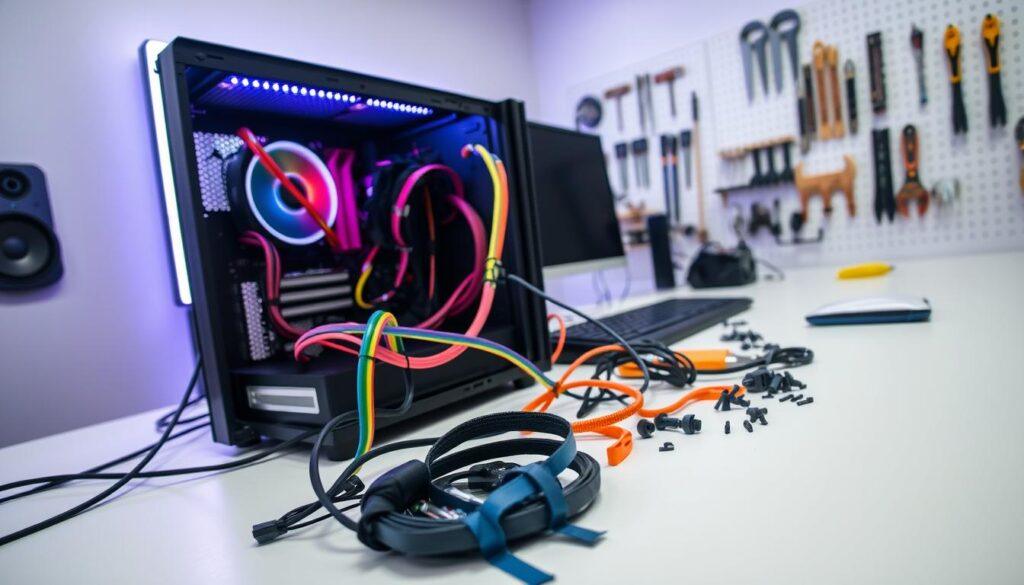
We’ll turn that confusing mess into a beautiful machine. Forget about IKEA instructions – this is real. First, we’ll make sure your workspace is static-free to avoid damaging expensive electronics.
The order in which you install components is key. Doing it wrong means you’ll have to do it all over again. Good cable management is not just about looks. It’s about keeping things cool and lasting longer.
Our method combines careful planning with real-world experience. You’ll find out which tools are essential and which are just show-offs. Let’s make something that works right from the start.
CPU/M.2 install, cooler mount, wiring & airflow
Building a PC is like brain surgery. It needs steady hands and careful moves. One mistake could cost a lot of money.
CPU installation demands the focus of a bomb disposal expert. Find the golden triangle on your processor and match it with the socket’s marker. The CPU should fit smoothly. If you’re pushing too hard, stop.
Installing an M.2 drive is a satisfying part of PC building. Remove the tiny screw, insert the drive at a 45-degree angle, and press down until you hear a click. Then, secure it with the screw but don’t overdo it.
Cooler mounting is key for pros. Whether you’re using air or liquid cooling, keep these tips in mind:
- Clean the CPU surface with isopropyl alcohol – fingerprints are bad for thermal paste
- Apply thermal paste in a pea-sized dot or X pattern – it’s a common debate
- Mount with even pressure across all screws – think of it like tuning a guitar
Wiring is like the circulatory system of your build. Route cables behind the motherboard tray and use zip ties to keep things tidy. The front-panel connectors can be tricky, needing good lighting.
Airflow optimization is simple: cool air in, hot air out. Place intake fans at the front/bottom and exhaust fans at the top/rear. This creates positive pressure to keep dust out.
Cable management is not just about looks. Poorly routed cables can block airflow, raising temperatures and lowering performance. Your future self will appreciate it during upgrades and cleanings.
First Boot & BIOS
Pressing the power button is like tech Russian roulette. Will it boot? Will it smoke? Or will it just judge your life choices?
Then, the ritual starts: mashing Del, Esc, and F2 like tech witchcraft. These are the secret ways to reach your system’s soul.
The BIOS screen feels like a trip back to 1995. It’s all blue screens, text menus, and a comforting sense of stability in our fast-changing digital world.
This isn’t just nostalgia – it’s where BIOS tuning really starts. Here, your components show their true colors or their problems.
Good setup can make a huge difference. It’s the leap from a system that works to one that sings. This is where your plans meet reality.
Think of it as backstage access to your machine’s deepest settings. The real magic happens before the operating system even loads.
XMP/EXPO, Resize BAR, fan curves, PBO/TVB
Ever wonder why your premium components don’t live up to their promise? It’s all about BIOS optimization. This is where your hardware’s true power lies.
Think of these settings as secret codes for your system. Your expensive RAM running at JEDEC speeds is like a Ferrari stuck in first gear. It’s time to shift gears.
XMP and EXPO profiles unlock your memory’s full speed. Most motherboards run at conservative JEDEC speeds. Turning on these profiles is like removing the speed limit from your sports car.
To access these profiles, go to your BIOS memory settings. Pick the right one. Save and exit. Your system will reboot with faster RAM performance.
Resize BAR technology changes how your GPU uses memory. It lets your graphics card use the whole frame buffer at once. It’s like switching from a single-lane road to an eight-lane highway.
Both AMD and NVIDIA support Resize BAR. Find it in your BIOS under PCIe settings. Make sure you have compatible hardware and updated drivers for the best results.
Fan curves change how your system cools. Default settings focus on quietness over cooling. Custom curves balance sound and temperature perfectly.
Make aggressive curves for gaming. Use gentle slopes for watching media. Your ears and system will appreciate it.
PBO and TVB are AMD’s precision boost technologies. They automatically overclock your processor based on heat and workload.
Turn on PBO for the best multi-core performance. Activate TVB for better single-core boosts. Together, they offer smart performance scaling.
Always check temperatures after these changes. Performance gains should not risk system stability. Your optimized rig should now perform as promised.
OS & Driver Setup
Welcome to the digital frontier where your hardware meets the sometimes maddening world of software. Installing an operating system is like trying to herd cats in a thunderstorm.
We’ll guide you through Windows installation, drawing from our own experiences. The real challenge comes after the OS is installed. It’s all about installing drivers correctly, starting with the chipset.
True Windows optimization is an art form. It involves activating Game Mode and choosing the right power plan. These choices can make a huge difference in your system’s performance.
Let’s talk about why “plug and play” often feels like “plug and pray.” We’ll show you how to turn chaos into a smoothly running system.
Chipset, GPU, firmware, overlay tools
Think of your PC as a top orchestra. Without a conductor, it’s just noise. Skipping chipset drivers and firmware updates is like that.
Your motherboard’s website is key. Download the latest drivers, but follow the specific installation sequence. Start with chipset drivers, then the rest. It’s like tuning instruments before the concert.
GPU drivers need extra care. Nvidia and AMD offer clean install options. Use them to avoid driver conflicts. I’ve seen systems fail due to messy driver installs more than hardware issues.
Firmware updates are like the sheet music for your hardware. BIOS updates can boost performance and prevent failures. But be careful – never interrupt a firmware flash.
Overlay tools are both loved and hated. They’re like backseat drivers that know what they’re doing. They’re essential but can be annoying.
- MSI Afterburner with RivaTuner remains the gold standard
- AMD Adrenalin and Nvidia Experience offer built-in options
- HWInfo64 provides surgical-level monitoring precision
Set up your overlays to show important info: frame times, temperatures, and clock speeds. Too much info is just clutter. It’s like trying to read every instrument’s sheet music at once.
Proper software setup makes your PC a cohesive system. Get it right, and you’ll avoid many headaches. Your gaming chair will thank you for the stability.
Performance Tuning
Welcome to the digital alchemist’s laboratory. Here, we turn silicon into gold with magic and precision. It’s not just computing—it’s living on the edge.

Performance tuning is for the true enthusiasts. It’s a game where voltage is both a friend and foe. We’ll discover how much is too much together.
We’ll learn to get more from your components without breaking them. We’ll use tools like MSI Afterburner and AMD Ryzen Master. We’ll make small, careful changes.
Stability testing is our meditation. It’s like zen for PC builders. It’s where we use our brains and take risks with silicon.
Undervolt/OC, frame‑time logging, latency tools
This section is like teaching your car to run on less fuel but go faster. It’s like magic, but with better instructions.
Undervolting finds the perfect balance between power and efficiency. It’s like making your CPU work smarter, not harder. You’ll see lower temperatures and maybe even faster speeds.
Modern tools make undervolting easy. AMD’s Precision Boost Overdrive and Intel’s XTU utility give you control. Start with small voltage drops and test stability well.
Overclocking is the opposite but needs the same care. You push your components to go faster. This means watching temperatures and performance closely.
Combining undervolting and overclocking can be amazing. A small voltage drop with a bit of overclocking can lead to great results. It’s like getting the best of both worlds.
Frame-time analysis shows if your game is smooth or just fast. Tools like CapFrameX and PresentMon find tiny stutters. These can make a big difference in how smooth your game feels.
Frame-time analysis is like wine tasting for gamers. You learn to spot small differences that others miss. Smooth frame delivery is what we all want.
Latency optimization tools are the final piece of the puzzle. Tools like LatencyMon and Nvidia’s Reflex technology reduce delay. They make sure your actions show up on screen quickly.
These tools help find out what’s slowing you down. You’ll see which apps are worth keeping and which should go away.
Chasing perfect performance can be its own game. You’ll aim for tiny improvements like they’re high scores. But remember, sometimes good enough is just that.
Thermal & Acoustic Targets
Welcome to the eternal debate in computing: keeping your parts cool without making your rig sound like a jet. We aim for the perfect balance – not too hot, not too loud.
Let’s face it: those flashy RGB lights won’t cool your system down, no matter what ads say. Real cooling comes from smart design, not just looks.
We’ll dive into cooling like HVAC experts and quieting like someone who’s had it with loud setups. Every choice, from your case to fans, counts.
Remember, good cooling isn’t just about speed – it’s about keeping your system alive longer. Quality cooling solutions can really make your system last, making that reliable hardware worth it in the long run.
Curves, pressure balance, dust filters
Think of your PC’s thermal management as climate control for silicon-based lifeforms. It’s not just about moving air. It’s about creating a microclimate where components thrive. The key is in three elements: intelligent fan curves, strategic pressure balance, and thoughtful dust filter implementation.
Fan curves are the unsung heroes of your thermal management. Most users choose between very quiet or very loud fans. But there’s a better way. Modern motherboards let you set custom curves based on temperature sensors.
Start with a curve that keeps fans quiet until it hits 60°C. Then, gradually increase the speed. This balances noise and cooling perfectly.
Pressure balance is what separates PC building amateurs from experts. Positive pressure keeps dust out by filtering intakes. Negative pressure improves airflow but lets dust in. For most builds, a slight positive pressure is best. It keeps your PC clean for longer.
| Pressure Type | Intake Fans | Exhaust Fans | Dust Control | Best For |
|---|---|---|---|---|
| Positive Pressure | 3-4 | 1-2 | Excellent | Home/Office Environments |
| Neutral Pressure | 2-3 | 2-3 | Good | Gaming/Performance |
| Negative Pressure | 1-2 | 3-4 | Poor | Show Builds/Testing |
Dust filters are often overlooked but are very important. They keep your PC clean and prevent it from becoming a dusty mess. Magnetic filters on intakes are a great investment. They’re easy to clean and filter well.
Remember to clean them every 2-3 months. It’s better to spend a few minutes cleaning filters than hours cleaning dust from your PC.
By using these techniques, you create a self-regulating thermal environment. Your components stay cool, your system is quiet, and you spend less time cleaning. It’s the smart way to maintain your PC – without turning it into a vacuum cleaner.
Benchmark Suite
Welcome to performance report card day. That sleek machine you’ve assembled deserves more than just admiring glances—it needs proper evaluation. We’re putting your system through its paces with the precision of a lab technician and the excitement of a playoff game.
Think of benchmarking as your computer’s standardized testing. People will run these diagnostics for hours yet complain about two-minute loading screens. The irony isn’t lost on us.
We’ll explore top benchmarking tools that measure everything from raw computational power to real-world performance. These suites deliver the cold, hard truth about your system’s capabilities.
Ready to see how your creation actually performs? Let’s dive into the numbers that separate hype from reality.
Synthetic + real‑world titles, logs, how to read results
Benchmark numbers are like wine tasting notes for PC building. They use special terms to show quality. We’ll explain what these numbers mean, beyond just “bigger is better.”
Synthetic benchmarks test components alone. They’re like academic exams for your hardware. They show raw power but don’t always match real-world use.
Real-world testing uses games and apps. This is where theory meets reality. The same PC might score differently in Cyberpunk 2077 versus Microsoft Flight Simulator.
Why the difference? Synthetic tests have ideal conditions. Real-world testing faces variables like game engines and drivers.
Benchmarking Methodology
Good testing needs consistency. We follow these steps:
- Clean OS installation with latest drivers
- Closed background applications
- Three consecutive test runs
- Average results calculation
- Temperature and clock monitoring
Logging results is key. We track frame times, 1% lows, and average FPS. This shows performance consistency beyond just averages.
Reading Between the Lines
Understanding results needs context. A 10% difference might seem big but feel the same in games. Look for meaningful improvements.
Frame time consistency is more important than peak FPS. Smooth gameplay is often better than high averages with stutters.
| Metric | What It Measures | Ideal Range | Real-World Impact |
|---|---|---|---|
| Average FPS | Overall performance | 60+ for smooth gameplay | General playability |
| 1% Lows | Worst-case performance | Within 30% of average | Stuttering reduction |
| Frame Times | Consistency | Low variance | Smoothness perception |
| Temperature | Cooling efficiency | Below 80°C | Long-term stability |
People talk about benchmark numbers like sports stats at parties. “My GPU scores 15,000 in Time Spy” is like saying “My quarterback threw for 300 yards.” Know what these numbers mean for your gaming.
Understanding performance is both science and art. It’s like wine criticism, needing special vocabulary. But, unlike wine, you can measure the results.
Remember, benchmarks are tools, not goals. They guide decisions but shouldn’t be the only factor. The best system is the one that gives you the gaming experience you want, not just the highest score.
Troubleshooting Your PC Build
Every PC builder faces the dreaded no-post screen at some point. It’s like tech therapy, where you have to find the problem with great care. Often, the issue is right in front of you.
Did you make sure the CPU power cable is plugged in tightly? Sometimes, the simplest solution is the best one.
First, check if your RAM is seated properly. Loose RAM can cause a lot of trouble. Make sure all connections are secure before moving on. Your motherboard manual will be your guide during these times.
When you’re trying to solve performance issues, think clearly. Use tools like HWInfo to check temperatures. Test each part separately if you can. Even the latest tech needs a good power cycle sometimes.
Stay organized in your troubleshooting efforts. Begin with checking hardware connections, then move to BIOS settings, and lastly, look for software conflicts. This approach can save you a lot of time and frustration. With patience and persistence, your PC will overcome its problems and work better than ever.