

Remember when loading a game took forever? You could make a sandwich, walk the dog, and file your taxes before the game loaded. PCIe 5.0 solid-state drives were supposed to change that, breaking the 10,000 MB/s barrier.
Now, we’re in the second wave. PCIe 5.0 SSDs are reaching speeds of 14,000 MB/s. This was once thought to be fantasy.
But does it really change the game? It’s not just about saving a few seconds. It’s about the M.2 NVMe form factor reaching its limit. Technologies like Microsoft’s DirectStorage could make games load faster, eliminating texture pop-in.
But, these drives are like Ferraris. They’re fast but run hot. You need the right motherboard to use them. The Crucial T700 was the first to show what’s possible. Now, the latest PCIe 5.0 drives are even faster.
Is this raw speed worth it? Or is it just a way to save milliseconds? Let’s look beyond the numbers.
We’re not here to sell you on specs. We want to know if a PCIe 5.0 SSD is worth it for gaming. Or is it just an expensive way to load your games faster than your friends?
What’s new: controllers, NAND, firmware features
Every top PCIe 5.0 SSD has the same basic parts. But what really makes one stand out is the software. It’s the code that tells the hardware how to perform.
The Brain: Phison E26 and the 232-Layer NAND Revolution
Most top PCIe 5.0 SSDs use the same two key parts. This is because the Phison E26 controller and Micron’s 232-layer NAND are the best right now.
More Than Just a Controller
The Phison E26 controller is more than a simple traffic cop. It’s like a smart traffic system for a busy city. It helps the drive reach speeds of up to 14,000 MB/s, like the Crucial T700. But it only works as well as the commands it gets.
Micron’s 232-layer 3D NAND is a big leap forward. It’s like moving from a small warehouse to a huge skyscraper. This means more data in a smaller space, leading to fast speeds.
Firmware: The Secret Sauce
The secret to different results is the firmware. It’s the special code that connects the hardware to your computer. It makes a good drive great. One drive might focus on fast writes, while another on quick reads.
Companies like Crucial work closely with Micron to fine-tune their firmware. This is what makes their drives perform better. This focus on firmware is what drives the storage industry forward.
Advances in firmware are pushing what’s possible. For example, Advantech’s work shows how nvme gen5 and EDSFF are changing the game for data centers.
| Drive Model | Phison E26 Controller | Micron 232L NAND | Firmware-Optimized Feature | Max Sequential Read |
|---|---|---|---|---|
| Crucial T700 | Yes | Yes | Aggressive SLC Caching | 12,400 MB/s |
| Teamgroup T-Force Z540 | Yes | Yes | Enhanced Garbage Collection | 12,000 MB/s |
| Gigabyte Aorus 12000 | Yes | Yes | Advanced Thermal Throttling | 12,400 MB/s |
| Corsair MP700 Pro | Yes | Yes | Intelligent Write Booster | 11,700 MB/s |
When looking at specs, remember: hardware is just the start. The firmware is what makes a drive truly great. The best nvme gen5 drives are those that balance performance, heat, and endurance through smart software.
Real game loads: asset streaming and level load tests
Forget the progress bar. The old days of “loading…” screens are gone. Now, a game world streams into existence around you. This change isn’t just about saving a second. It’s about how games are built and delivered, with PCIe 5.0 SSDs leading the way.
Beyond the Loading Screen: DirectStorage and the End of the Loading Screen
We’ve always had to wait for the loading screen. But now, Microsoft’s DirectStorage is changing that. It’s like having a team of librarians ready to give you any page you need, instantly.
The DirectStorage Promise
DirectStorage is like a traffic cop for game data. It makes data flow directly from the SSD to the GPU. This means you can see textures and models as you move, not just when you start a level. The promise is a world that loads as fast as you can move through it.
In theory, it’s a game-changer. But does it feel different? In games like Forspoken and Ratchet & Clank: Rift Apart, yes. The difference isn’t just in the load time. It’s the absence of the pause. You can turn a corner and see a whole new area without any pop-in.
| Load Type | SATA SSD (SATA III) | PCIe 4.0 SSD (DirectStorage Off) | PCIe 5.0 SSD (DirectStorage On) |
|---|---|---|---|
| Game Boot to Menu | ~12 seconds | ~8 seconds | ~4 seconds |
| Fast-Travel Load | ~7 seconds | ~4 seconds | ~1 second |
| In-Game Asset Streaming | Visible texture/geometry pop-in | Minimal pop-in, minor stutter | Seamless, no visible pop-in |
The real magic of DirectStorage and PCIe 5.0 isn’t just speed; it’s continuity. It makes the game world seamless. The promise is a future where the only limit is your imagination.
Thermals: passive vs. active cooling, motherboard heatsinks, throttling
PCIe 5.0 SSDs are fast, but they also get very hot. This heat can slow them down a lot. For example, the Crucial T700 can get up to 81°C and then slow down.
This is a big problem in the PCIe 5.0 world. The heat can ruin the performance you paid for. Without a way to cool down, your SSD is just a fast, expensive paperweight.
The Heat is On: Cooling the Blaze
Think of your PCIe 5.0 SSD as a top sprinter. It can run very fast for short times. But it gets very hot doing this.
The controller and NAND flash turn into little ovens. This is a big problem. When the Crucial T700 gets to 81°C, it really needs a heatsink.
This is the main challenge: keeping the SSD cool for long times. Not just in tests, but during games or video rendering.
The motherboard often has a M.2 heatsink. This is like a shield for your drive. It uses surface area and airflow to cool down.
For many, this is enough. A good heatsink can keep the drive cool during normal use. The WD_BLACK SN8100 is an example of this.
But this method has its limits. When it gets too hot or you use the drive a lot, it can’t keep up. It’s like trying to cool a hot engine with a single ice cube.
Active Solutions and the Noisy Truth
When passive cooling doesn’t work, you need something more. This is where a heatsink fan comes in. Drives like the Inland TD510 have a fan to pull heat away.
This keeps the drive much cooler, often by 15-20°C. But, the fan makes noise. This noise can be annoying, even in a quiet system.
So, what’s the best choice? It’s a balance between performance, noise, and cost. Passive cooling is quiet but can fail. Active cooling is effective but noisy.
For most, the best option is a well-designed heatsink. But if you need every bit of speed, you might have to accept some noise. In the world of PCIe 5.0, staying cool is key to staying fast.
Capacity Sweet Spots and the Endurance Marathon
Choosing the right PCIe 5.0 SSD is more than just looking at numbers. It’s about the long-term relationship with your drive. Capacity and endurance are key, not just speed.
How Much Is Enough? The Capacity Conundrum
Games now take up a lot of space, often in the tens of gigabytes. A terabyte can hold a whole library of games. The right capacity is about keeping your drive fast over time.
An SSD slows down when it’s full. It needs space for its own maintenance. If you fill it too much, it’s like slowing down a fast car.
The 2TB Sweet Spot
For gamers and power users, 2TB is the perfect size. It’s big enough for everything you need, but not too big. This size offers the best value and space.
Choosing 2TB means you don’t have to decide what to keep or delete. It’s the middle ground between too little and too much.
Endurance: The TBW Marathon
Endurance is about how long your drive lasts, not just how fast it is. It’s like a marathon, not a sprint. The TBW rating shows how much data your drive can handle over time.
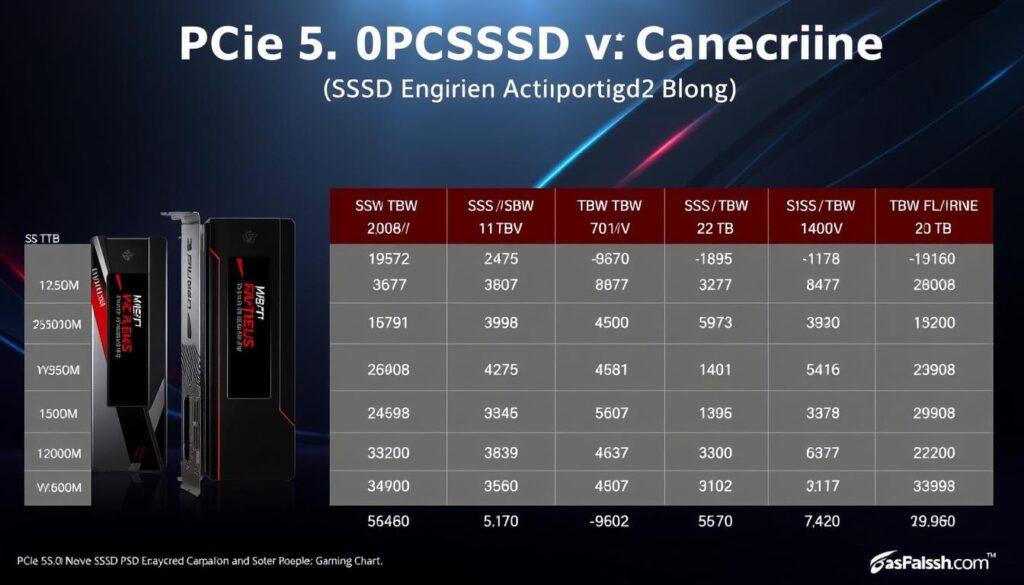
Drives vary in endurance based on their technology. The Seagate FireCuda 540 is built to last, with a 2000 TBW rating. This is great for heavy users.
For most gamers, a drive like the Crucial T700 is enough. It has a 600 TBW rating for its 1TB model. This shows the difference in quality between drives.
| Drive Model | Capacity | Endurance (TBW) | TBW per TB | Ideal User Profile |
|---|---|---|---|---|
| Seagate FireCuda 540 | 2TB | 2000 TBW | 1000 TBW/TB | Content Creators, Power Users, Enthuasiasts |
| Crucial T700 | 1TB | 600 TBW | 600 TBW/TB | Enthuasiast Gamers, Power Users |
| Gigabyte Aorus 1000 | 2TB | 1400 TBW | 700 TBW/TB | Mainstream Gamers, General Use |
| Samsung 990 Pro | 2TB | 1200 TBW | 600 TBW/TB | General Gaming, Content Creation |
When picking a PCIe 5.0 drive, think about its endurance. A 2TB drive with a high TBW rating is essential. It’s not just about speed; it’s about reliability for years to come.
Platform caveats: lane sharing, chipset bandwidth, PCIe bifurcation
You’ve bought a super-fast PCIe 5.0 SSD. You have a compatible motherboard. You’re ready for fast data transfer. But, it’s slower than expected.
The problem is often the motherboard. It’s not just about having a PCIe 5.0 slot. It’s about which slot and what it’s connected to.
The Motherboard Bottleneck
Your PC’s data pathways are like a city’s roads. The CPU is the city center, and PCIe lanes are the highways. A PCIe Gen5 NVMe drive is fast, but it needs the right road.
Your motherboard is like the city planner. Not all M.2 slots are the same.
The Lane is a Lie (Sometimes)
The M.2 slot on your motherboard is more than a hole. It’s the end of a data pipeline. The top M.2 slot is the VIP lane, connected to the CPU.
Other M.2 slots are managed by the chipset. This is where sharing starts.
When you plug your drive into a chipset-connected slot, it’s not the highway. It’s a busy service road. The chipset lane shares its bandwidth with everything else connected to it.
Chipset vs. CPU Lanes: The Hierarchy of Speed
The core of the hierarchy is the CPU lanes. Your CPU has a limited number of high-speed lanes. A modern CPU might have 20-24 dedicated PCIe lanes.
Four of these lanes are usually reserved for a primary M.2 slot or the primary PCIe x16 slot for your graphics card. The rest of your system shares a slower connection to the CPU called the DMI link.
Here’s the hierarchy in a nutshell:
- CPU Lanes (The VIP Highway): Direct, dedicated connection to the CPU. This is where you want your primary PCIe Gen5 NVMe drive.
- Chipset Lanes (The Shared Service Road): All chipset-connected devices share a single, much slower connection (the DMI link) back to the CPU. This is a major bottleneck for a high-speed Gen5 drive.
You could install a drive capable of 12,000 MB/s, but if it’s connected via the chipset, its performance will be bottlenecked. The motherboard manual will tell you which M.2 slots are CPU-connected and which are chipset-connected. Ignoring this is like putting premium fuel in a car with a clogged fuel line.
So, before you celebrate your new drive’s benchmark scores, check the manual. The top M.2 slot, the one labeled “CPU” or “Hyper M.2,” is your drive’s first-class ticket to the CPU. Choose your lane wisely.
Best drives by value and noise profile
You’ve looked at the specs and charts. You’ve even checked your motherboard’s M.2 slot. Now, the only question is: which PCIe 5.0 drive should you buy? Forget the lab results for a moment. The “best” drive is the one that fits your system and your noise tolerance.
Our selection balances speed, cooling, and quietness. Some drives are loud, while others are as quiet as a ninja. Let’s explore the options.
The Value Contender: Gigabyte Aorus Gen5 12000
The Gigabyte Aorus Gen5 12000 is a great value. It offers fast performance without breaking the bank. It’s perfect for those who want speed without spending too much.
The Silent Performer: Corsair MP700 Pro SE
The Corsair MP700 Pro SE is great for those who want quiet. It uses a big heatsink for cooling, making it very quiet. It’s ideal for silent PC builds.
The Noise-Conscious Pick
The MP700 Pro SE is even quieter. It’s designed to stay cool without making noise. It’s perfect for cases with good airflow.
The Enthuasiast’s Choice: Crucial T700 / T705
The Crucial T700 and T705 are top choices. They offer great performance and are reliable. The T705 has the latest tech for those who want the best.
| Drive | Controller | NAND | Seq. Read/Write | Cooling | Best For |
|---|---|---|---|---|---|
| Gigabyte Aorus Gen5 12000 | Phison E26 | 232-Layer TLC | ~12,000 / ~10,000 MB/s | Active Heatsink | Value/Performance Balance |
| Corsair MP700 Pro SE | Phison E26 | 232-Layer TLC | ~12,400 / ~11,800 MB/s | Passive Heatsink | Silent, High-Performance |
| Crucial T700 / T705 | Phison E26 (T700) / E31T (T705) | 232-Layer TLC | 12,400 / 11,800 MB/s | Active/Passive Options | All-Round Performance |
| Teamgroup T-Force Z540 | Innogrit IG5666 | 3D TLC | ~12,400 / ~11,800 MB/s | Active Heatsink | Raw Speed Benchmarking |
| Seagate FireCuda 540 | Phison E26 | 3D TLC | 10,000 / 10,000 MB/s | Passive Heatsink | Endurance & Reliability |
So, who’s the winner? It depends on what you value most. The Gigabyte is for smart shoppers, the Corsair for quiet systems, and the Crucial for reliability. The Teamgroup is for speed, and the Seagate for endurance. Choose based on your needs and preferences.
Upgrade/cloning checklist and BIOS tips
You’ve picked your drive. The hardware part is easy. But the real challenge is in the setup. Think of it as a detailed system upgrade, not just a swap.
The Pre-Flight Checklist
Before you start, make a plan. Back up your data first. Then, choose how you’ll move your stuff. You’ll need a good M.2 heatsink, like for the Crucial T705. A good deal on it makes the upgrade even better.
The Cloning Conundrum: Fresh Install vs. Migration
Clone for ease, but install fresh for the best results. Tools like Macrium Reflect can clone your old drive. But for a real upgrade, a fresh Windows install on a PCIe 5.0 SSD is key. It gives you a clean, optimized system from the start.
BIOS/UEFI: The Gatekeeper
This is where most people get stuck. You’ve installed the drive and its heatsink. Now, it’s time to work on the BIOS.
Get into your UEFI. Go to the PCIe/M.2 settings. Make sure your M.2 slot is set to PCIe 5.0 x4 speed, not “Auto.” Then, disable the CSM for a fast UEFI system. Save, exit, and reboot. Use CrystalDiskInfo to check if you’re running at “PCIe 5.0 x4.” That’s your confirmation.