

Welcome to the world of displays, where pixels dance and colors pop! Choosing the right screen can feel like navigating a maze of jargon and flashy marketing. But don’t worry, I’m here to guide you through this pixelated jungle.
What makes a display truly shine? Is it the resolution, refresh rate, or size? The truth is, it’s a mix of all these. Think of it like a symphony: each part plays a key role in creating a great experience. But how do you find the perfect balance?
In this guide, we’ll look at the features that really matter. This way, you won’t end up with a screen that’s all show and no go. Whether you’re a casual user or a serious enthusiast, knowing these details will take your viewing experience to new levels. So, grab your favorite snack, and let’s dive into the vibrant world of displays!
Resolution Sweet Spots: 1080p vs 1440p vs 4K Performance and Hardware Requirements
Choosing the right resolution for your gaming monitor is like picking the right outfit for a first date—it’s all about making the right impression. In 2025, the resolution wars have reached a fever pitch, with 1080p, 1440p, and 4K battling for supremacy.
The classic 1080p is great for those watching their budget. It’s perfect for esports fans who need fast frame rates. If you’re into competitive play, this resolution is your best bet.
1440p is the sweet spot for many gamers. It offers stunning visuals and good performance. With a refresh rate of 144Hz or even 240Hz, it’s smooth and doesn’t need a super powerful GPU. It’s like the Goldilocks of resolutions: just right.
The 4K gaming monitor is the top choice for stunning detail. It’s perfect for single-player games. But, it needs a powerful GPU to run smoothly. Gamers with high-end GPUs like the RTX 5090 often dream of a 42-inch 4K OLED that can handle over 165Hz.
Before choosing a resolution, think about your gaming style. Do you want the detailed look of 4K, or the fast action of 1440p? Your GPU’s health and your gaming fun depend on it.
Refresh Rate Impact: 60Hz vs 144Hz vs 240Hz vs 360Hz Gaming Experience
Refresh rates are key in gaming monitors, affecting your play. 60Hz is like a horse-drawn carriage, while 144Hz is like the first car. It’s a big leap forward.
Switching to 144Hz makes games feel smoother and more responsive. It’s like seeing the Matrix in code. But there’s even more.
240Hz is like driving on the autobahn. Games like Valorant or Apex Legends feel incredibly smooth. Moving from 144 to 240Hz cuts down on lag. This can mean the difference between winning and losing.
Then, there’s 360Hz, 480Hz, and even 500Hz panels. These monitors make motion blur laughable. Every frame is clear, giving competitive gamers an edge. It’s like your reflexes are wired for competition.
But, high refresh rates only work with fast response times. A 360Hz LCD with slow pixel transitions is just a smear. OLED’s fast response makes 480Hz content stunning. For serious gamers, a monitor with both high refresh rates and fast response times is key.
Is a 240Hz monitor from Best Buy worth it? If you’re competitive, yes. But if you prefer games like Stardew Valley, 144Hz is fine. The choice depends on your gaming style and preferences.
Panel Technology: IPS vs VA vs OLED vs QD-OLED Gaming Advantages and Trade-offs
Choosing a gaming monitor’s panel is like picking a character in a game. Each type has its own strengths and weaknesses. Let’s explore the four main types: IPS, VA, OLED, and QD-OLED. Each offers unique benefits for a better gaming experience in 2025.
IPS panels are like the dependable paladin. They’re known for their color accuracy and wide viewing angles. This makes them great for those who want vibrant visuals and consistent performance, even from the sides. But, their contrast isn’t as strong, making blacks look more like dark gray than true black.
VA panels are like the sneaky rogues. They have better contrast, giving deeper blacks and a more immersive feel in dark games. But, their slower response times can cause ghostly trails behind fast objects, which might upset competitive gamers.
OLED and QD-OLED panels are the true magic in monitors. They offer perfect blacks and infinite contrast, perfect for stunning visuals. With response times as low as 0.03 ms, they make fast motion look clear. But, they’re pricey, starting around $600 to $700 for serious gamers.
But, there’s a catch. OLED users worry about burn-in, leading to online debates. For example, the Acer Predator X27U warranty doesn’t cover burn-in. This has led to a smart buying strategy: buying a Best Buy 5-year warranty for $165, then returning the monitor before the warranty ends to avoid burn-in. It’s a clever but cynical move!
So, is an OLED monitor worth the extra cost? If you value contrast and motion clarity, yes. But, you’ll need to use dark mode and hide your taskbar like a digital ninja.
| Panel Type | Color Accuracy | Contrast Ratio | Response Time | Price Range |
|---|---|---|---|---|
| IPS | Excellent | Medium | 1 ms | $200 – $500 |
| VA | Good | High | 4 ms | $150 – $400 |
| OLED | Outstanding | Infinite | 0.03 ms | $600 – $1200 |
| QD-OLED | Exceptional | Infinite | 0.03 ms | $800 – $1500 |
Response Time Analysis: GTG vs MPRT Measurements and Motion Clarity Impact
When it comes to gaming monitors, response time is key. It’s how fast a pixel changes color. This is measured in two ways: GTG (Gray-to-Gray) and MPRT (Moving Picture Response Time).
Let’s break it down. GTG shows how fast a pixel changes shades. MPRT looks at how well a frame stays clear, which affects motion blur. Manufacturers often highlight 1ms GTG, but this can cause ghosting issues.
OLED panels, on the other hand, have a 0.03ms GTG. This means no ghosting or artifacts, even for the best LCD monitors. Playing Counter-Strike 2 becomes like looking at a photo.
On Blur Busters forums, experts dive deep into motion clarity. They say for competitive gaming, GTG isn’t everything. Look for real-world tests to see how a monitor performs.
In short, when picking a gaming monitor for 2025, response time matters a lot. It can greatly affect your game. So, choose a monitor that offers the best motion clarity to see your enemies clearly.
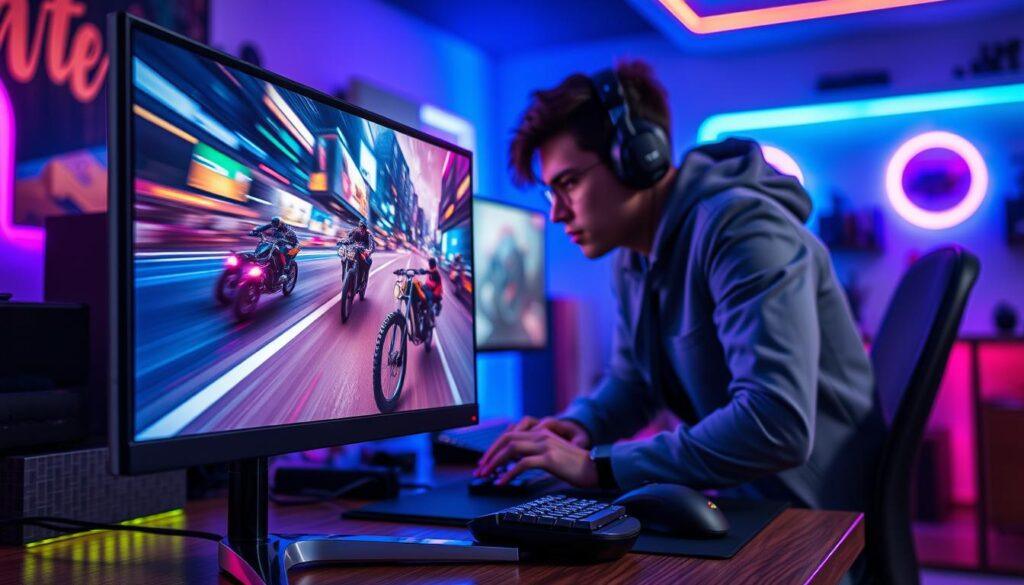
HDR Gaming: HDR400 vs HDR600 vs HDR1000 Real-World Performance
When it comes to HDR gaming, HDR400, HDR600, and HDR1000 are like different lights. If you’re looking at 4K gaming monitors, knowing these levels is key for a great gaming experience.
Let’s get into it. HDR400 is the basic level. It supports HDR signals, but it’s not impressive. It lacks brightness and local dimming, so it’s not much better than standard dynamic range (SDR). It’s like a Ferrari engine in a go-kart, not what you expect.
HDR600 is a step up. It has enough brightness to make explosions and colors pop. But, many models use edge-lit dimming, which can limit the HDR experience. It’s like watching a blockbuster film, but the lighting is not as good.
HDR1000 is where things get exciting. It shines brightly, thanks to full-array local dimming or OLED’s per-pixel illumination. It’s like stepping into a world full of vibrant colors and deep shadows. For console gamers, like on the PS5, HDR makes games look amazing.
But there’s more! VESA DisplayHDR True Black is a special HDR level. It’s for emissive displays that can show blacks so deep they seem to suck in light. If you want the best HDR gaming, look for this certification.
So, when you’re looking at monitors, don’t just look at the HDR badge. Interrogate it. Check if it has enough dimming zones and if it’s OLED. HDR needs good contrast to be truly great.
| HDR Tier | Peak Brightness | Local Dimming | Best For |
|---|---|---|---|
| HDR400 | 400 nits | None | Basic HDR Experience |
| HDR600 | 600 nits | Edge-lit | Mid-Range Gaming |
| HDR1000 | 1000 nits+ | Full-array Local Dimming | High-End Gaming |
Size Considerations: 24″ vs 27″ vs 32″ vs Ultrawide Gaming Ergonomics
Size matters a lot in gaming monitors. Choosing between 24″, 27″, 32″, or ultrawide screens can change your gaming. Each size has its own benefits, making your gameplay better.
A 24-inch monitor is great for esports fans. It’s small, so you can see everything clearly without straining. This size helps you stay focused and quick during games.
27 inches is a popular choice. It offers a good balance between size and ease of use. It’s perfect for both casual and serious gamers.
32 inches brings a cinematic feel to your gaming. But, you need to sit far enough away to avoid eye strain. It’s a big screen, so you’ll need a lot of desk space.
Ultrawide monitors, like 34 inches, offer a wide view. They wrap around your vision, making games feel more immersive. You can switch between different settings for different games.
For those with both PCs and consoles, a 27- to 32-inch 4K OLED is ideal. It’s big enough to be immersive but won’t take up too much space. Make sure your desk is big enough before buying a big monitor.
Choosing the right monitor size depends on your gaming style and space. Think about how you game and what feels right for you. A monitor is your gateway to new worlds.
For more tips on setting up your gaming space, check out this monitor buying guide. It helps you pick the best monitor for your gaming needs.
G-Sync vs FreeSync: Adaptive Sync Technology Benefits and Compatibility
In 2025, gamers face a big choice between G-Sync and FreeSync. These technologies make your screen smooth by matching the monitor’s refresh rate with the GPU’s frame rate. This means no more screen tearing or stuttering, giving you a flawless gaming experience.
G-Sync, made by NVIDIA, used to need a special chip, which was expensive. But now, many monitors are “G-Sync Compatible.” They work well with NVIDIA cards without the high cost. FreeSync, AMD’s open-source tech, has also improved a lot. It offers a smooth and flicker-free experience on many panels.
Console gamers now get a smooth experience thanks to HDMI 2.1’s VRR. This feature is in the PS5 and Xbox Series X. It means you don’t have to stick to one brand to enjoy great gaming. You can pick a monitor that fits your GPU’s sync technology.
When looking at gaming monitor 2025 options, make sure it matches your GPU’s sync tech. Your gaming will improve, and so will your performance. For more details, check out this comparison on G-Sync vs FreeSync.
| Feature | G-Sync | FreeSync |
|---|---|---|
| Price | Higher (due to hardware) | Generally lower |
| Compatibility | NVIDIA GPUs | AMD GPUs |
| Flicker-Free Experience | Yes | Yes |
| VRR Support for Consoles | Limited | Yes (with HDMI 2.1) |
Color Accuracy: sRGB vs DCI-P3 vs Adobe RGB Gamut Coverage for Gaming and Content
Let’s explore the world of color accuracy. The right monitor can change your gaming experience. In intense battles or stunning landscapes, color matters a lot. So, what do these terms mean for you? Let’s get into it.
Color gamuts are like a spice rack for your display. Gamers might just need basic colors, but creators need more. Here’s a quick overview:
- sRGB: The baseline for web content and most games. It’s enough for 99% of players.
- DCI-P3: The cinema standard that brings richer reds and greens, making HDR content pop.
- Adobe RGB: Primarily for print professionals. Unless you’re designing magazine covers, it’s likely irrelevant.
Now, let’s talk about the panels. IPS panels are known for their excellent color accuracy and wide viewing angles. On the other hand, OLED and QD-OLED panels offer infinite contrast and amazing color volume. For example, the MSI MAG 271QPX-E2 covers the DCI-P3 gamut with vibrant colors, making IPS panels look dull by comparison.
Many gamers think color accuracy is just for creators. But once you see the neon streets of Night City on a well-calibrated OLED, you’ll see it’s for gamers too. So, when looking at a monitor buying guide, don’t ignore the gamut numbers. A monitor that can handle DCI-P3 is not just for video editors; it’s for anyone who wants their virtual worlds to look vivid, not faded.
Connectivity Options: HDMI 2.1, DisplayPort 1.4/2.0, USB-C Hub Features
In the world of gaming, connectivity is key. A 4K gaming monitor needs the right ports to shine. Without them, your gaming is like playing with a potato.
HDMI 2.1 is a must for console gamers. It’s needed for the best experience with the PlayStation 5 or Xbox Series X. It supports 4K at 120Hz, making games smoother and more vibrant.
DisplayPort 1.4 meets most PC gaming needs. But DisplayPort 2.0 is the future. It can handle 4K at 240Hz, perfect for next-gen GPUs.
USB-C is often overlooked but vital. A monitor with a USB-C hub and KVM switch makes switching between work and play easy. It turns your gaming area into a productivity hub with just one cable.
Before buying a 4K gaming monitor, check the ports. HDMI 2.1 is essential for console gaming. Prioritize connectivity for the best gaming experience.
Ergonomic Features: Height Adjustment, Pivot, Tilt, and VESA Mount Compatibility
Ergonomic features are key for a comfy gaming session. Height adjustment is a must. Without it, you might stack books to reach your screen.
A monitor that only tilts is outdated. For a comfy gaming experience, look for pivot and swivel options. These features help avoid “gamer neck” and are great for reading or coding.
VESA mount compatibility is also important. It lets you mount your monitor freely, saving desk space. Imagine your monitor floating like a hologram. It’s a great feature many budget monitors lack.
Comfort is essential, so check the ergonomic features in a monitor buying guide. A pricey display that’s uncomfortable is not worth it. Your spine will appreciate a stand that moves with your game.
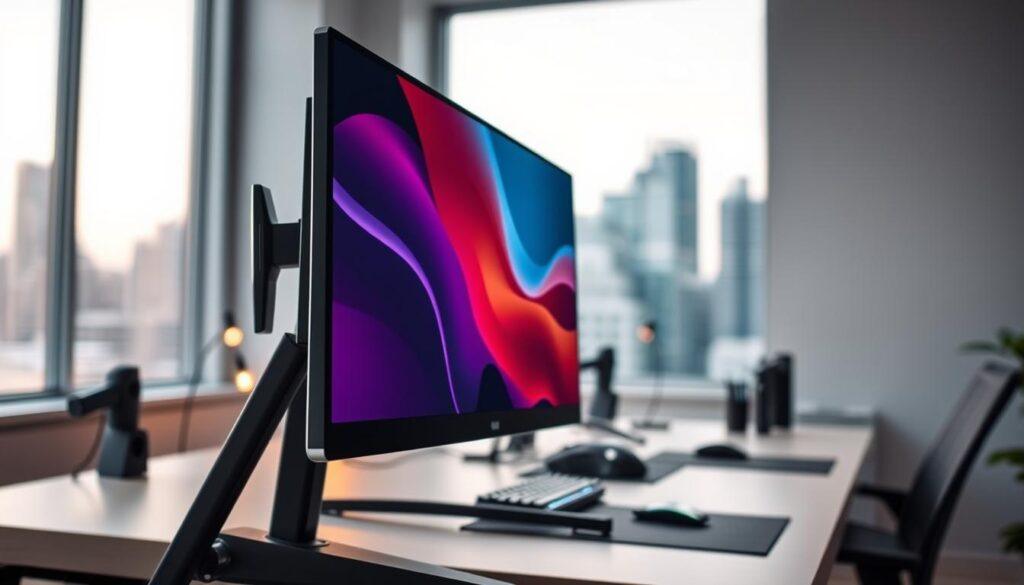
Budget Recommendations: Entry-Level, Mid-Range, and Premium Gaming Monitor Options
In 2025, gaming monitors have become more affordable without losing quality. You can find a good 1080p 144Hz IPS panel for under $300. This makes your console or entry-level PC perform better. Brands like Acer, ViewSonic, and Dell’s G-series offer great options without breaking the bank.
The mid-range tier, priced between $400 and $600, offers amazing deals. Here, you’ll find 1440p 144Hz (or even 165Hz) monitors. The Dell Alienware AW2721D and Acer Predator XB273KV3 are top choices for gamers.
If you’re ready to spend more, premium monitors are worth it. For $700 to $1,000, you get OLED and QD-OLED monitors. The LG UltraGear 27GR95QE and MSI MAG 271QPX-E2 provide stunning visuals. But, be sure to consider the warranty, like Best Buy’s 5-year plan, to avoid surprises.
Whether you’re on a tight budget or splurging, remember to think about the total cost. This monitor buying guide reminds you to consider everything, not just the price. The best deal is one that doesn’t cost you in the long run.
| Monitor Type | Price Range | Key Features |
|---|---|---|
| Entry-Level | Under $300 | 1080p, 144Hz, IPS Panel |
| Mid-Range | $400 – $600 | 1440p, 144Hz/165Hz, Great Color Accuracy |
| Premium | $700 – $1,000 | OLED/QD-OLED, Exceptional Visuals |
Multi-Monitor Setup: Bezel Considerations, Stand Options, and Performance Impact
Imagine a gaming monitor 2025 setup that looks like a command center. A multi-monitor setup can make gaming better, but it has its challenges. Bezel size is key. Even thin bezels can break the game’s feel, like in big RPGs or racing games.
The 57-inch Samsung Odyssey Neo G9 is a game-changer. It has no bezels, making your games feel more real.
Choosing the right stands is important when using multiple screens. A triple-monitor arm saves space but needs a strong desk and VESA mounts. You don’t want your monitors falling during a game, right? Think about your desk and how to keep everything stable and tidy.
Don’t forget about how it affects your system’s performance. Using many high-resolution screens can be tough on your GPU. A 4K monitor and a 1440p screen might slow down your game if your computer can’t handle it. Gamers often have to balance screen quality and smoothness, like managing a stock portfolio.
So, is a multi-monitor setup the ultimate gaming dream? It might be. But think if a single ultrawide monitor could do the job. It would mean fewer cables and less stress on your GPU. Your gaming and your peace of mind will appreciate it.