

Welcome to the exciting world of CPU overclocking. Here, the stakes are high, and the rewards are even higher. If you’re here, you want to get the most out of your AMD Ryzen processor. Get ready, because we’re diving into the details of tweaking your settings for the best results.
Overclocking is more than just pushing your CPU to its limits. It’s about finding the right balance between power, temperature, and performance. With tools like Precision Boost Overdrive and the Curve Optimizer, you can boost your gaming and productivity. But how do you do it right? That’s what this guide is for.
In this article, we’ll cover key strategies for the best overclocking results. We’ll talk about adjusting power settings and using undervolting techniques. Ready to unlock your CPU’s full power? Let’s start!
If you’re eager to start, check out a detailed guide on overclocking your Zen 3 Ryzen 5000. This guide is full of useful tips to help you through the overclocking process.
Boost based OC not fixed multi why it wins today
Overclocking has changed a lot. Gone are the days when you just set a number in the BIOS. Now, it’s a mix of power and efficiency.
Fixed multipliers used to be exciting in benchmarks. But they didn’t help much in real life.
Now, PBO2 is the star of boost-based overclocking. It lets your CPU work harder when needed. It’s like a jazz musician who plays perfectly with the moment.
The Curve Optimizer also plays a key role. It lowers your CPU’s voltage to keep it cool. This way, your CPU can stay at high speeds for longer.
Why go back to fixed multipliers when boost-based overclocking is better? Let’s compare them:
| Feature | Fixed Multiplier | PBO2 | Curve Optimizer |
|---|---|---|---|
| Flexibility | Low | High | Moderate |
| Performance in Single-Core Tasks | Capable | Excellent | Improved |
| Heat Management | Poor | Good | Excellent |
| Overall Efficiency | Static | Dynamic | Adaptive |
In short, overclocking has moved forward with PBO2 and Curve Optimizer. Why not let your CPU shine when it counts? It’s time to look to the future of overclocking.
PBO basics PPT TDC EDC scalar and thermal limits
PBO is like a personal trainer for your CPU, pushing it to its limits. Precision Boost Overdrive 2 (PBO2) changes how your CPU works, like temperature and power. The main power settings are PPT (total socket power), TDC (thermally limited sustained amperage), and EDC (electrically limited burst amperage).
PPT is like a calorie limit for your CPU. TDC is for long-term power under stress. EDC is for quick power boosts during tough tasks.
Setting the scalar to 10X is like giving your CPU a Red Bull. It lets your CPU keep its boost clocks longer. Some say it raises voltage, but I didn’t see any voltage spikes in my tests. The Max CPU Boost Clock Override can make your CPU go up to 200MHz faster.
Default values for PPT, TDC, and EDC are 142W, 95A, and 140A for the 5900X/5950X. But if you want to push it, try these settings:
- PPT: 185W
- TDC: 125A
- EDC: 170A
Or, if you’re more cautious, try these:
- PPT: 165W
- TDC: 120A
- EDC: 150A
But be careful not to overdo it. Too much power can damage your CPU. Too little might not give it enough. So, be careful with these settings.

Curve Optimizer per core negatives golden cores FIT margins
Ever wondered how Curve Optimizer can fine-tune your CPU’s performance? Let’s break it down. This nifty feature allows for per-core undervolting by applying a negative offset. Think of it as a tailored voltage diet for each core. But, not all cores are created equal. The so-called golden cores—the crème de la crème of AMD’s silicon binning—require a gentler touch.
For these favored cores, a lighter negative offset is ideal. You might start with -11 for the first preferred core, -15 for the second, and even -17 for the others. If you’re feeling cautious, beginning with a blanket -10 across all cores is a safe bet. But let’s be real: the real gains come from fine-tuning each core’s settings.
Now, here’s the kicker: while you might expect crashes to occur under full load, they often strike when the CPU is idling. This happens if the voltage drops too low, akin to a car stalling at a red light. The Fault Induced Tolerance (FIT) margins act as a built-in safety net, ensuring your CPU doesn’t throw a tantrum when it dips below a certain voltage threshold.
Respecting these FIT limits is key. It lets you unlock a cooler, faster chip that sips power like a fine wine. By mastering the Curve Optimizer, you can elevate your CPU’s performance while keeping those temperatures in check.
Find targets with CPPC labels telemetry logs and boosting behavior
Knowing which cores work the hardest can really boost your system’s speed. CPPC preferred cores are AMD’s key to better performance. They give you a special look at your CPU’s top performers, helping you fine-tune your system.
Tools like Ryzen Master help spot these top cores in each CCX. They’re the stars of your processor, getting extra attention when work piles up. But there’s more: logs and software like HWInfo show which cores really reach high speeds and which don’t.
With this info, you can set your Curve Optimizer offsets with great care. It’s like planning a heist: knowing who’s the expert and who’s the backup is key. Get it right, and your system will run smoothly. Mess up, and you might face endless reboots.
| Core Type | Boost Clock (GHz) | CPPC Status |
|---|---|---|
| Core 0 | 5.0 | Preferred |
| Core 1 | 4.9 | Preferred |
| Core 2 | 4.5 | Standard |
| Core 3 | 4.4 | Standard |
By using CPPC labels and logs, you can tweak your CPU for the best results. This careful method boosts efficiency and cuts down on crashes. So, don’t just guess; use the data to make your CPU perform at its best!
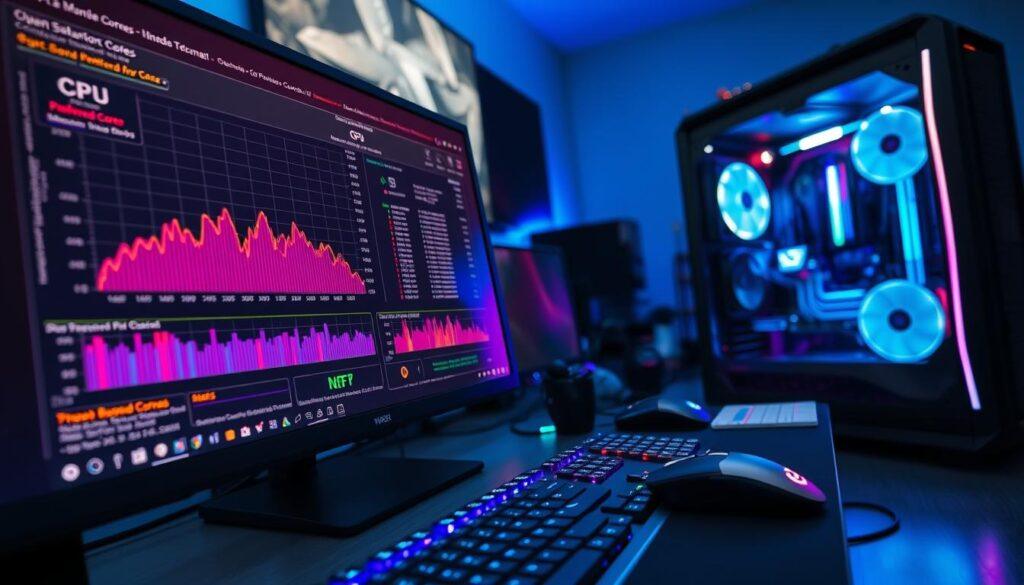
Stability method OCCT y cruncher CB loop long gaming runs
Testing Curve Optimizer stability is not easy. It’s like walking through a minefield. Crashes can happen even when your CPU is idle. So, be careful, because your system might crash unexpectedly.
Some people think Prime95 is the best for testing. But, it misses some crashes that Curve Optimizer is known for. Instead, use a mix of tests to stress your system.
Geekbench 5 is a good start. It warns you of problems before they get worse. But, don’t stop there. Use more tools to test your system.
OCCT is great for testing different loads. It shows how your CPU handles various situations. y-cruncher is for intense calculations. It tests your system’s limits.
Cinebench loops check your system’s heat over time. Long gaming sessions, like playing Cyberpunk 2077 for hours, also test your system. These tests can reveal hidden problems.
Remember, using different tests is important. It’s like training your CPU in different ways. If your system passes a week of tests without issues, you’re good. If not, you need to adjust your settings.
| Testing Method | Purpose | Key Features |
|---|---|---|
| Geekbench 5 | Initial stability check | Single and multi-core tests |
| OCCT | Variable load simulation | Multiple test scenarios |
| y-cruncher | Computational stress | Handles large calculations |
| Cinebench | Sustained heat testing | Realistic rendering scenarios |
| Long Gaming Sessions | Real-world usage | Identifies undervolt issues |
Temps and board quality EDC spikes and VRM capability
Your motherboard is like a stage for your CPU. It’s not just a piece of PCB; it’s the base for your CPU’s performance. When you set EDC to 170A, you’re asking VRMs to handle current like a bartender at happy hour. But, if your board is cheap with weak VRMs, it might throttle or even overheat.
Keeping temperatures in check is key. Even with a custom cooling loop, poor case airflow can cause CPU thermal panic. I’ve seen CPUs hit 75°C under 185W PPT. But, if EDC is too low, you might face instability, like a car stalling when you press the gas too hard.
The ideal spot is where your cooling can manage the heat and your board’s VRMs can handle it. Choose a quality motherboard and a cooler that works well, and you’ll see boost clocks stay high when needed.
| Motherboard Quality | Cooling Solution | EDC Handling | Temperature Stability |
|---|---|---|---|
| High-end | Custom Loop | Excellent | Stable under load |
| Mid-range | Air Cooler | Good | Acceptable under load |
| Low-end | Stock Cooler | Poor | Unstable under load |
Case results 7800X3D 7950X fps per watt and frametime gains
Let’s look at the numbers for the 7800X3D and 7950X in real gaming. Benchmarks are cool, but they mean nothing without context. The 7800X3D is already a gaming beast with its 3D V-Cache.
But add a tuned Curve Optimizer and PBO2, and it gets even better. You get more frames per watt, like a pro on a long drive.
The frametime consistency is also impressive. Those annoying micro-stutters in CPU-bound games? Gone. The 7950X shines with its dual-CCD design, allowing for better per-core tuning.
You can push the cache CCD harder while keeping the frequency CCD cool. This means higher average FPS and a smoother gaming experience. It’s like upgrading your GPU without spending a lot.
Your electricity bill will also thank you. Your room won’t turn into a sauna. It’s the kind of optimization that makes you wonder why AMD doesn’t ship these chips with a “tinkerer’s preset” in the box.
| CPU Model | Average FPS | Frames per Watt | Frametime (ms) |
|---|---|---|---|
| 7800X3D | 120 | 5.0 | 16.7 |
| 7950X | 130 | 4.8 | 15.4 |
| Comparison | 10 FPS Gain | 0.2 Frames/Watt | 1.3 ms Improvement |
Intel contrast TVB ABT CEP offset undervolt overview
Intel has its own set of tools, even if AMD’s PBO2 is getting all the attention. Let’s explore Intel’s world, where we find Thermal Velocity Boost (TVB), Adaptive Boost Technology (ABT), and Current Excursion Protection (CEP). Each offers a unique way to boost performance.
Thermal Velocity Boost kicks in when it’s cool, making your CPU run faster. Adaptive Boost Technology boosts all-core frequencies when needed. It’s all about getting the most out of your CPU without overheating.
Current Excursion Protection keeps your CPU safe from voltage spikes. It makes sure your CPU stays within safe limits. This method is more structured than AMD’s, but it’s reliable.
Offset undervolting is like AMD’s Curve Optimizer, aiming to reduce voltage and heat. But Intel’s version is more controlled, like a pre-built gaming PC. It’s safe but might not be as exciting for DIY fans.
Intel’s approach is like a well-organized seminar, while AMD’s is more like a punk rock show. Both can get great results. But if you love tweaking and taking risks, AMD’s way is more thrilling.
| Feature | Intel | AMD |
|---|---|---|
| Thermal Management | Thermal Velocity Boost | Curve Optimizer |
| Frequency Scaling | Adaptive Boost Technology | Per-Core Boost |
| Voltage Protection | Current Excursion Protection | N/A |
| Undervolting | Offset Undervolting | Dynamic Voltage Adjustment |
Safe daily settings backup profiles quick revert plan
Overclocking needs a safety net, just like a save in your favorite game. You’ve worked hard to get the perfect settings, only to face a reboot loop. That’s why saving BIOS profiles is key.
Save a “stock” and a “known stable” profile before tweaking. I keep my best settings on a USB stick. If things go wrong, a quick CMOS clear or profile load gets you back on track. It’s like having a save point in an RPG.
Don’t push for every last megahertz for daily use. A conservative curve that never crashes is better than an aggressive one. Stability is the ultimate goal.
Troubleshooting WHEA reboots cold boots and hot plug rules
Even the most finely tuned systems can act up. WHEA uncorrectable errors are like a CPU’s way of throwing a tantrum. These errors often signal that a core is undervolted too aggressively. The first step is to check the event log. Identify the core causing the fuss and dial back its negative offset.
Cold boot failures can be a bit trickier. Sometimes, the motherboard’s power delivery system needs a moment to stabilize. Your voltage curve might be too tight for low temperatures. A slight bump in load-line calibration (LLC) or easing up on the curve for the coldest core can often resolve the issue.
Then there’s the quirky world of USB hot-plugging. Some devices refuse to cooperate when you’re pushing your chip’s I/O limits. If your keyboard disconnects during an intense gaming session, try switching to a different port or using a powered hub. Troubleshooting is part detective work, part superstition. Keep a log of your tweaks and remain methodical. Remember, the silicon gods appreciate a good laugh.
As you navigate these challenges, stay patient and curious. Each issue is a chance to learn more about your setup. Embrace the journey of overclocking. With a bit of finesse and attention, you can turn these problems into triumphs.