

Many PC builds are just expensive space heaters fueled by our gaming obsessions. I’ve looked into the depths of a tempered glass side panel too many times. Each time, I face the sad truth of thermal throttling.
This journey isn’t about adding RGB fans and hoping for the best. It’s about understanding the silent, chaotic battle between silicon and thermodynamics.
We’re here to challenge old ideas and cut through marketing noise with engineering clarity. Think of this as your escape from the myth that “more fans equal better performance.” Why does your rig sound like a jet when you’re just rendering a spreadsheet? Together, we’ll turn your hotbox into a finely tuned wind tunnel.
In this exploration, we’ll dive into airflow optimization techniques that really matter. By grasping the principles of case airflow, we can make your machine cooler and quieter. Get ready to take your PC building to the next level with insights that count.
Fan physics P Q curves static pressure vs airflow PWM vs DC
Understanding fan physics is key for better airflow. Fans operate based on the P-Q curve, showing their performance under different conditions. This curve maps airflow (Q) against pressure (P), revealing how fans work.
Decoding the P-Q Curve: Your Fan’s Uncomfortable Truth
Fans are not magic; they are air pumps with unique challenges. The P-Q curve shows their true performance. For example, a fan rated for 70 CFM might not deliver that much when pushing air through a radiator.
Static pressure, measured in mmH₂O, is important. It’s the difference between a gentle breeze and a strong jet. This matters a lot, depending on what you’re cooling.
Choosing the right fan is critical. A fan for a mesh panel is different from one for a radiator. The wrong fan is like a philosopher in a street fight—it’s interesting but not practical.
Static Pressure vs. Airflow: A Duel of Specialists
Static pressure fans are great for tight spaces, while airflow fans work best in open areas. This is important for cooling. A fan for high airflow might not do well in tight spaces, making it noisy.
PWM vs. DC Control: The Sophisticate and the Brute
PWM (Pulse Width Modulation) is like a digital maestro, controlling fan speeds with precision. DC control, on the other hand, lowers voltage until the fan stalls. Running a DC fan at 7V can make a motor tick, ruining your movie night.
Why Running a Fan at 7V is a False Economy
Underpowering a fan might seem to save on noise, but it often compromises performance. The best approach is to match your fan to the application. This ensures the cooling you need without the noise.
| Fan Type | Best Use Case | Performance Metric | Noise Level |
|---|---|---|---|
| Static Pressure Fan | Radiators and Filters | High mmH₂O | Moderate |
| Airflow Fan | Open Cases | High CFM | High |
| PWM Fan | Variable Speed Applications | Dynamic Control | Low |
| DC Fan | Constant Speed Applications | Fixed Voltage | Variable |
For more on fan basics, see this article on static pressure vs airflow fans.
Case studies mesh vs glass top exhaust vs intake positive vs negative pressure
Is your case a stunning display or a thermal disaster? Let’s find out. The battle between mesh and glass cases often feels like a clash of titans. One side boasts aesthetics, while the other champions airflow. My experience with a sleek, all-glass case was a testament to this dilemma.
It was a visual masterpiece, but its restrictive design choked my intake fans. They were forced to recycle hot GPU exhaust in a silent scream of thermal despair.
On the flip side, high-airflow mesh cases, like the Fractal Design Torrent, are the breath of fresh air your components crave. They allow for unrestricted airflow, keeping temperatures down and performance up. This first case study illustrates the fundamental difference between restriction and respiration in case design.
The Mesh vs. Glass Showdown: Aesthetic Hubris vs. Thermal Humility
Now, let’s talk about top exhaust fans. They can create a chimney effect, pulling air upwards. But, in a traditional layout, these fans might steal fresh air from your CPU cooler before it reaches the tower. This creates a negative pressure zone that starves the very components you’re trying to save. It’s a classic intake vs. exhaust dilemma.
Top Exhaust: The Chimney Effect or a GPU Air Thief?
So, which is it? Are top exhausts a clever design feature or a GPU air thief? The answer lies in your specific build and airflow strategy. You need to find a balance that optimizes cooling without compromising component performance.
Positive vs. Negative Pressure: The Dust Bunny Dialectic
Let’s pivot to the philosophical debate of positive versus negative pressure. Negative pressure can turn your case into a desperate vacuum cleaner, sucking in unfiltered air—and all the pet hair and existential dread that comes with it—through every crack and crevice. On the other hand, a slight positive pressure configuration, with more filtered intake than exhaust, can force air out of those same cracks. This approach makes your cleaning schedule a quarterly event, not a bi-weekly penance.
Why Slight Positive Pressure is the Sanity-Saving Middle Ground
Ultimately, finding the right balance between intake and exhaust is key for optimal case airflow. A slight positive pressure setup can help maintain a cleaner environment for your components, while also ensuring they remain cool. If you want to explore more about thermal targets and how they can impact your build, check out this resource.
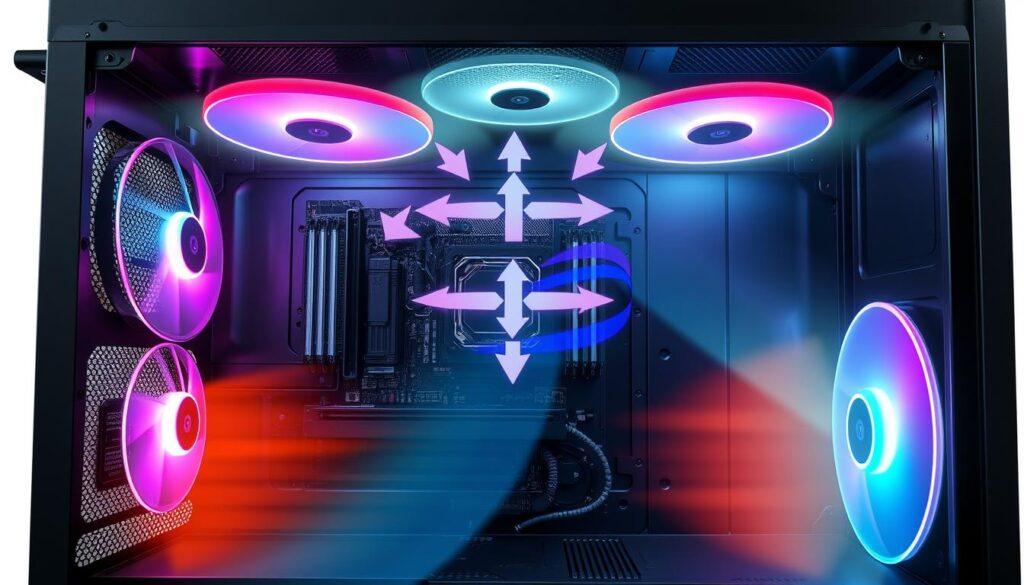
Filters dust tradeoff clean interval math and charts
In PC building, dust filters are heroes, fighting dust. But they have a big trade-off: keeping things clean vs. airflow. A clean filter is great, but a clogged one is a problem.
The Thermodynamic Cost of Cleanliness: Restriction is Real
Keeping your system clean isn’t just for looks; it’s about heat. A clean filter might slow your fan by 5-10%. But when it gets dusty, it’s a different story. Your fans might not work well, making your case hot.
Calculating Your Clean Interval: When Good Filters Go Bad
How often should you clean your filters? If you have pets or live in a dusty area, clean them more often. It’s not just about being clean; it’s about keeping your PC running well. Regular cleaning is key to a healthy PC.
The Filter Material Matrix: Nylon Mesh vs. Foam vs. Nothing
The material of your filters matters a lot. Nylon mesh filters are good at keeping air flowing while catching dust. Cheap foam can block air too much. Not using filters means you’ll need to clean your PC a lot.
A Simple Chart to Predict Your Suffocation Point
Here’s a chart to show how filters get clogged. As dust builds up, it gets harder for air to move. This chart helps you know when your PC might get too hot.
GPU orientation vertical mounts risers avoid heat recycling
In PC building, GPU orientation affects heat performance. The debate between vertical and horizontal mounts is about looks versus function. A vertical mount looks cool but might cause heat problems.
Vertical mounts can look great but can trap heat. If a GPU is too close to a glass side panel, it can get stuck in a cycle of hot air. I’ve seen this with an RTX 4090 in a mid-tower case, where fans were just 5mm from the glass. Instead of cooling, the GPU was warming up its own exhaust.
The Vertical Mount Trap: Aesthetics vs. Side Panel Suffocation
Riser cables add complexity to your build. Gen 3 and Gen 4 risers can cause signal problems, leading to crashes. This can be frustrating and might cost you more than just performance.
Riser Cable Roulette: Gen 3, Gen 4, and Signal Integrity Hell
On the other hand, a horizontal mount is better for cooling. It lets the GPU’s fans pull in cool air from the bottom and push out hot air. This makes for better airflow and prevents the GPU from overheating.
Horizontal is Boring, But Thermodynamically Superior
To avoid hot air problems, choose a case with a special vertical mount or use a water block. This way, you can keep your build looking good and running well.
Breaking the Hot Air Loop: Stop Feeding Your GPU Its Own Exhaust
| Mount Type | Airflow Efficiency | Visual Appeal | Potential Issues |
|---|---|---|---|
| Vertical | Low | High | Heat Recycling, Signal Integrity Issues |
| Horizontal | High | Medium | Less Aesthetic Appeal |
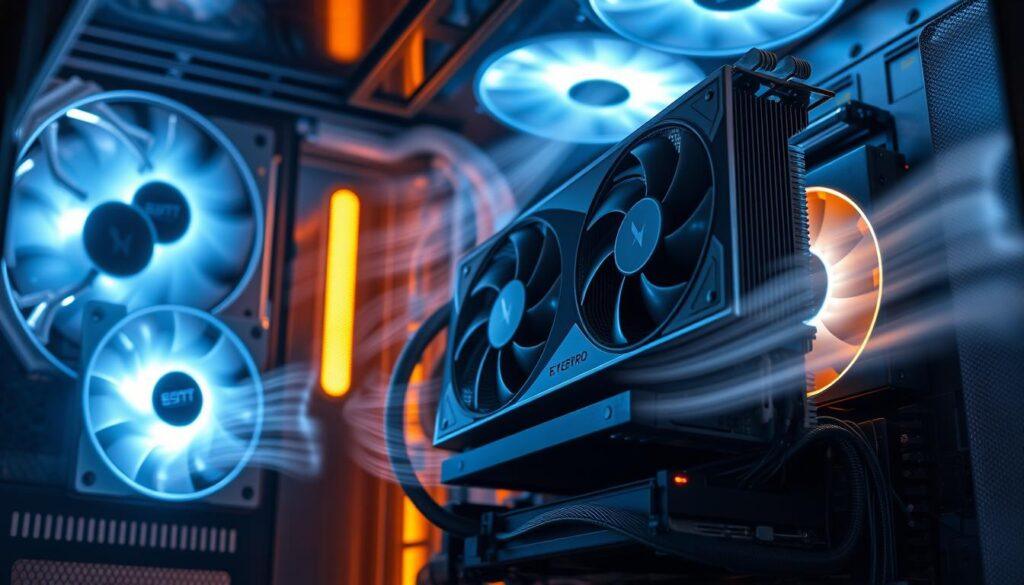
Spot cooling when VRM memory or SSD need it and when not
Building a PC can be nerve-wracking, with worries about overheating. This often leads to “spot cooling,” where small fans are used on VRM heatsinks. But, most VRMs can handle the heat without extra cooling.
Modern VRMs are built to handle heat well, making extra cooling unnecessary. A little airflow from a CPU cooler is usually enough. But, DDR5 memory and Gen 5 NVMe SSDs can get very hot and need special attention.
Knowing when to cool specific parts is key. A fan on a radiator is not good for spot cooling. You need airflow, not pressure, to cool chips effectively. Before adding a fan, check if you really need it or if you’re just worried.
The VRM Hysteria: When a Heatsink is More Than Enough
Many builders worry too much about VRM temperatures. But, modern VRMs are made to handle heat well. A good heatsink can keep VRMs cool without extra fans. Too much cooling can just make noise.
DDR5 Thermals: The New Frontier of Memory Paranoia
DDR5 memory needs careful attention to its heat. Its power management IC can get very hot, even under load. A bit of directed airflow can help keep it cool.
Gen 5 NVMe Drives: The Tiny Volcanoes on Your Motherboard
Gen 5 NVMe drives are fast but can get hot. They can slow down if they get too warm. A special fan or heatsink can help keep them running smoothly.
The Pointless 40mm Fan: Solving a Problem You Don’t Have
Before using a small 40mm fan, think if you really need it. Often, worries about heat lead to unnecessary solutions. Instead, make sure your case has good airflow for all components.
| Component | Cooling Requirement | Recommended Solution |
|---|---|---|
| VRM | Minimal | Passive Heatsink |
| DDR5 Memory | Moderate | Directed Airflow |
| Gen 5 NVMe SSD | High | Dedicated Cooling Solution |
Measurement IR cam thermistors hotspot delta noise dBA logging
Your motherboard’s temperature readings might not always be true. To really understand your cooling system, you need real tools, not just hopes. An affordable thermistor kit can be very helpful. Stick them on your intake and exhaust, and you’ll see how well your airflow works.
Are you balancing your intake vs exhaust well? Or are you warming up your CPU cooler with the GPU’s heat? An IR camera can change the game. Even a basic model that connects to your phone can show a heat map of your case. It makes the invisible heat dance visible, showing you where the air is stuck.
The IR Camera Doesn’t Lie: Visualizing Your Airflow Mistakes
For GPUs, the core temperature is just a number. The hotspot delta is what really matters. If there’s a 20°C+ difference between the core and hotspot, it’s a warning sign. This could mean your thermal paste is failing or the cooler isn’t mounted right.
Thermistors vs. Software: Why Your Motherboard is Guessing
Using software to check temperatures is like making life choices with a magic eight ball. It’s often wrong and too simple. Real measurements give you clear data. Thermistors let you see how well your cooling works.
The Hotspot Delta: The Only Number That Matters for GPUs
Watch the hotspot delta closely; it’s a sign of your GPU’s health. Monitoring this delta helps you catch problems early. It’s a simple way to keep your setup running smoothly.
dBA Logging: Correlating Noise to Thermal Events Over Time
Logging dBA levels over time shows how noise and heat are connected. By tracking these, you can find out when that annoying fan noise happens. Is it because of a game loading, or a thermal issue? This analysis turns annoying sounds into problems you can solve.
| Measurement Tool | Purpose | Key Insight |
|---|---|---|
| IR Camera | Visualize airflow and hotspots | Identifies dead zones |
| Thermistors | Accurate temperature readings | Reveals true cooling efficiency |
| dBA Logger | Track noise levels | Correlates noise with thermal events |
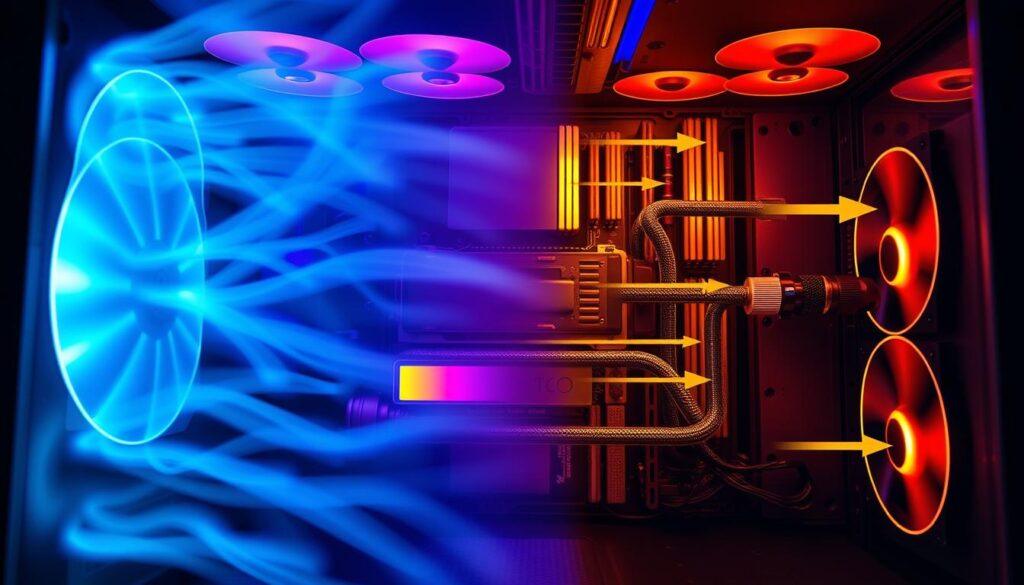
Quick wins cable management fan placement undervolt synergy
Before buying new fans, try these simple steps to boost your case airflow. These quick fixes can greatly improve your system’s cooling without spending a lot.
Cable Management: It’s Not Just for Instagram, It’s for Physics
Cable management is more than looks; it’s about physics. A messy cable setup can block your fans’ airflow. A single cable can mess up your GPU’s cooling. Organizing cables can make a big difference in cooling.
The 10-Minute Fan Flip That Fixes a Broken Air Path
Ever thought about your fans’ orientation? Many systems have rear fans pulling in air, causing problems. Flipping these fans can cool your system by 5-10°C in minutes. It helps your CPU cooler work better.
Undervolting: The Free Lunch of Thermodynamics
Undervolting is a way to cut power without losing performance. Most systems run hotter than needed. Finding the right voltage can reduce power use by 5-10%. It’s a way to cool your system without spending money.
The Synergy Effect: Why 1+1+1 = 5 in Airflow Optimization
Combining these strategies creates a powerful effect. Cable management, fan flips, and undervolting work together. They make your system cooler and more efficient.
Template configs ITX silent mid tower high airflow
Let’s dive into real-world templates for the best airflow. The Small Form Factor (SFF) ITX setup is a great example. Cases like the Cooler Master NR200 or FormD T1 focus on cooling without being too loud. They use a mesh side panel to pull air in, making the case a wind tunnel.
This design needs regular cleaning because of dust filters. It’s a trade-off for better airflow, keeping your system running smoothly.
The SFF ITX Inferno: A Study in Controlled Chaos
The SFF ITX build is all about careful planning. It’s small, so every part must fit perfectly to avoid heat buildup. A well-built SFF can match bigger systems in performance, if you watch the temperatures and airflow.
The Silent Mid-Tower: A Sanctuary of Acoustic Dampening
The silent mid-tower, like the Define 7, is different. It uses low-speed fans in a setup that’s quiet. This method moves air slowly but steadily, keeping noise down. These cases are designed for quiet, using acoustic foam and solid panels.
The High-Airflow ATX Beast: Maximum Volume, Minimum Velocity
The high-airflow ATX case, like the Lian Li Lancool III, is easy to manage. It has lots of intake and a few exhausts. The big size lets it move air slowly, cooling everything quietly.
Adapting the Template: Why Your Room’s Ambient Temp is the Final Boss
Your room’s temperature is a big challenge. If it’s hot, no airflow setup can keep your PC cool. You’re fighting the second law of thermodynamics. Knowing this helps you optimize your setup.
| Case Type | Cooling Method | Noise Level | Dust Filter Requirement |
|---|---|---|---|
| SFF ITX | Negative Pressure | Moderate | High |
| Silent Mid-Tower | Positive Pressure | Low | Moderate |
| High-Airflow ATX | High Volume Intake | Very Low | Low |
In conclusion, whether you pick the SFF ITX, the silent mid-tower, or the high-airflow ATX, know your environment. Each design has its own strengths and weaknesses. With the right approach, you can find a balance between performance and quiet.
Maintenance schedule dust mapping and seasonal tune ups
Your airflow setup needs ongoing care. Start with dust mapping. Watch where dust settles for a month. Does it pile up on intake or exhaust? Or maybe it’s hiding under your GPU fans?
Dirty dust? It might be due to poor air quality. Knowing this helps you clean better.
Dust Mapping: Become a Student of Your Home’s Particulate Matter
It’s key to know where dust lands. Dust filters are important for airflow. If intake gets dustier, clean more often.
Adjust your cleaning based on your findings. This keeps your system running smoothly.
The Seasonal Tune-Up: Winter vs. Summer Fan Curves
Seasonal changes require adjustments. In winter, cool air helps keep dust away. In summer, fans need to work harder to cool your system.
Finding the right balance is essential for a cool system.
Beyond Compressed Air: The Isopropyl Alcohol and Microfiber Ritual
Cleaning needs care. Avoid using a shop compressor, as it can add moisture. Instead, use an electronics duster.
Then, clean with isopropyl alcohol and a microfiber cloth. This keeps your system in top shape.
Creating a Recurring Calendar Invite for Your PC’s Sanity
Set a regular cleaning schedule. It’s the secret to a quiet, efficient PC. Stick to this routine and your PC will reward you with great performance and a long life.