

Most advice on workspace setup sounds like a mattress commercial. It’s all about “comfort.” But what if we’re missing the real point?
This isn’t about comfort. It’s about cognitive physics. When your spine is in a neutral position, your brain isn’t busy with pain signals. This mental space is now free to focus on important tasks.
Think of a well-designed Ergonomic Gaming Desk as the basic setup for anyone working seated. A recent white paper calls this a “Workspace Sanctuary.” It’s where physical health boosts mental performance.
I’m talking about the science of flow states. Physical clutter and spinal issues pull you out of the zone. An ergonomic setup removes this friction. It’s the secret to high performance, whether you’re gaming or working.
So, let’s clear the haze. The right setup doesn’t just improve your posture. It boosts your output.
Chair Science: Seat Pan, Back Angle, Armrests
Your office chair is more than just a piece of furniture. It’s a complex puzzle that needs to be set up just right. Most chairs are made without much thought for how they fit our bodies. You deserve a chair that supports you for eight hours a day.
To truly master your chair, focus on three key areas. They are the foundation of a comfortable sitting experience:
- The Seat Pan: It’s not just a place to park yourself.
- The Back Angle & Lumbar Support: The spinal command center.
- The Armrests: Crucial pivots, not optional appendages.
The seat pan’s depth is very important. If it’s too short, your thighs won’t get the support they need. If it’s too long, it can cut off blood flow. A good ergonomic chair lets you adjust it so the front edge is about an inch from the back of your knees.
The backrest is another area where quality matters. Some chairs claim to have “lumbar support,” but it’s often just marketing. A real system, like the adaptive dual-backrests in quality chairs, follows OSHA’s guidelines. It provides adjustable support for your spine’s natural curve.
Low-quality “racing chairs” or static designs can harm your spine. They force your spine into a straight line, which is painful. A good lumbar support system is dynamic. It should have a multi-angle recline lock for different positions, like typing or gaming.
The armrests are also key. If they’re not right, your shoulders will suffer. They should let your elbows rest at a 90-degree angle, with your shoulders relaxed. This simple adjustment can help take pressure off your spine and improve your shoulder health.
Your chair is not just furniture; it’s essential for your body’s health. Choose a chair that offers smart, independent adjustments for these three areas. Your future self will be grateful for a pain-free life.
Desk Height and Sit-Stand Cycles
Your circulatory system doesn’t care about your quarterly reports. It just wants you to move. The old desk was a symbol of sitting too much. Its time is over.
The sit-stand desk is here to change things. It offers a new way to work. But, just standing or sitting for long periods isn’t enough. The real magic is in moving back and forth.
Think of it as a physiological symphony. The goal is to move intentionally. Cornell University’s ergonomics team suggests a 20-8-2 rule. For every 30 minutes, sit for 20, stand for 8, and move for 2.
Finding the right seated height is key. Your elbows should form a 90-degree angle when typing. Your feet should be flat on the floor. Your thighs should be parallel to the ground. An adjustable desk is only good if it fits you right.
For movement, a Cochrane review shows sit-stand desks help. The real benefit is in moving often, not just standing. Your back and blood flow benefit from this gentle movement.
Starting can feel hard. Your standing muscles are weak. You wouldn’t run a marathon right away.
Here’s a plan to get started:
- Week 1: Stand for 5-10 minutes every hour. Use a timer.
- Week 2: Increase to 15 minutes of standing per hour.
- Week 3: Aim for the 20-8-2 rhythm for half your day.
- Week 4: Integrate the rhythm into your entire workflow.
The sit-stand cycle is the real hero. It’s about making your work environment active. Your work can wait, but your spine can’t.
Monitor Distance and Eye Line
We’ve all learned to crane our necks to look at screens, thinking it’s normal. But it’s not. It’s actually bad for our necks. To fix this, we need to focus on two things: how far away the screen is and where our eyes are.
First, let’s talk about distance. The old rule says to keep it an arm’s length away. But, it should be 20 to 30 inches from your eyes. This lets your eyes focus without straining, like a camera lens.
When the screen is too close, you get headaches. Too far, and you’ll lean forward, causing back pain. It’s a bad situation either way.
The second thing is the monitor height. Most setups get this wrong. The top of your screen should be at or slightly below your eye line. This way, when you look straight ahead, your gaze should gently go down to the content.
Looking up at a screen too high is like watching a movie from the front row. It compresses your neck vertebrae. Looking down too much makes you hunch forward, like a confused meerkat. Both ways lead to neck and shoulder pain.
The fix isn’t just about trying harder. It’s about using the right tools. A good monitor arm is a game-changer. It lets you adjust your screen’s height and distance perfectly. Health experts like the HSE and CCOHS say adjustable supports prevent neck and shoulder strain.
For laptops or extra screens, a simple riser stand works great. It raises the screen to the right height, improving your posture. These tools are not just nice to have; they’re essential for your health.
Choosing the right support depends on your setup and budget. Here’s a table that shows the options, from basic to the best.
| Setup Method | Best For | Key Advantage | Primary Limitation | Avg. Price Point |
|---|---|---|---|---|
| Built-in Monitor Stand | Basic, temporary setups | Zero additional cost | Extremely limited height and tilt adjustment | $0 (included) |
| Dedicated Monitor Arm | Permanent desks, dual monitors | Full range of motion for perfect positioning | Requires desk clamp or grommet mounting | $80 – $250 |
| Laptop Stand with Riser | Remote workers, hybrid setups | Portable, improves laptop ergonomics instantly | Doesn’t replace an external monitor | $25 – $80 |
| Stacked Books (The “I’m in a Bind” Method) | Proof of concept, emergency use | Immediately available, demonstrates the need | Unstable, not a long-term solution | $0 |
There’s a clear pattern here. The best options for precise control over your monitor height cost a bit more but are worth it for comfort. Your screen’s position is key. It’s where you spend hours every day. Getting it right is a quiet fight against pain we’ve learned to accept.
Keyboard/Mouse Ergonomics and Wrist Health
Neutral wrist angle is key to avoiding pain at work. It keeps your hands working smoothly. Don’t ignore your hands, or you might end up with a bad injury.
The neutral wrist position is essential. Imagine your forearm and hand in a straight line. This stops tendons and nerves from getting pinched.
To achieve this, your desk, chair, and keyboard must align perfectly. A wrong setup can lead to discomfort and injury. Your desk should match your chair height to keep your wrists straight.
For those who are smaller, finding the right setup is even more important. A keyboard tray or a low-profile keyboard can help. Your elbows should be at a 90-110 degree angle, with your forearms parallel to the floor.

Choosing the right gear is important. But it’s not just about fancy keyboards or mice. They must also support a neutral wrist angle. A high desk can ruin even the best keyboard.
Your mouse should fit your hand well. It should allow for a light grip and minimal wrist movement. This prevents strain and discomfort.
| Setup Scenario | Wrist & Forearm Position | Comfort Level | Long-Term Risk |
|---|---|---|---|
| Desk Too High, No Armrests | Wrists bent sharply upward, shoulders elevated. | Poor (Immediate fatigue) | High risk of shoulder tension and carpal tunnel. |
| Desk Too Low, Chair Too High | Wrists bent downward, elbows pointing out. | Unstable (Promotes slouching) | Increased risk of ulnar nerve irritation. |
| Armrests Too High | Wrists angled inward, shoulders hunched. | Moderate (Feels supported but misaligned) | Potential for thoracic outlet syndrome. |
| Ideal Neutral Alignment | Forearms parallel to floor, straight wrist angle. | Excellent (Feels effortless) | Minimal. Sustainable for long sessions. |
The table is more than just a guide. It’s a tool to check your setup. If it doesn’t match the last row, you need to make changes.
Don’t let carpal tunnel be a sign of hard work. It’s a sign of poor design. A good chair and desk are just the start. You also need to adjust your keyboard and mouse for a healthy wrist angle. Your future self will be grateful.
Footrests and Anti-Fatigue Mats
If your feet are dangling, you’ve lost the posture battle before it starts. This isn’t just a small comfort issue. It’s a major problem with your body’s structure.
Your posture is like a chain. Without stable feet, the whole chain wobbles. This leads to pain in your lower back or tight hamstrings. It’s a chain reaction, starting from the bottom.
The footrest is a hero for good posture. It’s essential for anyone who’s too short for a standard desk. It’s not just a nice-to-have; it’s a must-have for good ergonomics.
Standing for long periods is hard on your feet. It’s like standing on hard ground all day. That’s where an anti-fatigue mat comes in. It’s like a shock absorber for your feet.
A good footrest lets your feet move a bit. This keeps your blood flowing and muscles working. It stops you from feeling stiff and lifeless.
The anti-fatigue mat works in a similar way. It’s soft enough to make your legs and calves work a bit. This helps your blood flow better and stops your legs from feeling heavy.
| Feature | Best For | Key Benefit | Pro Tip |
|---|---|---|---|
| Footrest | Shorter users; standard desks; anyone whose feet don’t rest flat. | Creates a stable, grounded foundation for the entire seated posture. | Choose an adjustable model to fine-tune the angle and height for perfect thigh support. |
| Anti-Fatigue Mat | Standing desk users; kitchen workers; any prolonged standing station. | Reduces joint pressure and improves circulation through subtle muscle engagement. | Look for a beveled edge to prevent tripping and a material that’s easy to clean. |
When do you need a footrest? If your feet are dangling, you need one. It’s that simple. For those standing, a mat is key after 30 minutes. Your joints will thank you.
This isn’t about pampering yourself. It’s about building a strong foundation. You wouldn’t build a house on sand. Don’t build your workday on an unstable base. A good footrest or mat is a smart investment that keeps everything stable.
Cable Slack for Moving Desks
Ever heard the ‘pop’ of a cable hitting its limit as your desk goes up? That’s what happens when you don’t plan well. It ruins the calm of switching from sitting to standing.
This isn’t just messy; it’s dangerous. Under a static desk, it looks bad. Under a moving Ergonomic Gaming Desk, it’s a disaster waiting to happen.
Managing cables needs a new approach. It’s like designing a system for a moving structure. You’re not just cleaning up; you’re creating a support system. Slack calculus is key here.
Every cable needs the right amount of extra length. Too little, and it snaps. Too much, and it gets tangled. You want a smooth, consistent path that moves with your desk.
Practical solutions are your tools. Use under-desk trays for big adapters. Magnetic ties keep cables tidy. Velcro straps let you adjust easily. The idea is to have clean, predictable paths for your cables.
The biggest challenge is your computer tower. A mobile CPU cart changes everything. It moves smoothly with your desk, avoiding snags. An under-desk holder does the same thing. It’s not a luxury; it’s a must-have for a dynamic workspace.
Good cable management protects your gear and keeps you healthy. You can’t stay active if you’re always worried about breaking something. A well-set-up Ergonomic Gaming Desk lets you move freely. That’s what it’s all about.
Layout Examples for Tall/Short Users
Let’s look at how a 5’1″ person and a 6’4″ person do at a standard desk. It’s a story of two bodies, one wrong design. Ergonomic advice often uses averages. But, the ‘average’ human is just a statistical idea, leaving others in a bad position.
Imagine our first user, a 155cm tall person, sitting at a 29-inch desk. There’s a four-inch gap between the desk and where her elbows want to be. Her shoulders go up, and her wrists bend back. This is a recipe for getting tired early.
To fix this, we need more than just a pillow. We need a big change. First, the chair. A high-end chair lets her sit higher, closing the gap. But then, her feet hang off. A footrest is a must.
The next step is the keyboard tray. It’s placed under the desk, bringing the mouse and keyboard to her arms’ natural position. Suddenly, the desk becomes a custom space.
Now, let’s look at our 6’4″ user. His desk is too low. His knees hit the underside, and he has to look down to see the screen. This makes him slouch all the time.
His solution is to lift everything up. A desk that can go up to 30 inches or more is key. Then, a riser or adjustable arm for the monitor makes it easy to see without straining. His keyboard and mouse stay on the desk, but now his arms are straight. The desk becomes his command center.
| Challenge | Solution for Shorter User ( | Solution for Taller User (> 6’2″) |
|---|---|---|
| Desk Height | Standard height often too high. Use a keyboard tray mounted below the surface to lower input devices. | Standard height often too low. Prioritize desks with a high maximum height range (≥30″). |
| Seating | High-adjustment chair to raise seating position; always paired with a footrest for stability. | Chair with robust lumbar support; seat depth should accommodate longer thighs. |
| Monitor Position | Monitor may be too far away. Bring it closer to the edge of the desk to maintain a proper viewing distance. | Use a monitor arm or riser to elevate the screen so the top line is at eye level. |
| Input Devices | Compact, tenkeyless keyboard saves space on a tray; a smaller mouse improves control. | Full-size keyboard is fine on raised desk; consider a vertical mouse to keep the wrist neutral. |
This isn’t just about comfort. It’s about having control over your space. The idea of one desk fitting all is a myth. We challenge it by looking at our bodies with curiosity.
Your ergonomic gaming desk should feel like a custom-made suit. For the shorter user, think up and in—elevate your seat, bring tools closer. For the taller user, think rise and align—lift everything up and align your gaze. The goal is to make your body an asset, not an afterthought.
Testing Comfort Over Long Sessions
Your body is the best judge of your ergonomic setup. It gives its verdict in hours, not minutes. Feeling fine for five minutes is not enough. The real test is after five hours of work.
Think of it as a stress test for your skeleton. A good setup means your body will thank you after eight hours. The goal is to find and fix sharp pains that signal damage.
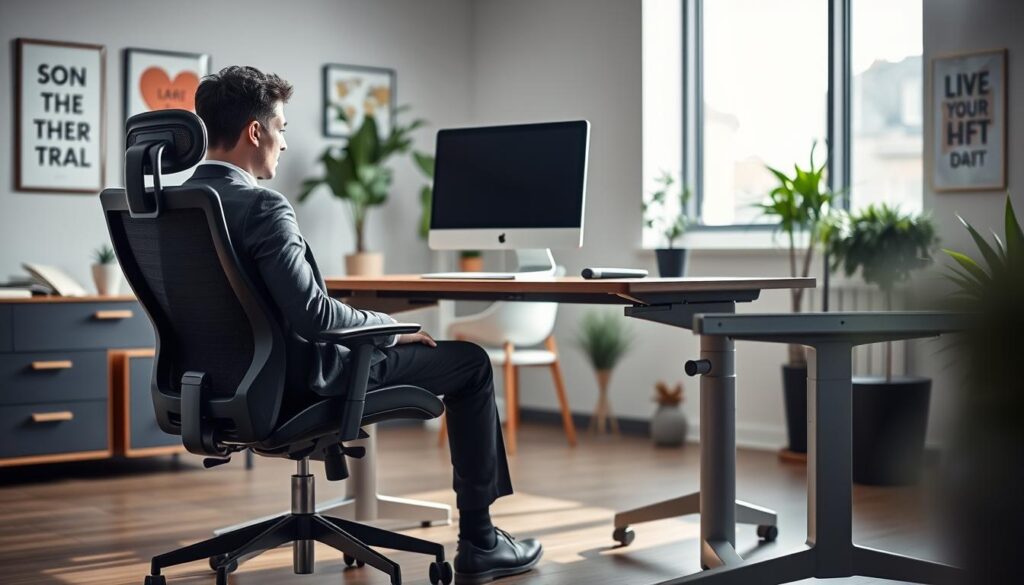
To run this test, commit to a long session at your current setup. No shortcuts. Around the 90-minute mark, start paying attention. Look for signs of fatigue like a dull ache in your lower back or stiffness in your neck.
These signs are important. A sore lower back might mean your chair’s back angle is off. Neck strain could mean your monitor is too high. Wrist discomfort is a sign from your keyboard tray.
Breathable materials are also key for long sessions. A chair that traps heat can become uncomfortable by hour three. You need a cool, supportive base to understand your body’s signals.
This process helps you develop a deeper body awareness. Treat your body as a sensitive instrument in your office. It’s giving you feedback. Are you listening?
Let’s decode common pain signals into fixes. The table below is your guide for turning aches into answers.
| Where It Hurts | Likely Culprit | Ergonomic Fix | Urgency Level |
|---|---|---|---|
| Lower Back | Inadequate lumbar support or seat pan too deep | Adjust chair lumbar curve; use a small cushion if needed. Ensure feet are flat. | High – Core to posture |
| Wrists / Forearms | Keyboard too high or mouse too far away | Lower keyboard tray so wrists are straight. Keep mouse elbow-close. | Medium – Prevent strain |
| Neck & Shoulders | Monitor too low or too far back | Raise monitor until top line is at eye level. Bring it closer. | High – Major tension source |
| Eyes / Headaches | Screen glare or improper distance | Adjust lighting, use anti-glare filter. Follow arm’s-length distance rule. | Medium – Fatigue driver |
| Legs / Circulation | Seat edge pressing into thighs | Adjust seat height so feet are flat. Consider a footrest. | Medium – Long-term impact |
This isn’t about achieving a perfect ergonomic setup. It’s about gathering evidence from your body. Is the pain widespread or sharp? Widespread pain is usually normal fatigue. Sharp pain means you need to fix something.
Using these signals proactively is key. A twinge in your shoulder reminds you to check your monitor height. A numb foot means it’s time to adjust your seat. You become the active engineer of your setup.
Your long-term posture health is shaped in these long sessions. By testing comfort over time, you stop guessing and start knowing. You move from hoping your chair is okay to knowing it is.
Buying Guide: Chairs and Desks
Now you know about posture, and you’re ready to shop. But, the market is full of products called ‘ergonomic’ that aren’t. This guide will help you cut through the marketing and find what’s real.
First, let’s talk about chairs. An ergonomic chair isn’t just about looks. It’s about how it works. Look past the flashy designs and find chairs with synchronous tilt and adjustable lumbar depth.
Synchronous tilt means the seat and back move together. This keeps your body in the right position. For lumbar support, you need a seat that can change shape to fit your back.
Here’s what to look for in a chair, without the extra stuff:
- Multi-angle recline lock: Can you adjust the backrest to any angle, or just fully upright and flat?
- Seat depth adjustment: The seat should move forward so it doesn’t press on your calves.
- Breathable materials: Choose mesh backs for better airflow. Avoid fake leather that gets too hot.
Now, let’s talk about desks. The sit-stand desk market is all about claims. But, what really matters is stability.
Do the wobble test. Push a corner of the desk gently when it’s at standing height. If it wobbles, it’s not stable. Look for desks with strong frames and good motors.
A good desk can hold at least 200 lbs. Desks with two motors are better than ones with just one. This makes them smoother and quieter.
If you have a small space, choose a desk wisely. A deep desk is good for monitors, but a slim desk with a keyboard tray can save space. Aim for a clean, uncluttered workspace.
So, what’s the best choice? Look for brands that focus on real features, not just looks. You’re buying a tool for your health, not a fashion statement. Let the features speak for themselves, and your body will thank you.
Common Posture Mistakes
Let’s play a game of spot the failure. Look around any open-plan office or coffee shop. You’ll see many bad postures that harm the spine. Spotting these mistakes is the first step to fixing your own.
The most common mistake is the Monitor Too Low. It’s like always looking down. This can hurt your neck.
Your neck muscles work too hard. The best monitor height is when your eyes are at the top third of the screen. Anything lower can cause headaches.
Then, there’s the Wrist Extension. It’s like a pianist’s cramp without the piano. Your keyboard or chair is too high, bending your wrists.
This bad wrist angle can hurt your carpal tunnel. It’s a slow, creeping numbness, one email at a time.
The Pelvic Tuck is another mistake. It’s when you sit without support, hurting your lower back. This can flatten your spine and hurt your discs.
This posture can harm your spine’s natural shape. It puts too much pressure on your discs. Not using the right chair is a big mistake.
The biggest mistake is Prolonged Static Sitting. Humans are meant to move, not sit for hours. Sitting too long can stiffen muscles and slow blood flow.
Your muscles get stiff, and blood flow slows. It’s like your body is turning into concrete.
This isn’t about shaming. It’s about learning to spot these mistakes. See them in airports, movies, and your friend’s office. Each time, you learn more about good posture.
Knowing about these mistakes can prevent pain. By spotting them, you can avoid future problems. So, watch out for bad posture and help others too. Your back will thank you.
Maintenance and Habit Stacking
Think your ergonomic throne is a permanent installation? Think again—it’s more like a high-performance vehicle that needs regular tune-ups. You wouldn’t buy a sports car and never check the oil. Yet, that’s exactly how we treat our chairs, desks, and monitors. This isn’t a “set it and forget it” appliance. It’s a living system that demands calibration and, critically, a user who actually moves, much like zero-latency cloud gaming infrastructure, which requires constant optimization to maintain peak responsiveness and performance.
Let’s start with the hardware. Every six months, give your setup the once-over. Tighten the bolts on your chair’s armrests and base. They loosen with daily swivels and leans. Clean the tracks on your sit-stand desk. Crumbs and dust are the mortal enemies of smooth elevation. This isn’t glamorous work. It’s the dry, necessary humor of a car owner’s manual. But it prevents the slow creep back into a slouch.
Now for the software: you. The perfect static pose is a myth. Sustainable posture is a practice. This is where behavioral science crashes the ergonomics party. Enter habit stacking, a brilliantly simple concept. You anchor a new, tiny behavior to an existing daily trigger.
Your existing trigger might be hitting “send” on an email, waiting for a page to load, or hearing a notification ping. The new behavior? A micro-movement. Roll your shoulders back. Drop your chin. Plant your feet flat. These aren’t grand gestures. They’re subtle recalibrations that fight the gravitational pull toward your keyboard.
Source 3 emphasizes movement variation. Our bodies crave it. So, stack a posture check every time you take a sip of coffee. Stack a standing stretch to your ritual of checking the time. The goal is to interrupt prolonged static strain before it becomes pain. It turns maintenance from a chore into a rhythm.
Why does this work? The brain loves autopilot. By piggybacking on established routines, new habits bypass resistance. You’re not relying on willpower alone. You’re engineering your environment and your rituals. This is how you build a dynamic, sustainable practice around your proper ergonomic setup.
Consider tension. Every time you respawn in a game or switch tasks, check your jaw and shoulders. Are they hunched toward your ears? Release them. This is the real maintenance. It’s not about bolts and tracks. It’s about neurological pathways. You’re teaching your body that neutral is the default, not the exception.
The analytical truth is stark. A perfect chair can’t save you from bad habits. But good habits can make a decent chair perform brilliantly. It’s the synergy that boosts performance. Stop chasing a single perfect pose. Start building a repertoire of intelligent movements. Stack them. Repeat them. Your future spine will thank you for the routine.
Conclusion
Our journey from pain to flow wasn’t about finding a magic chair. It was about understanding ourselves. Our seat, desk height, and monitor’s position are key to peak performance.
An Ergonomic Gaming Desk is the heart of this setup. It’s the choice between fighting or embracing your environment. The right desk depends on your needs.
It’s not just about the desk. Cooler Master says pro gear is about feeling natural. Your mouse, keyboard, and headset should feel like an extension of you. They help you act without hesitation.
The real upgrade is more than avoiding back pain. It’s about taking control of how we interact with digital worlds. Our posture, movement, and comfort become choices. Our space now matches our body.
Now, it’s time to fine-tune. The only battle left is the one on the screen.