

Remember the great platform wars? That fight between the “master race” and couch commanders is old news. Today’s gamers are smart and want to play without limits.
They reject the idea of choosing one platform over another. Why pick between a mouse and a controller? It’s about making your digital life better.
Imagine having control over every screen and input. This setup gives you sovereignty. You can switch from PC to console easily, without moving.
This setup is all about making life easier. In a world full of distractions, it’s a luxury. It’s not just about being convenient. It’s about creating a space that values your time and interests.
The hybrid setup answers a simple question: “Can’t I have it all?” And the answer is yes. You should have everything you want.
Display Choices: 4K 120Hz, VRR, ALLM
Your display is more than just a window to your content. It’s a key player in the game between your console and PC. Choosing the wrong display is like having a translator who only speaks buzzwords. Let’s get to the bottom of it.
Start with resolution. 4K is the great equalizer. It makes sure your PlayStation 5 and PC games look the same. No sudden change in quality when you switch devices. It’s all about matching visuals.
Refresh rate is key to how things feel. 120Hz makes motion feel real, not just watched. But, if your setup can’t handle it, you’re stuck at 60Hz. That’s where HDMI 2.1 comes in. Without it, your 120Hz dreams are just that.
VRR and ALLM are the peacekeepers. VRR (Variable Refresh Rate) keeps the game smooth. It’s essential when your hardware is working hard.
ALLM (Auto Low Latency Mode) is the silent butler. It removes TV lag for games. Your actions on the controller are instantly seen on screen.
So, how do you set up these technologies? Your main monitor should be top-notch. It gets the HDMI 2.1 connection. Your secondary screen is for quick glances.
Choosing isn’t about maxing out every stat. It’s about creating a true visual chain. One where each part does what it promises. The table below shows what each feature really does for you.
| Feature | What It Does | Hybrid Setup Benefit | Non-Negotiable Requirement |
|---|---|---|---|
| 4K Resolution | Packs four times the pixels of 1080p for incredible detail. | Creates a consistent, sharp visual experience across PC and console, eliminating jarring quality shifts. | A monitor/TV that supports 3840 x 2160 natively. |
| 120Hz Refresh Rate | Updates the image 120 times per second for ultra-smooth motion. | Makes fast-paced games on both console and PC feel responsive and fluid, a tangible upgrade from 60Hz. | HDMI 2.1 port & cable on both source and display. |
| VRR (Variable Refresh Rate) | Dynamically syncs the display’s refresh rate to the source’s frame rate. | Eliminates stutter and tearing during frame rate dips, critical for demanding games on any platform. | Supported by GPU (Nvidia G-Sync, AMD FreeSync) and display; for consoles, HDMI 2.1 VRR. |
| ALLM (Auto Low Latency Mode) | Automatically switches the display to its fastest response game mode. | Removes input lag without you having to dig through TV settings every time you switch from watching a movie to playing a game. | Supported by source (console, modern PC GPUs) and display. |
Think of these specs as a stack. HDMI 2.1 is the foundation. It’s the highway for 4K 120Hz and VRR traffic. Without it, the fancy cars have nowhere to drive. Your display choice is about future-proofing. It’s not just for today’s games but for whatever’s next.
KVM and USB Sharing Strategies
Swapping cables between your PC and console is like using a quill in the printing era. It’s outdated and wastes your time. A KVM switch is a smarter choice. It’s the heart of a hybrid setup.
A KVM switch acts as a peacekeeper between your systems. It lets your mechanical keyboard and mouse work together. With a simple button press, your USB devices switch sides without a hitch.
A good KVM switch does more than just switch video. It also routes your USB and audio. Your headset, microphone, and webcam work with either your PC or console.
Using separate keyboards and mice for each machine is wasteful. It shows a lack of planning. Your desk should be organized, not cluttered.
Unifying your setup is key. Your desk should be efficient, not chaotic. You need a KVM switch that meets today’s needs.
Not all switches are the same. You need one that supports high-refresh gaming and 4K. For a solid solution, look at an 8-port USB 3.0 4K DisplayPort KVM. It simplifies your setup with one button.
Why is this strategy important? It keeps you in the zone. You can switch between work and play without interruption. The click of the switch is all you need.
Choosing the right KVM switch is about efficiency. It turns your peripherals into a unified team. Give them a single, smart command center.
Audio Routing: Mixers, Headsets, Optical/ARC
Forget plugging and unplugging headsets; true audio nirvana in a hybrid setup demands a strategic, mixer-driven approach. Your ears deserve better than a schizophrenic soundtrack where game explosions drown out Discord whispers. Audio routing isn’t just a technical chore. It’s the art of becoming the director of your personal soundscape.
Think of your console’s epic score and your PC’s chat audio as separate orchestra sections. Without a conductor, it’s just noise. A hardware audio mixer is that conductor. It’s not overkill; it’s essential. This little box lets you blend digital streams from your console, PC, and even your phone into one cohesive mix.
You then send that perfect blend to a single, glorious output. That could be your favorite headset, a pair of monitor speakers, or an AV receiver. The goal is control. Why be a passive listener when you can be an audio architect?
This is where headset sharing evolves from a simple splitter trick into a sophisticated strategy. It’s not about letting two devices fight over your ears. It’s about creating one orchestrated experience for all devices. The mixer is the central hub that makes this possible.
For pristine digital audio, look to your console’s or TV’s optical output (TOSLINK) or HDMI ARC (Audio Return Channel). Optical delivers clean, uncompressed sound straight to your mixer or receiver. ARC simplifies cabling by sending audio back from your TV to a sound system via the same HDMI cable. Both are your friends in the quest for clean audio.
The intellectual approach means choosing your path. Do you route everything through an AV receiver for room-filling sound? Do you prefer the intimate focus of a headset? The table below breaks down the core strategies, turning chaotic choices into a clear game plan.
| Routing Method | Best For | Key Equipment | Pros | Cons |
|---|---|---|---|---|
| Direct Headset to Console/PC | Single-device gaming | Gaming Headset | Simple, zero latency | Isolates you from other audio sources |
| Audio Mixer Hub | True hybrid setups, streamers | Hardware Mixer, Cables | Total control over blend and levels; enables advanced headset sharing | Adds cost and cable complexity |
| AV Receiver with Optical/ARC | Home theater integration | AVR, Speaker System | Powerful room audio, simplifies TV audio routing | Overkill for desk-only use; less personal |
| USB DAC/Amp Combo | Audiophile-grade headphone listening | External DAC, Amp | Superior sound quality for headphones | Typically handles one USB input at a time |
Stop treating your audio like an afterthought. Routing sound appropriately—through monitor speakers, a headset via a capable mixer, or an AV receiver—is what separates a functional setup from an inspirational one. Embrace the mixer. Master optical and ARC. Transform headset sharing from a compromise into your greatest audio advantage. Your ears will thank you.
Controller Docks and Charging
Let’s talk about the silent killer of gaming momentum: a dead controller battery. We’ve all been there—ready to play, but a low-power icon pops up. It’s not a personal failure; it’s a system issue. A good hybrid station takes controller charging very seriously.
A dedicated console dock is more than a cute accessory. It’s essential. Place it where you can easily grab it when sitting at your desk. This makes switching from mouse to controller smooth.
The best docks have a satisfying magnetic or physical click. It’s a small reward for keeping things organized.
This fixes two big problems. It gets rid of messy USB-C cables and the need for disposable batteries. It also makes sure your controller is always ready to go. Reliable controller charging means you never have to look for a cable in the middle of a game.
Having a controller lost in the couch is like a disorganized mind. Your gaming station should be tidy and everything should be charged. Getting a good power dock is a key part of gaming self-care. It’s simple: an organized console dock means less frustration and more fun.
Desk Layout for Sofa and Desk Modes
Creating a hybrid gaming space is like directing two plays on the same stage. One needs intense focus, while the other is more relaxed. Your desk layout must handle both without a break.
Start with your monitors. For Desk Mode, place your main PC screen so your eyes are at its top third. This keeps your neck comfortable. The secondary screen, for your console, goes slightly off-axis and at a height for easy viewing from a reclined position.
Your chair is key in this setup. It changes from a supportive seat to a relaxed one. In Desk Mode, it’s upright. For Sofa Mode, it reclines like a director’s chair.
The desk needs clear zones. You need areas for:
- Keyboard/Mouse Zone: The precision instrument landing pad
- Controller Landing Pad: A dedicated space for your gamepad, because searching under papers mid-boss fight is unacceptable
- Console Territory: With proper ventilation—consoles need to breathe too
This Console + PC Hybrid layout is dynamic. It changes with your gaming needs. A good layout makes technology fit you, not the other way around.
Quick switch setups are key. Can you switch from mouse to controller without standing up? Does your audio follow you between platforms? The space between your chair and console screen should feel natural.
Your body remembers positions better than your brain remembers settings. Constantly looking up for the console display can lead to neck pain. The best setup creates muscle memory for both modes.
Dual-screen setups work best when they know their roles. Your PC monitor is for precision, while your console screen is for immersion. They should enhance your gaming, not compete for your attention.
Planning your space is like planning a game. Where does your headset go when not on? How do cables avoid being a hazard? The answers make your desk a responsive gaming environment.
Ultimately, ergonomics in a hybrid setup is about comfort and performance. Your physical comfort affects your gaming. Whether you’re playing or watching, your layout should enhance the experience.
The perfect Console + PC Hybrid space feels inevitable. It serves both masters seamlessly. When you get the layout right, you focus on the game, not the setup. Isn’t that the goal?
Capture and Streaming with Consoles
Let’s cut through the noise: you only need a capture card if your goal is to make your console’s output a guest star on your PC’s main stage.
For the simple act of playing, connect your PlayStation or Xbox directly to your monitor’s second HDMI port. It’s the straightforward, lag-free path. The capture card enters the chat when you want to record or stream. It’s the magical portal for content creators.
This little device is your integration engine. It takes the pristine HDMI signal from your walled-garden console and feeds it directly into your PC’s open ecosystem. Think of it as a diplomatic envoy between two digital nations.
The intellectual analysis here hinges on two factors: latency and quality. A bargain-bin capture card introduces lag. Your gameplay feels spongy—a fatal flaw for any real-time action. A good one, on the other hand, is virtually transparent.
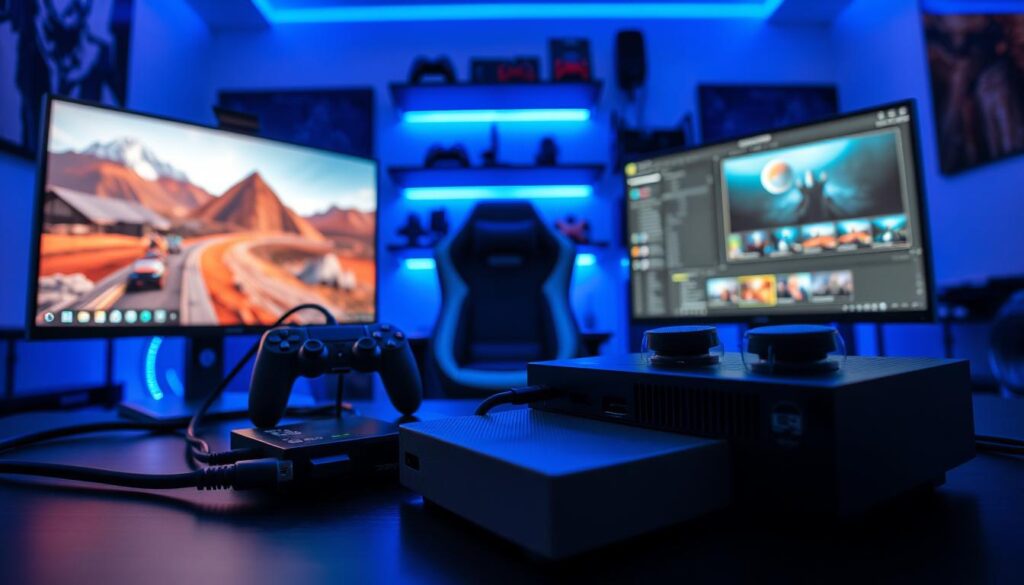
The strategy is elegant. Use a quality capture card to import your console feed into your primary PC workflow. This allows you to composite your gameplay in software like OBS. You can overlay webcams, stream alerts, and live chat.
More importantly, you leverage your powerful PC for encoding. This delivers a smoother, higher-quality broadcast than any console’s built-in streaming ever could.
Want to set this up? Here’s a stripped-down guide:
- Connect your console’s HDMI output to the capture card’s input.
- Run a second HDMI cable from the card’s output to your monitor (for lag-free play).
- Connect the capture card to your PC via USB.
- In OBS, add a new “Video Capture Device” source and select your card.
- Arrange your gameplay, webcam, and overlays on the canvas. You’re now a broadcast director.
The alternative? Trying to merge a separate console screen into a PC stream is a Rube Goldberg machine of frustration. The capture card is the elegant solution.
| Scenario | Primary Goal | Recommended Method | Key Advantage | Consideration |
|---|---|---|---|---|
| Pure Gameplay | Just playing on a monitor | Direct HDMI Connection | Zero added latency, dead simple | No recording or streaming capability |
| Content Creation | Streaming with commentary & alerts | Dedicated Capture Card | Full PC integration for professional overlays | Requires investment; research low-latency models |
| Hybrid Use | Occasional clips, mostly playing | Console Share Features + Direct HDMI | Convenient, no extra hardware needed | Limited customization, often lower broadcast quality |
| Professional Broadcast | High-quality, reliable streams | Premium External Capture Card | Studio-grade reliability and near-zero latency | Higher cost; ensures a seamless viewer experience |
So, is a capture card essential? Not for everyone. But for the hybrid streamer, it’s the tool that transmutes your playing station into a full broadcast studio. It grants you the power to comment on the console experience from the commanding vantage point of your PC. That’s not just an upgrade; it’s a paradigm shift.
Cable Length and HDMI Certification
Cable management is like dental hygiene in tech. It’s essential but often overlooked. A top-notch monitor and console can be ruined by a cheap HDMI cable. It’s all about keeping the signal strong.
Choosing the right cable length is key. Too long and it’s a mess, too short and it’s stressful. Aim for the perfect length with a bit of extra for flexibility. Organize cables by type and label them clearly.
Certification is where the experts shine. For 4K 120Hz VRR, you need HDMI 2.1 certified cables. It’s not optional, it’s a must.
An uncertified cable might seem fine at first. But it can’t handle the demands of modern tech. It might cause flickering, color issues, or even fail to connect.
HDMI certification is like a quality stamp. It ensures the cable can handle the data. Always choose cables with the “Ultra High Speed” logo. Don’t trust just the packaging.
Buy HDMI 2.1 cables longer than you need. Cut and re-terminate them for the perfect length. Label them well. This creates a solid, silent setup. It’s the foundation for your tech to shine.
Example Hybrid Layouts
Let’s take a look at two real-world setups where the console + PC hybrid dream comes true. These aren’t just showpieces. They’re real, lived-in spaces that show how it works.
The Streamer’s Command Center is our first stop. Imagine an 80-inch L-shaped desk as the main stage. It has a 32-inch 4K monitor for PC gaming and video editing. Next to it, a 27-inch, 144Hz panel is just for the console.
A high-end KVM switch is the heart of this setup. It lets one keyboard and mouse control both systems. This makes sharing peripherals easy.
The console’s video goes through a capture card in the PC. This lets the streamer play on the console monitor while managing chat on the PC screen. Controllers charge in a dock, and all cables hide in a central tray.
This setup is perfect for content creators. The KVM switch keeps things tidy. The capture card makes integrating the console into streaming easy. It’s all about purpose-built gear.
On the other hand, The Space-Conscious Strategist goes for minimalism. It uses a single, large 4K 144Hz monitor for both PC and console. An HDMI 2.1 switch switches the video with one click.
A small USB switch handles keyboard and mouse duties. Audio from both devices is mixed through a tiny mixer under the desk. The console is on a stand next to the PC tower.
- Core Tech: HDMI 2.1 switch, USB switch, compact audio mixer.
- Philosophy: Maximum function, minimal footprint.
- Ideal For: The player who values a clean desk and instant input switching.
This setup shows you don’t need a huge desk. It’s a single-screen powerhouse. The console + PC hybrid here is all about being efficient and elegant.
Both setups solve the same problem but in different ways. One is big and specialized for creation. The other is small and focused on play. Your choice depends on your needs and space.
Troubleshooting HDCP, Handshake, and VRR
This is your guide to fixing HDMI issues. You’ve set up a top-notch system, but it’s not working right. Now, you face the challenge of signal protocol troubleshooting.
HDCP is like a strict bouncer at the digital content club. If Netflix on your PS5 goes black, HDCP might be the culprit. It’s a copy-protection check. Make sure all devices are using HDCP 2.2 or later.
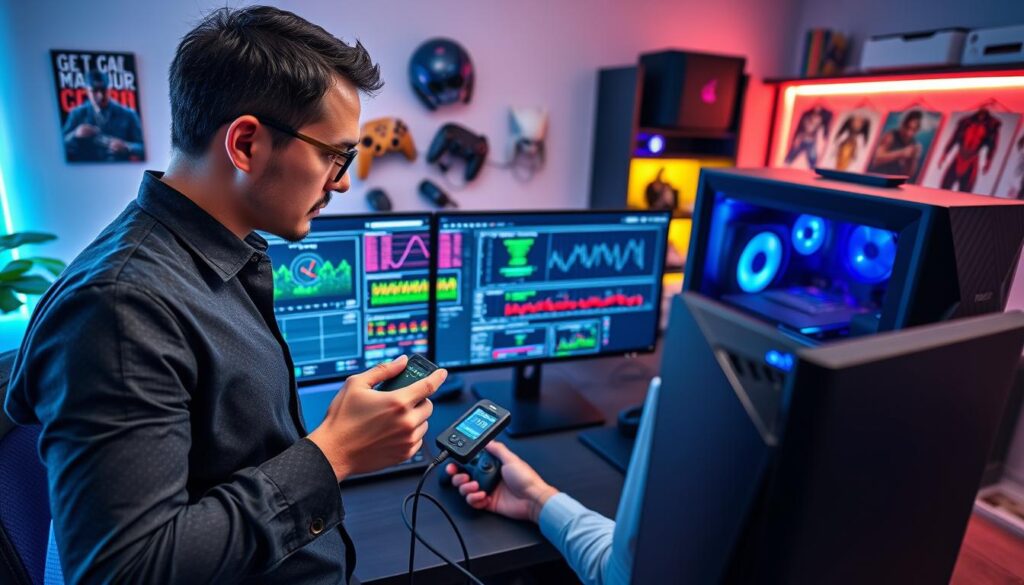
The mysterious handshake failure is a social issue, not a tech problem. Devices can’t introduce themselves right. Try the power cycle trick: turn off your display, then sources and switch. Wait a minute, then power everything back on.
VRR flickering or dropout is a sneaky problem. Gameplay can go from smooth to jerky. This issue loves unstable frame rates and weak connections. Check if your HDMI 2.1 cable and TV’s firmware are up to date. Test your setup and update everything.
These problems aren’t your fault. They’re just the bumps in the road of new tech. To fix them, think like a detective. Get some certified HDMI 2.1 cables and be patient. The perfect signal is out there.
Budget vs Premium Options
The wise gamer knows not to spend too much on everything. It’s about knowing where to spend and where to save.
The best gaming desk setup isn’t about how much you spend. It’s about how well it meets your needs. Your budget is like an investment in your fun.
So, what does a higher price get you? It’s simple. Spend more on things that really matter to you.
Your main interaction points are key investments. This includes your KVM switch, main display, and chair. A bad KVM can mess up your work. A low-quality monitor can hurt your eyes. These are long-term investments, not quick buys.
Also, don’t skimp on your peripherals. A good console dock is worth it. It keeps your gear safe. A flimsy stand can damage your console.
But, you can save money on some things. Be smart with your cables and hubs. Basic HDMI cables are okay if they meet your needs. You don’t need fancy cable management or USB hubs.
For headset sharing, you don’t need a fancy mixer. A budget audio interface or a good USB DAC works well. For controller charging, start with a simple charger. You can always get a better one later.
Going premium means less hassle and more style. Going budget means you’ll have to do more research and might face more problems. Don’t expect magic from cheap cables or fancy features on a basic monitor.
| Component | Premium Play (Investment) | Budget Move (Savings) |
|---|---|---|
| KVM & Switching | A solid, brand-name KVM for quick switching. Your sanity depends on it. | A basic USB switch for sharing peripherals, with manual display input. |
| Primary Display | Invest in quality, refresh rate, and HDR. This is your game window. | Focus on resolution and refresh rate over fancy color or dimming. |
| Audio & Headset Sharing | A dedicated mixer or high-end USB DAC for perfect audio routing. | A budget mixer or a USB sound card for console audio. |
| Controller Charging & Console Dock | An official or quality magnetic charging dock and a solid stand. | A simple wired charger or a third-party dual-bay charger. Use the console’s stand. |
| Cables & Connectivity | Certified, durable cables from trusted brands. Good for permanent setups. | Certified basic cables for most needs. Use sleeves and clips for management. |
Manage your money wisely. Spend on what you use a lot. Save on the things that support your gaming. Your ideal setup is about smart choices, not just cost.
Conclusion
What’s the final boss in this build? It isn’t a hardware monster. Creating a Console + PC Hybrid station is a win against artificial divides. It’s your personal command center, refusing to choose between a PlayStation 5 and a powerful gaming PC.
We’ve covered the basics. Displays with 4K 120Hz and VRR are key. KVM switches from brands like Level1Techs or TESmart act as your diplomatic corps. Audio mixers from GoXLR or Elgato broker treaties between Discord chat and your Xbox Series X’s Dolby Atmos.
This Console + PC Hybrid ecosystem is a living project. It adapts with new NVIDIA GPUs or Sony’s PS5 Pro releases. The puzzle of seamless integration is the real game. The payoff is that silent click—switching from a PC productivity app to your console’s dashboard without a hiccup.
Start with a single, clean cable run. Integrate one seamless switch. The goal is an engineered environment where the tech fades into the background, leaving only pure play. Your ultimate hybrid setup awaits. Now, go build it.