

Most of us don’t need a new PC. What we really need is an upgrade to our current one. This upgrade can save us a lot of money.
Upgrading wisely is key, not just buying new stuff. We need to find out what’s slowing us down. Is it the CPU or the GPU?
Before buying anything, we should plan our upgrades carefully. We want to get the most bang for our buck. This means fixing what’s really holding us back, not just buying new parts.
CPU Upgrade Paths: Socket Compatibility, Performance Gains, and Platform Longevity
Choosing the right CPU upgrade can feel like navigating a maze of options. With many socket types and core counts, it’s easy to get lost. Just a few years ago, the mantra was simple: grab the fastest clock speed you could afford. But today, it’s about more than just speed; it’s about compatibility and future-proofing your setup.
Take my recent experience helping a friend decide between the i7-8700K and the i7-14700K. The numbers were compelling. The single-thread performance skyrocketed from 2748 to 4506 on PassMark, while the thread count doubled from 12 to 28. That’s not just an upgrade; it’s a leap into a new era of gaming performance. But here’s the catch: socket compatibility is the unsung hero of the upgrade journey.
The i7-14700K requires an LGA1700 socket, meaning a new motherboard is a must. And let’s be honest, no one wants to deal with a cascade of changes if they can avoid it. If you’re not overclocking—and let’s face it, most gamers aren’t—opting for a B760 motherboard will save you some cash while delivering the performance you need.
Longevity is another key factor. AMD’s AM5 socket is set to support multiple generations of processors, making it a wise investment for the future. In contrast, Intel’s LGA1700 is nearing its end of life. So, when you’re weighing your options, remember: your motherboard choice today could dictate your upgrade options tomorrow.
In summary, a CPU upgrade isn’t just about boosting performance; it’s about making smart choices that will serve you well down the line. So, as you consider your options, keep in mind the balance of socket compatibility, performance gains, and platform longevity. For a deeper dive into the philosophy of gaming upgrades, check out this insightful resource.
GPU Upgrade Strategy: When to Upgrade, Performance Per Dollar, and VRAM Requirements
Upgrading your GPU can feel like a game of roulette. But knowing when to upgrade can give you a big PC performance boost. The GPU market changes fast, and timing your upgrade right can save you from spending too much on a card that won’t help your system.
First, let’s talk about performance per dollar. It’s not just about buying the latest card. It’s about finding the right one for your system. Try running a bottleneck test. Lower your resolution and settings to see if your frame rates improve. If they do, your CPU is ready for a better GPU. But if not, you might be CPU-bound, and that new card could be a waste of money.
Now, let’s talk about VRAM requirements. In 2025, 8GB is barely enough for 1080p gaming. 12GB is the minimum for 1440p. For future-proofing, 16GB is the new standard. Modern games need more memory, and not having enough can hurt your performance.
Here’s a curveball many guides miss: Lossless Scaling. For just $7.99 on Steam, you can use a secondary GPU for frame generation. This lets your main GPU handle the heavy work, saving you money. It’s not magic, but it’s a smart way to upgrade without spending a lot.
To help you choose the right GPU, here’s a comparison table:
| Graphics Card | VRAM | Performance (FPS @ 1440p) | Price |
|---|---|---|---|
| RTX 4080 | 16GB | 90 | $1,199 |
| RTX 3070 | 8GB | 70 | $499 |
| RX 6800 XT | 16GB | 85 | $649 |
| GT 740 | 4GB | 30 | $100 |
In conclusion, upgrading your GPU is about understanding your system’s current and future needs. Don’t just follow the hype. Make informed decisions based on your actual performance. It’s not about the best card; it’s about the right one for your setup.
RAM Upgrades: Speed vs Capacity, Single vs Dual Rank, and Gaming Performance Impact
In the world of gaming hardware upgrades, RAM is often overlooked but plays a key role. It’s like the behind-the-scenes hero of your gaming setup. While CPUs and GPUs get all the attention, RAM keeps everything running smoothly.
The debate between speed and capacity is like a high-stakes poker game. DDR5 offers speeds of 6000 MT/s or 7200 MT/s. But, don’t be fooled by these numbers. Higher latencies can make the difference between DDR4 and DDR5 less noticeable.
So, what’s the best amount of RAM? 16GB is now the minimum, and 32GB is ideal for those with many open tabs. This amount helps balance performance and cost.
Now, let’s talk about single-rank versus dual-rank RAM. Dual-rank RAM can offer a performance boost but puts more strain on the memory controller. For Intel systems, a 2x16GB DDR4 kit at 5000 MT/s is usually enough.
Before making a purchase, think about your current setup. If you’re switching from DDR4 to DDR5, consider the cost of a new motherboard. Sometimes, the best upgrade is the one you don’t make.
| RAM Type | Speed (MT/s) | Capacity (GB) | Latency | Performance Impact |
|---|---|---|---|---|
| DDR4-3600 | 3600 | 16 | 16-18-18-38 | High |
| DDR5-5200 | 5200 | 16 | 40-40-40-80 | Moderate |
| DDR5-6000 | 6000 | 32 | 36-36-36-76 | High |
Storage Upgrades: NVMe Gen 4 vs Gen 5, DirectStorage Benefits, and Capacity Planning
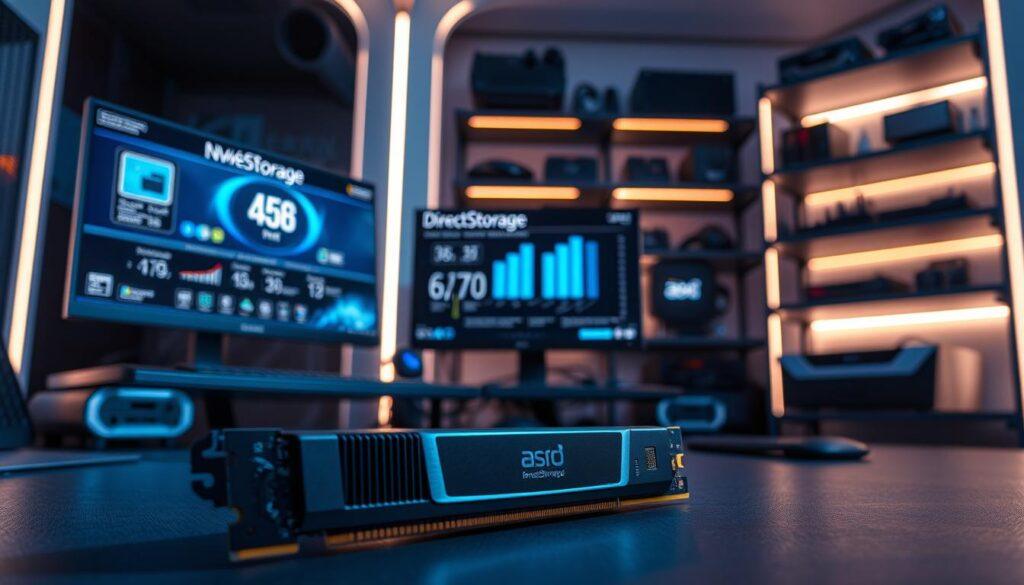
Storage upgrades are vital for system optimization. They are often overlooked but essential for top performance. Choosing between NVMe Gen 4 and Gen 5 can be tough. Gen 5 has read speeds of 12,000 MB/s, but Gen 4 was a game-changer for gamers.
DirectStorage, Microsoft’s answer to the PS5’s storage, is gaining popularity. It uses NVMe speeds for quicker asset streaming. This means faster game loading without the usual lag.
But, you don’t need to store all games on the latest drive. A tiered approach is best. Use a fast Gen 4 drive for Windows and your favorite games. For others, consider external storage like the WD 1TB My Passport. It’s affordable and doesn’t take up a precious M.2 slot.
Capacity planning is also important. A nearly full drive can slow down your system. Make sure to leave some space for your SSD to perform well. In gaming, speed is important, but so is a smooth experience.
Cooling Upgrades: Thermal Throttling Solutions, Overclocking Headroom, and Noise Reduction
Thermal throttling can turn your gaming PC into a slow machine. It quietly lowers your frame rates, making your PC feel slow. I learned this the hard way when my AIO cooler stopped working after five years, making my CPU hot.
AIO coolers usually last about five years. After that, they can stop working well. The ARCTIC Liquid Freezer III Pro 240 A-RGB is a great alternative. It has a thicker radiator and an integrated VRM fan to cool your PC better.
Don’t forget about air cooling. The Noctua NH-D15s is a top choice for cooling. It lasts longer than AIO coolers and works well in well-ventilated cases.
Good cooling also means quieter fans. Quieter fans make your gaming more immersive. A cool system runs fans slower, so you can focus on the game.
| Cooling Solution | Type | Thickness | Special Features | Price |
|---|---|---|---|---|
| ARCTIC Liquid Freezer III Pro 240 A-RGB | AIO Liquid Cooler | 38mm | Integrated VRM fan | $83 |
| Noctua NH-D15s | Air Cooler | 160mm | Long lifespan, quiet operation | $99 |
| Cooler Master Hyper 212 | Air Cooler | 158mm | Budget-friendly, reliable | $40 |
Choosing the right cooling solution is key for better gaming. Whether you pick an AIO or air cooler, make sure it fits your needs. Don’t let thermal throttling slow down your gaming.
Power Supply Upgrades: Efficiency Benefits, Modular Advantages, and Future GPU Compatibility
The power supply is key to your gaming setup. It’s often overlooked in favor of flashy GPUs and fast CPUs. But, a strong power supply is vital for smooth performance, thanks to today’s gaming needs.
Modern graphics cards, like the RTX 4080, can have sudden power spikes. You might think an 850W power supply is enough. But, those quick power jumps can cause problems, even with top units like the Corsair RM series. It’s not just about wattage; it’s about keeping your system stable.
When looking to upgrade, focus on efficiency ratings like 80 Plus Gold or Platinum. These show better components and tighter voltage control, boosting your system’s stability. This means you get more value and save on your electric bill.
Upgrading to a modular power supply also improves your life. No more messy cables that look like spaghetti. Modular cabling lets you only use what you need, making upgrades easy.
Thinking about future GPU upgrades? Add a 200W buffer above what calculators suggest. The cost difference between an 850W and a 1000W unit is small. But, avoiding power issues is worth it for a smooth gaming experience.
Motherboard Upgrades: Feature Additions, I/O Expansion, and Overclocking Capabilities
Upgrading your motherboard might not excite you at first. But, it’s the heart of your gaming setup. It connects and talks to all your parts. When thinking about a new motherboard, ask yourself what you really need. Often, it’s not what you think.
Many gamers are drawn to fancy motherboards like the Z790. They sound cool, but most people do just fine with a B760. Why spend more on features you won’t use? A B760 in MATX form saves money and gives great gaming performance.
Here are some key features to consider when upgrading your motherboard:
- I/O Expansion: Check your USB ports and make sure you have the latest connections. Finding out your new capture card takes bandwidth from your GPU slot is frustrating.
- Compatibility: If you have DDR4 RAM, choose a DDR4-compatible motherboard. This lets you keep using your old RAM, saving money for later.
- Overclocking Capabilities: Overclocking sounds good, but Intel’s turbo boost is so good that manual overclocking might not help much for gaming.
The motherboard isn’t flashy, but it’s vital. It’s the platform for your other components. A good choice can give you a big PC performance boost. This improves your gaming without costing too much.
Monitor Upgrades: Resolution Scaling, Refresh Rate Benefits, and Panel Technology
When it comes to gaming hardware upgrades, the monitor is often overlooked. But it shouldn’t be. It’s the key part that shows every pixel and frame your powerful GPU makes. Upgrading your monitor can change your gaming world, making visuals and performance better.
First, let’s look at resolution scaling. Moving from 1080p to 1440p isn’t just about clearer images. It shifts the focus to your graphics card. This is great if you have a strong GPU. It’s like switching to a sleek sports car from an old sedan.
Then, there’s refresh rates. Going from 60Hz to 144Hz is a big change. It’s like moving from standard definition to high definition. Everything feels smoother and more alive. But, going from 144Hz to 240Hz is mostly for competitive players. It’s about milliseconds.
Panel technology is also key. IPS panels have vibrant colors and wide viewing angles, ideal for gaming. VA panels are great for contrast, perfect for horror games. OLED panels offer true blacks and stunning visuals, making games feel cinematic. Choosing the right panel is like picking the right soundtrack for your game.
In conclusion, your monitor is what you look at for hours. Not upgrading it is like buying a sports car and putting economy tires on it. Spend wisely, and your gaming will improve.
Peripheral Upgrades: Mechanical Keyboards, Gaming Mice, and Audio Enhancement
Peripheral upgrades are key to better gaming, often overlooked but vital for system optimization. While many gamers focus on the CPU and GPU, the right peripherals can greatly improve your experience. Let’s explore mechanical keyboards, gaming mice, and audio enhancements.
Mechanical keyboards have evolved from niche gear to a must-have for gamers. They offer a range of tactile feedback options, making it hard to choose. Whether you like a clicky sound or a soft touch, there’s a keyboard to enhance your gameplay.
Gaming mice have also advanced, with sensors that surpass human accuracy. Your thumb is the real limit, not the DPI count. A quality gaming mouse can bring precision and comfort, making long gaming sessions more fun.
Now, let’s discuss audio. Many gamers miss out on a great opportunity here. Onboard audio chips are good, but dedicated sound cards offer better quality. For example, the Creative Sound Blaster Audigy Fx Pro provides high-quality playback and a clear signal-to-noise ratio.
The Audigy Fx Pro also has AutoEq, which improves the sound of your existing gear. If you use studio monitors or a 7.1-channel speaker system, the SPDIF output alone is worth the cost. Good audio makes gaming and everything else better.
In conclusion, investing in peripherals is more than just spending money. It’s about making smart choices for a more immersive gaming experience. For the best deals on gaming peripherals, check out this guide. The right upgrades can greatly improve your performance and enjoyment.
Installation Guides: Safe Upgrade Procedures and Compatibility Verification
Upgrading your gaming PC is like starting a grand adventure. It begins with a solid plan. But, reality can be tough. I’ve made all the mistakes, from bent pins to messy thermal paste.
Safe upgrade procedures are key. They can turn a fun project into a disaster. So, it’s important to follow them closely.
Before you start, check if everything fits. Make sure your air cooler won’t block your RAM. Also, check if your PSU has enough cables and power for your new parts. And, make sure your BIOS supports your new CPU.
When adding a second GPU, use the bottom PCIe slot. Set your main GPU to “High performance” in Windows Graphics settings. This will boost your gaming.
Installing an AIO cooler needs care. Use a cross-pattern for thermal paste. Take your time. The screws and your sanity will thank you.
| Component | Checkpoints | Common Mistakes |
|---|---|---|
| CPU | Check socket compatibility and BIOS version | Forgetting to update BIOS |
| GPU | Verify PCIe slot availability | Installing in the wrong slot |
| RAM | Ensure clearance with coolers | Using incompatible speeds |
| Cooling System | Check thermal paste application | Applying too much or too little paste |
In conclusion, upgrading your gaming PC can be rewarding. Just take your time, check compatibility, and follow safe steps. Happy upgrading!
Performance Validation: Before and After Benchmarks and Optimization Tips
Upgrading your gaming rig is more than just swapping parts. It’s about making sure those new components really improve your PC’s performance. Before you start, set a baseline. Run benchmarks on your favorite games to see frame rates, temperatures, and synthetic test results.
After installing your new hardware, run those tests again. Compare the results. Did you get the performance boost you wanted? The numbers will show you the truth, not just your gut feeling.
For a deeper look, try lowering your resolution to check your GPU’s performance. This shows how much room your graphics card has. Also, limit your CPU’s maximum state to 70% in Windows power management. This simulates the expected improvements and finds any bottlenecks.
Optimization adds the final touch. Enable Resizable BAR if your setup allows it. Don’t forget to set your RAM’s XMP profile. Many miss this step, losing out on big speed boosts. Also, check your storage drives for firmware issues that might slow them down.
A validated upgrade means a happy upgrade. With careful benchmarking and optimization, you’ll really see the benefits of your investment. Remember, hope isn’t enough. Make sure your upgrades perform as well as you do.