
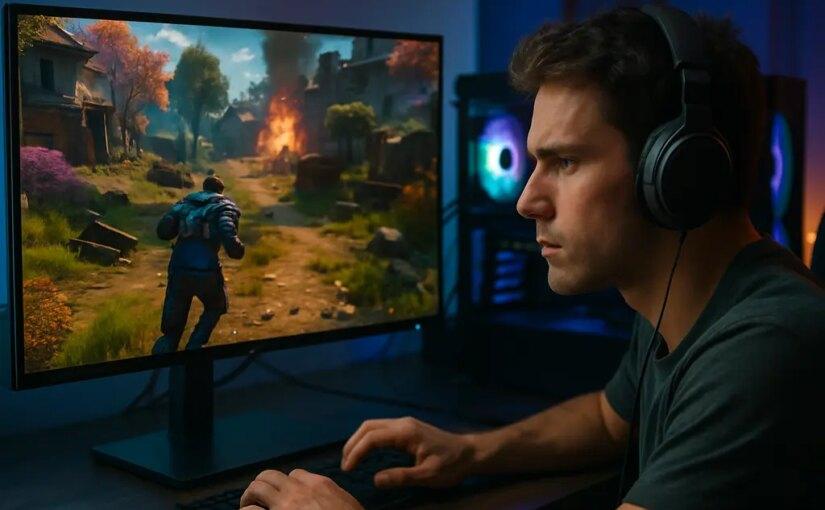
A smart September Gaming Setup is less about buying every new part and more about removing the bottlenecks that will annoy you first: a slow display, a hot case, a cramped desk, or a weak peripheral that breaks immersion. As of September 19, 2026, the safer move for players installing new titles is to check the full setup before spending big on one component. New games can stress different parts of a PC depending on resolution, settings, storage load, and input needs, so the best upgrade is the one that fits your monitor, your room, and your budget.
That practical approach matters because setup advice can get noisy fast. One player may need a 144 Hz monitor before touching the GPU. Another may already have a good display but needs better airflow after adding a hotter graphics card. A third may get more comfort from a mouse, keyboard, headset, or chair adjustment than from a headline part. For those interested in more in-depth gaming and hardware discussions, GameCloud Network serves as a related site within our network, yet this checklist stays focused on build-side decisions.
Why A September Gaming Setup Starts With The Display
The monitor is the part you see every second, so it should be the first checkpoint. Refresh rate affects how often the panel updates each second, and that can change motion clarity and input feel. RTINGS explains that higher refresh rates can reduce minimum input lag: about 8.33 ms at 60 Hz, 4.17 ms at 120 Hz, and 2.09 ms at 240 Hz under ideal refresh timing math RTINGS refresh-rate testing. That does not mean every player needs the fastest panel sold, but it does show why 60 Hz can feel behind once your PC can push higher frame rates.
September Gaming Setup Display Targets
For most PC gamers, the sensible display target sits around 144 Hz to 240 Hz, especially for shooters, racing games, action titles, and anything where camera movement is constant. If your current screen is 60 Hz and your graphics card already produces higher frame rates in the games you play, a monitor upgrade may feel more noticeable than a small CPU or storage change. If you play slower strategy, RPG, or sim titles, refresh rate still helps with cursor and camera movement, but color, resolution, contrast, and panel quality may matter more.
Variable refresh rate support is another useful feature to check before buying. VRR technologies such as FreeSync and G-Sync compatible modes are meant to reduce tearing and smooth out frame-rate swings when the GPU is not holding a locked output. Also check the port path. A high-refresh monitor only helps if your GPU and cable connection can feed the resolution and refresh rate you plan to use.
Why 1000 Hz Is Not A Normal Upgrade Target
Ultra-high refresh displays are now a real product category, but they are not a default recommendation. Ars Technica reported in May 2026 that LG announced the UltraGear 25G590B, a native Full HD 1000 Hz gaming monitor aimed at competitive FPS players, while also arguing that most players probably do not need that class of screen Ars Technica on 1000 Hz monitors. That is the key buying point: the last few percent of motion performance can cost far more than a normal high-refresh jump.
If your budget is tight, do not chase 1000 Hz just because it exists. A balanced September Gaming Setup with a 144 Hz or 240 Hz VRR monitor, solid mouse, stable frame delivery, and a comfortable chair will make more sense for most players than pairing a pricey display with weak supporting hardware.
Balance The GPU, VRAM, And Upscaling Plan
Graphics-card upgrades are tempting before a wave of new games, but the best choice depends on your display. A 1080p player does not need to shop like a 4K player. A 1440p high-refresh player needs more headroom than a casual 60 Hz setup. Before you buy, set a target: resolution, refresh rate, visual settings, and the kinds of games you actually play.
VRAM deserves attention because high-resolution textures and larger game worlds can increase memory pressure. That does not mean a card with more memory is always the better value, and it does not guarantee smoother performance in every title. It does mean you should avoid treating the cheapest model in a GPU tier as automatically equal if memory capacity, cooler design, or power behavior differs.
Upscaling support can also extend the useful life of a card, especially at 1440p and 4K. The careful way to treat it is as a tool, not a miracle fix. If a game supports a reconstruction or frame-generation feature on your hardware, it may help with perceived smoothness. If a game does not support it, or if the mode adds artifacts you dislike, the base GPU still matters. Build the PC around the native experience you can accept, then treat upscaling as extra flexibility.
Fix Heat And Airflow Before Chasing More Power
A faster GPU or CPU can expose case airflow problems that were easy to ignore before. If the system gets louder, boosts less consistently, or dumps more heat into the room, the issue may not be the chip alone. It may be the case layout, fan direction, dust buildup, or a cooler that no longer fits the workload.
Case Airflow Checks That Cost Little
Start with the basics: a clear front intake path, a rear exhaust fan, clean dust filters, and cables that do not block the main airflow path. A simple front-to-back airflow pattern is still the easiest plan for many mid-tower gaming PCs. More fans are not automatically better if they fight each other, but one intake and one exhaust is a better starting point than relying on a single rear fan in a warm room.
Cooling upgrades should match the CPU and case. A mid-range gaming CPU in a roomy airflow case may be fine with a good tower air cooler. A higher-power chip, a compact case, or a hot room may call for a larger air cooler or liquid cooler. Do not buy a large cooler without checking case clearance, RAM height, motherboard layout, and radiator support. The most expensive cooler is not useful if it does not fit cleanly.
Upgrade The Weakest Peripheral First
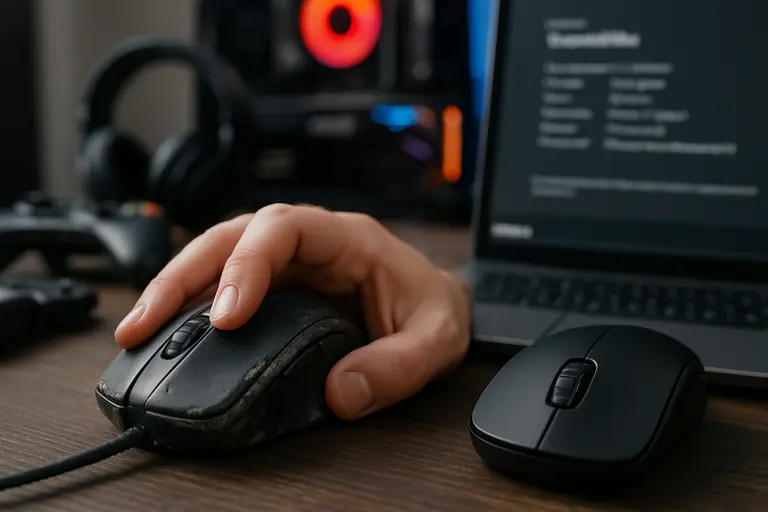
Peripherals are easy to underrate because they do not show up in a spec sheet the way a GPU does. Yet a poor mouse sensor, mushy keyboard, uncomfortable headset, or unstable controller connection can make a new title feel worse than it should. If your PC is already fast enough, replacing the weakest input or audio device may be the best value move for a September Gaming Setup.
- Mouse: prioritize comfortable shape, dependable buttons, and a sensor that tracks cleanly at your preferred sensitivity.
- Keyboard: choose switch feel, layout, and wrist position before lighting effects.
- Headset or speakers: look for comfort and clear positional cues rather than oversized branding claims.
- Desk surface: make sure the mouse has enough room for your sensitivity style.
- Cables: reduce drag and clutter before replacing gear that already works.
This is also where budget discipline helps. Many players get better results by replacing one bad peripheral under a set spending cap than by buying a matching accessory set. If component prices are squeezing your build, our related piece on budget gaming setups covers why monitor, GPU, RAM, and upgrade planning need stricter priorities.
Make The Desk Fit Longer Sessions
New releases can lead to longer sessions, which makes ergonomics part of the setup rather than an afterthought. Keep the monitor high enough that you are not craning your neck downward for hours. A common target is to place the top of the display near eye level, then adjust based on panel size, chair height, and distance. Keep elbows relaxed, shoulders low, and wrists as neutral as possible.
Breaks Are Part Of The Setup
Hardware cannot fix every comfort issue. Short breaks, hand stretches, and standing up between matches or missions can reduce strain without costing anything. If you notice wrist, neck, back, or eye discomfort, treat that as a setup problem. Changing chair height, keyboard angle, monitor distance, or mouse position may help before you spend on a new device.
Lighting also matters. Avoid placing the monitor directly against harsh glare or using the screen as the only light source in a dark room for long sessions. Bias lighting, a desk lamp, or softer room lighting can make late-night play easier on the eyes. None of this makes a PC faster, but it can make a long gaming session feel less punishing.
September Gaming Setup Checklist For New Titles
Use the final pass as a budget filter. First, decide whether the display is holding the PC back. Second, check whether the GPU has enough headroom for your resolution and whether upscaling support is useful for the games you play. Third, clean and test airflow before assuming you need a major cooling purchase. Fourth, replace the weakest peripheral instead of buying a full accessory stack. Fifth, fix desk comfort before longer sessions turn into strain.
The best September Gaming Setup is the one that removes the most friction for the least wasted money. A new GPU may be right for one player. A monitor, fan pack, mouse, or cooler may be smarter for another. Start with the part that limits your actual play, not the part with the loudest marketing. That keeps the setup ready for new titles without turning a seasonal upgrade into an unplanned rebuild.